
Automating WhatsApp Messaging
Summary:
By automating WhatsApp messaging, businesses can send timely and personalized messages, manage customer interactions more efficiently, and ensure consistent communication.
This guide will walk you through the process of setting up automated WhatsApp messages within your CRM system, enabling you to improve response times, increase customer satisfaction, and optimize your messaging strategy. By automating WhatsApp messaging, businesses can send timely and personalized messages, manage customer interactions more efficiently, and ensure consistent communication.
Setting Up WhatsApp Integration
Before diving into the creation of templates and automation, it's crucial to set up WhatsApp integration correctly. Here's how to get started:
Navigate to the settings menu in your CRM account and select the WhatsApp option. Link your account with your Facebook Business account and the phone number you've purchased through the CRM.

Follow the guided process to complete the setup.
Creating WhatsApp Templates
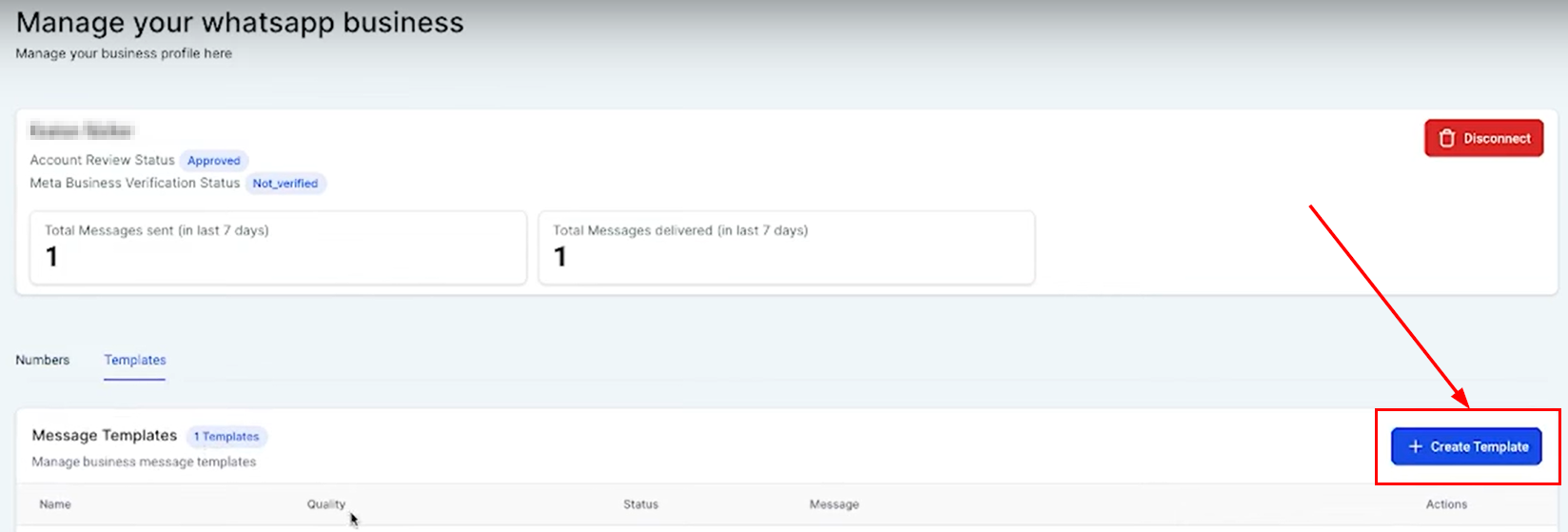
Templates are pre-designed messages that you can send to your contacts. To create a new template, click on “Create Template” after successfully connecting your account.
Enter a template name and select a category (e.g., Marketing), then choose the language for your template. Next, add a header, body text, and footer, incorporating custom variables such as the contact's first name to personalize the message. Preview your template on the right side of the screen to ensure it appears as expected, and finally, click "Create" to save your template.
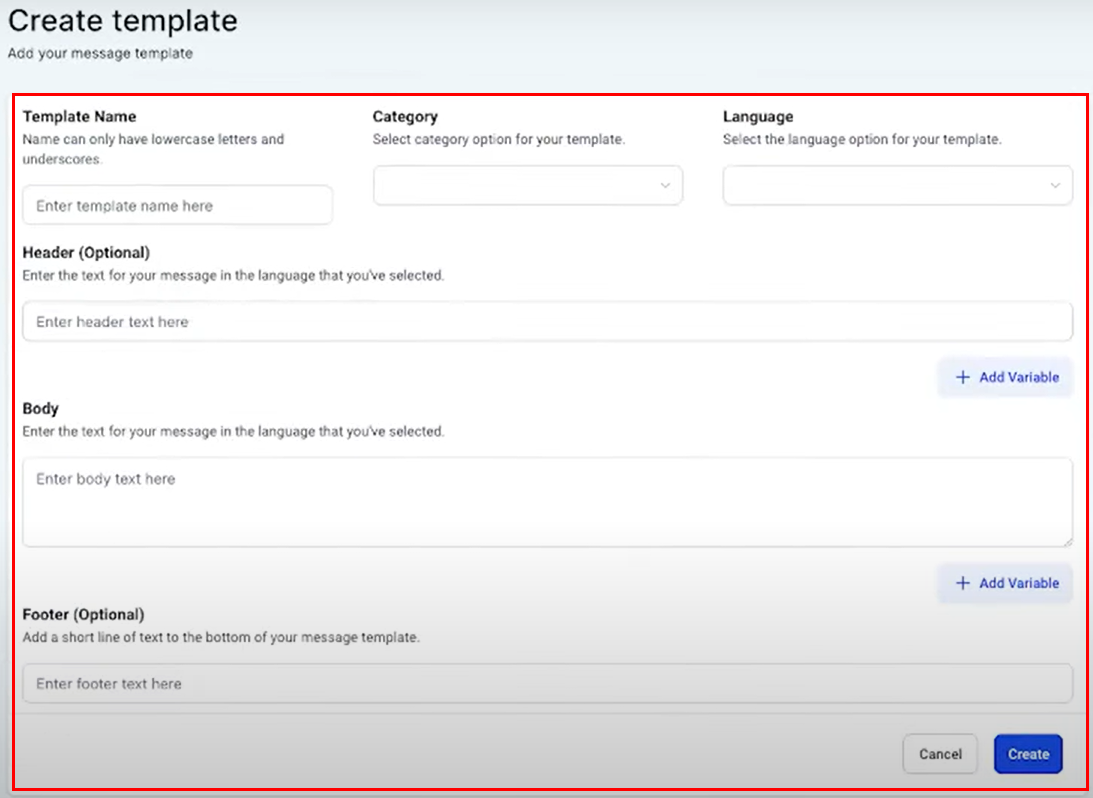
Templates can include various elements like headers, body text, and footers, with options to personalize messages using custom variables.
Automating WhatsApp Messages
Automation allows you to send WhatsApp messages based on specific triggers. Here's how to set up a basic automation:
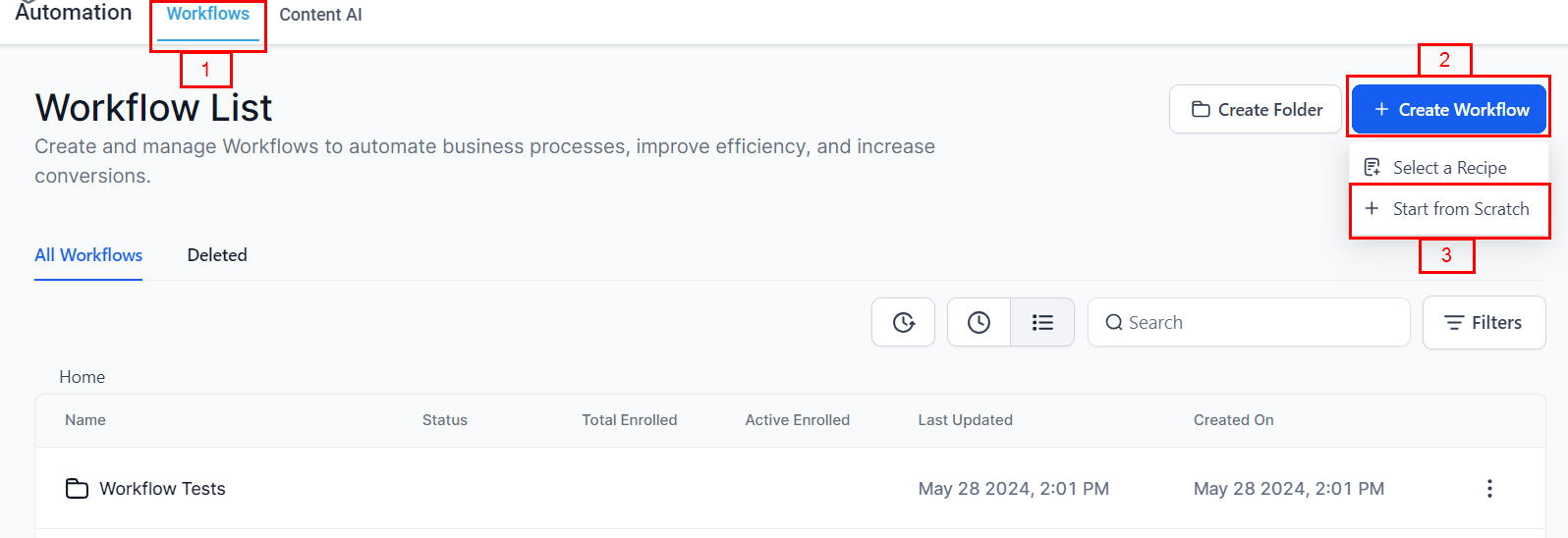
Navigate to the Automation section in your account. Opt to create a new workflow, or update an existing one from the list.
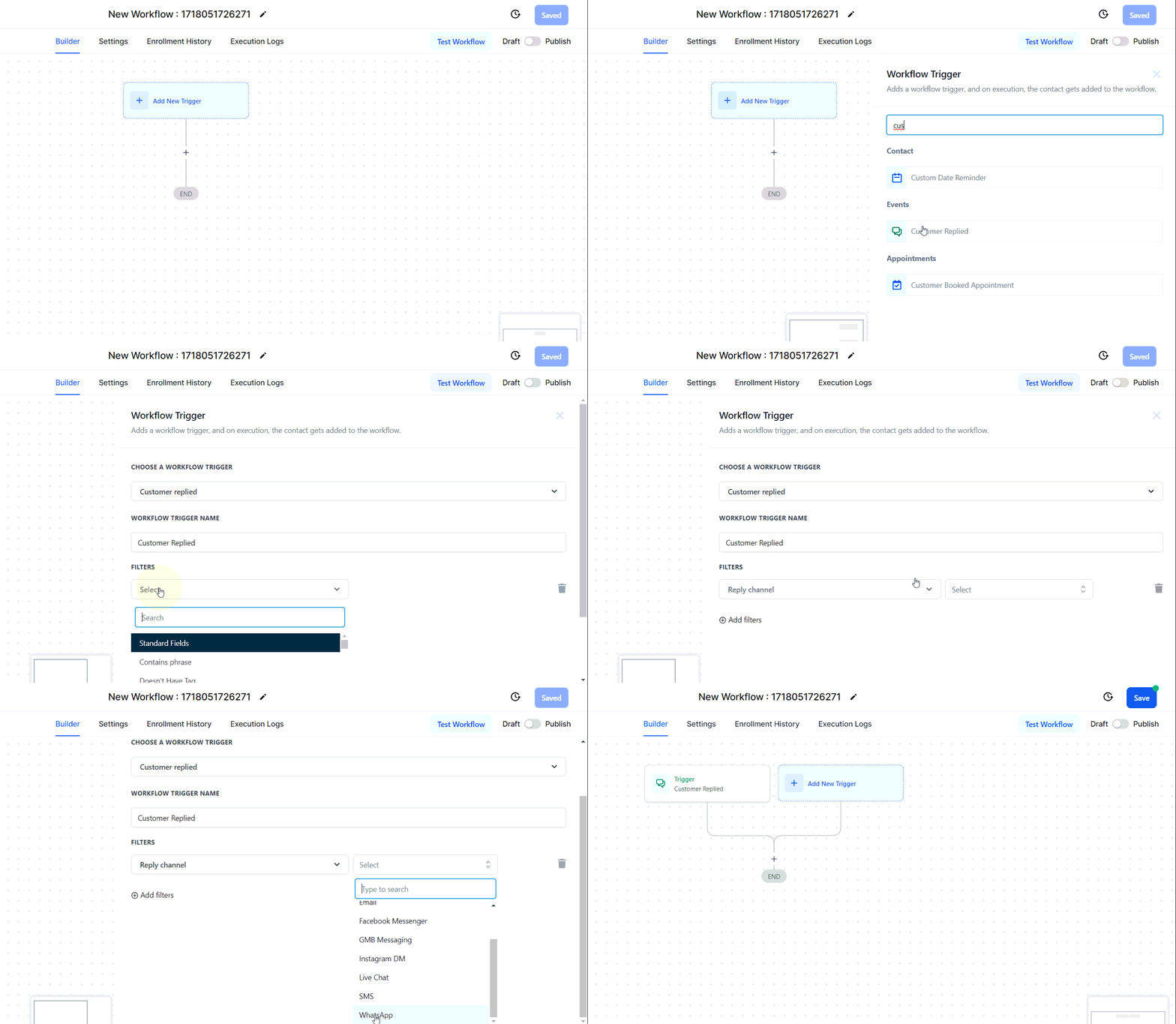
Select a suitable trigger (e.g., customer replied) and specify the trigger conditions (e.g., reply channel is WhatsApp).
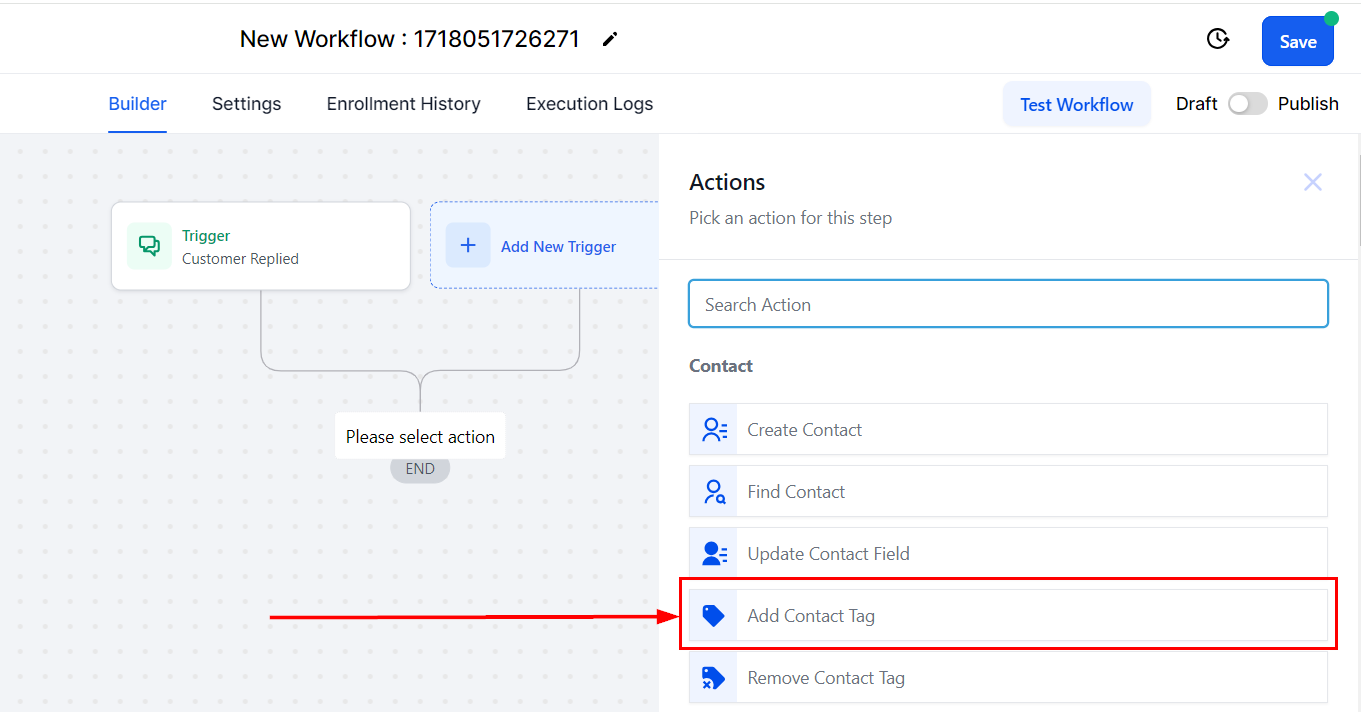
Add actions to your automation, such as tagging the contact as an active WhatsApp user.
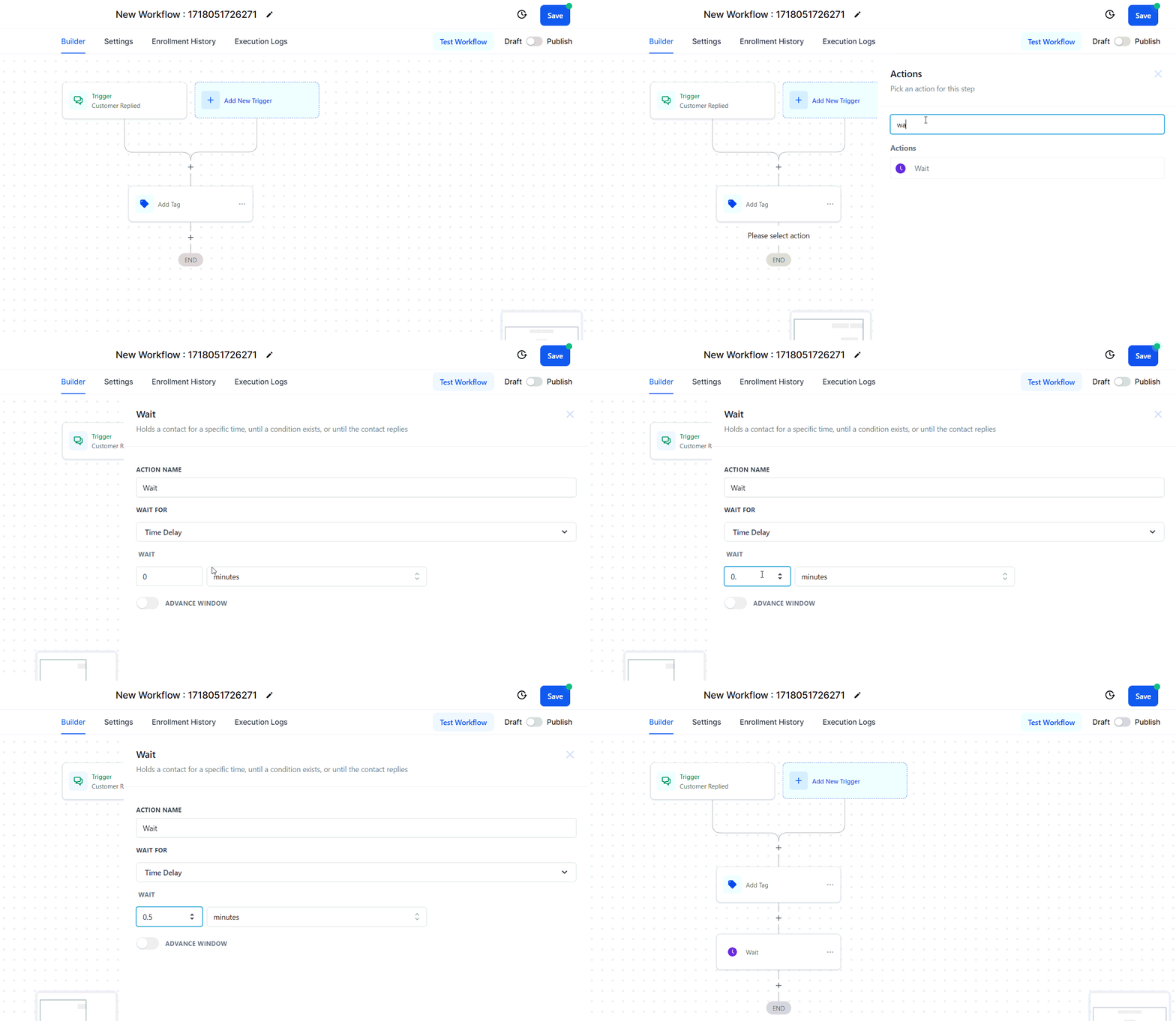
Include a delay (e.g., 30 seconds) to make the response seem more natural.
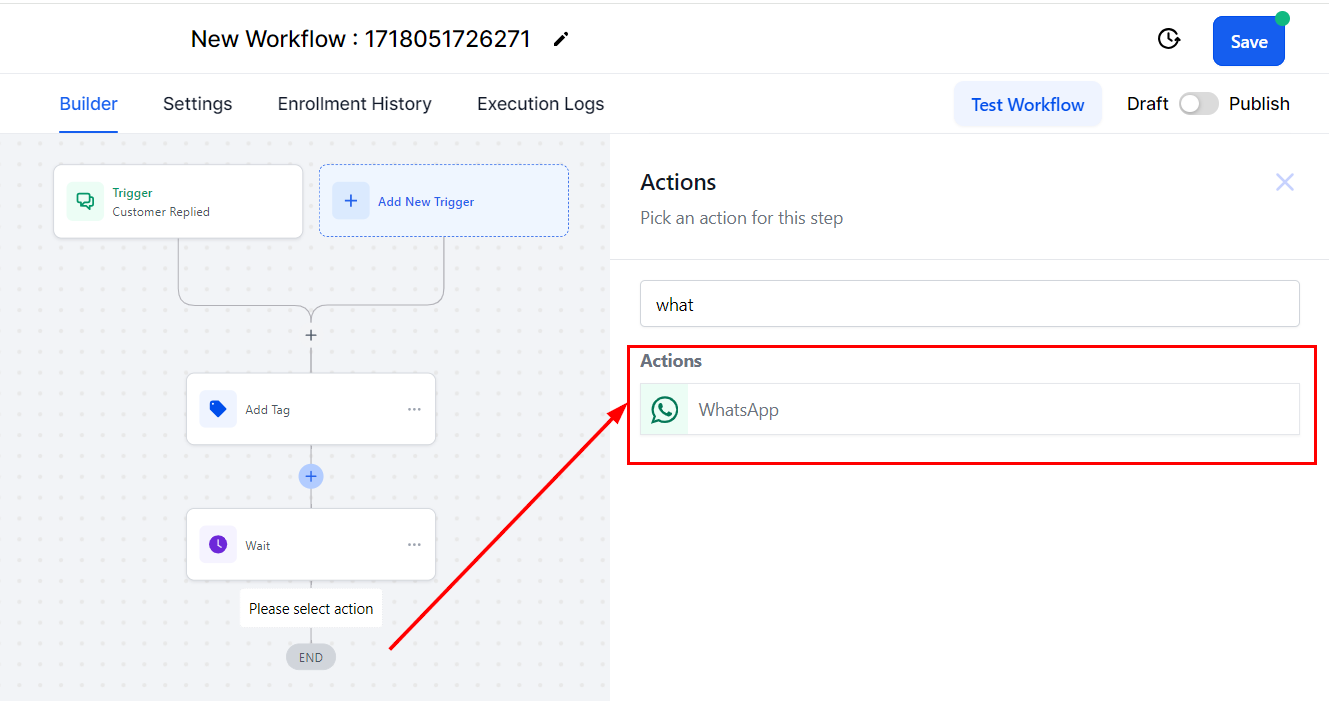
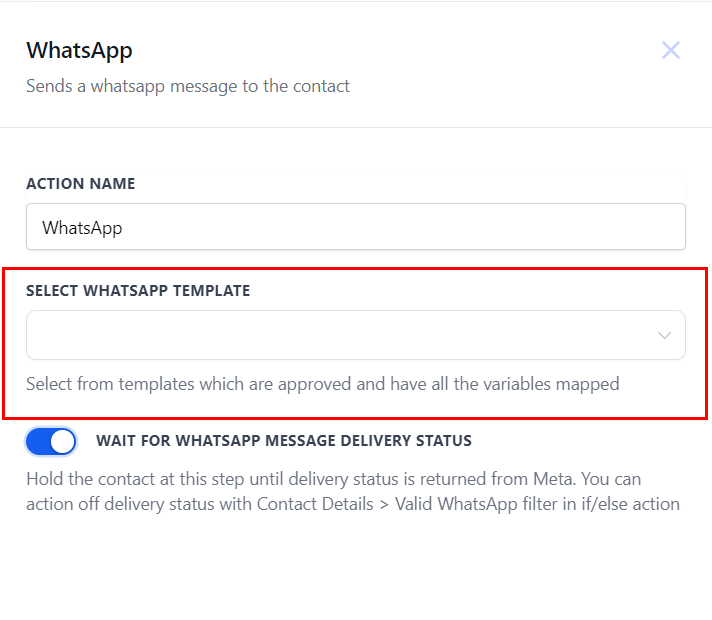
Choose to send a WhatsApp message using either a pre-designed template or a manual text with custom variables.
📌Note: WhatsApp messages that do not use a pre-approved template (free-form messages), can only be sent if the customer has first initiated contact within a 24-hour window. If you are initiating a new conversation with a customer, it is necessary to use a pre-approved template.
Learn more about the WhatsApp workflow action by checking out the article titled ‘WhatsApp Action’.
Add other actions relevant to your workflow, then save and publish the workflow to ensure timely and consistent interactions with your customers.
With the right automation strategies in place, WhatsApp can become a key driver of business success, helping you stay connected with your audience and drive better outcomes.
Frequently Asked Questions
Q: What if my WhatsApp messages are not sending?
- Ensure that your WhatsApp integration is correctly set up and that you have an active internet connection. Also, check if the phone number is correctly linked and verified.
Q: Can I use custom variables in all parts of the template?
- Yes, custom variables can be used in the header, body, and footer of the template to personalize your messages.
Q: How many templates can I create?
- There is no set limit on the number of templates you can create. However, it's advisable to manage your templates effectively to ensure they are easily accessible.