
Google Sheets Action: Create Multiple Rows
Summary:
Tutorial on the Google Sheets Action: Create Multiple Rows Workflow Action
Google Sheets allows you to manage big loads of data efficiently, both online and offline, it keeps the editing and organizing process easy and is the favorite of many businesses small and large. However, manually moving your data from the CRM to your Sheets back and forth can be tedious and time-consuming, the more your database grows the more annoying it becomes. That's why you want to make the most out of your system and automate it instead.
With the Google Sheets Action Create Multiple Rows you can easily insert new data rows below existing information. As long as you've integrated your Google account into the system you can send data to any Google Sheets document without third-party integrations or extra steps.
Using the Action
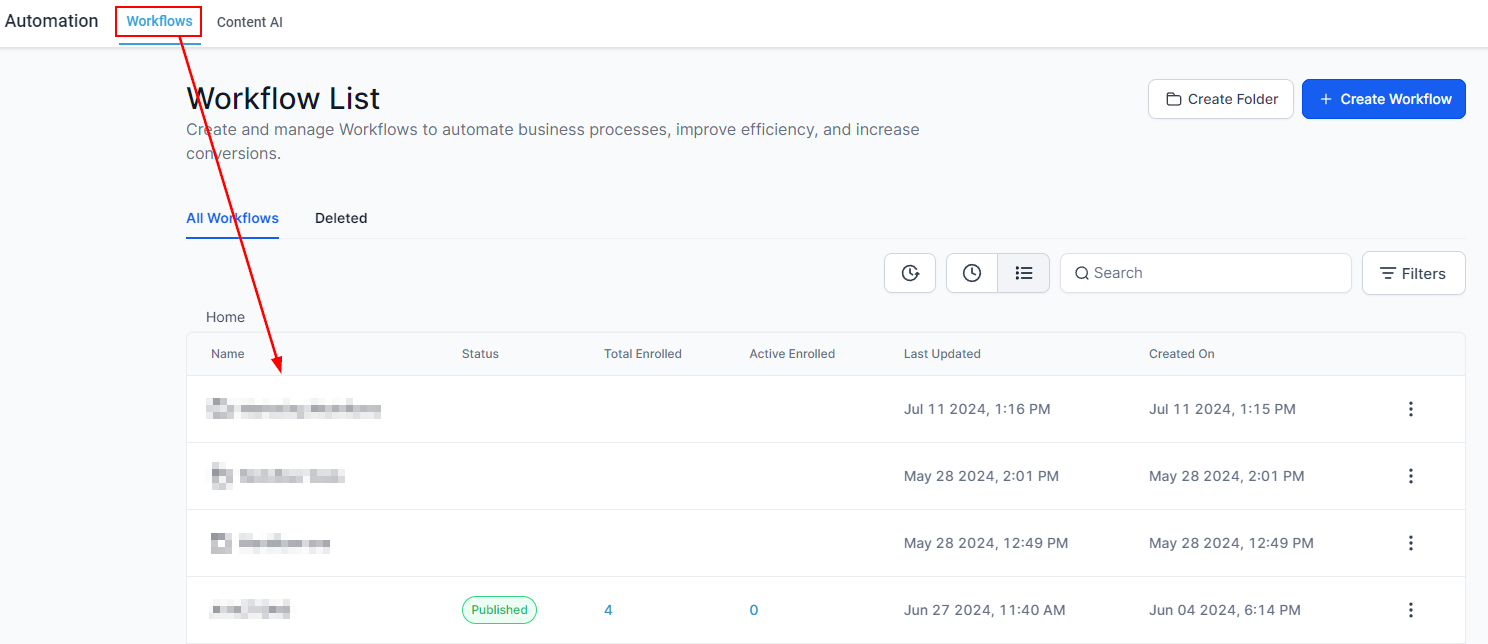
In the Workflow tab of your Automations section select any existing workflow or create a new one.
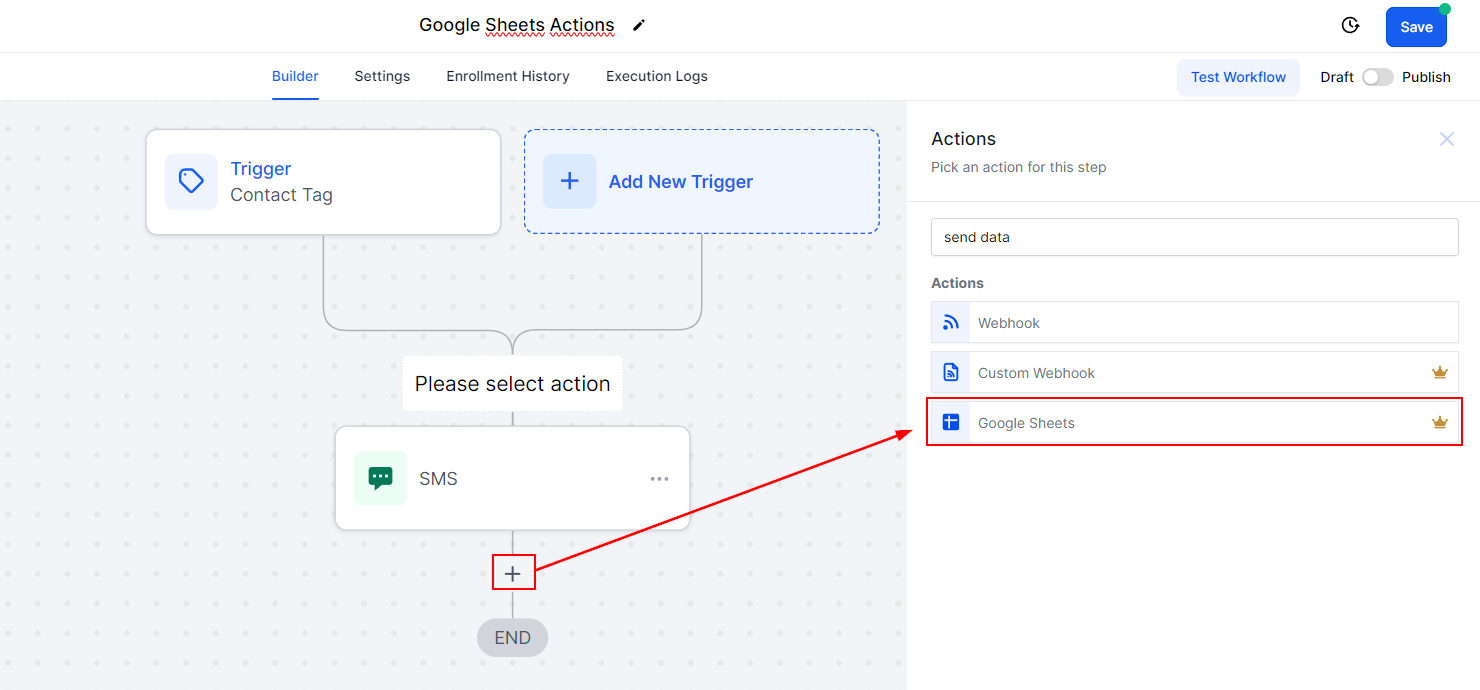
Inside the Workflow Builder click the + Sign button to open the action menu the actions will be under the Send Data category.
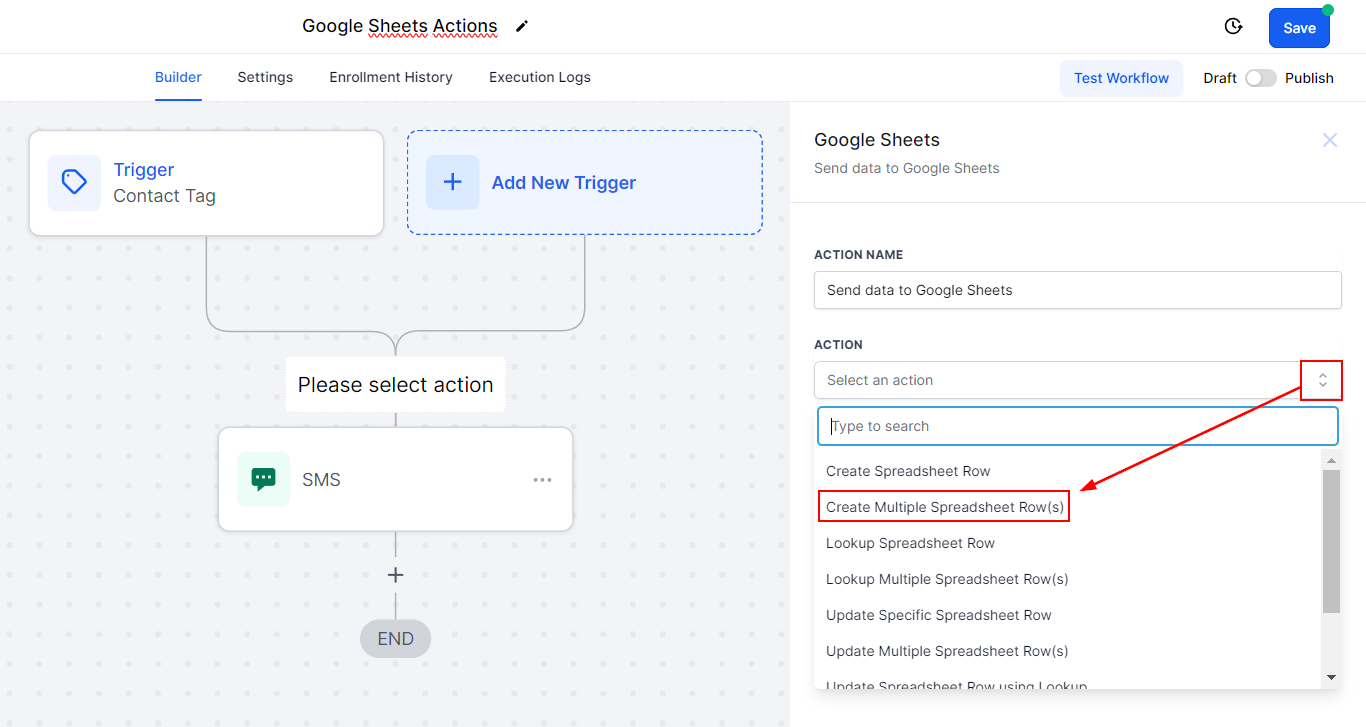
Once you've selected the action open the drop-down menu and select Create Multiple Spreadsheet Row(s)
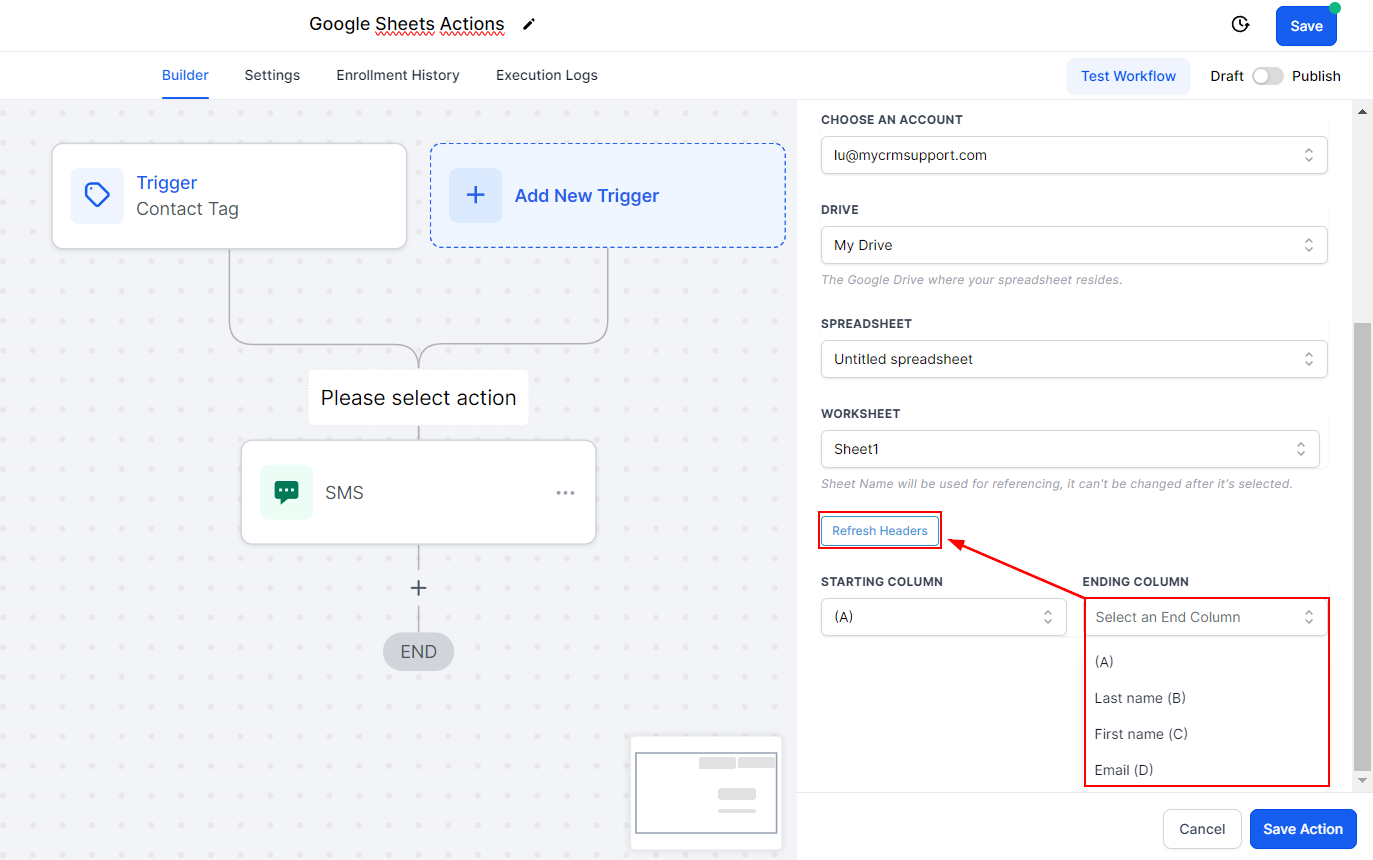
You'll be required to select an account, drive, spreadsheet, and worksheet to send the data to.
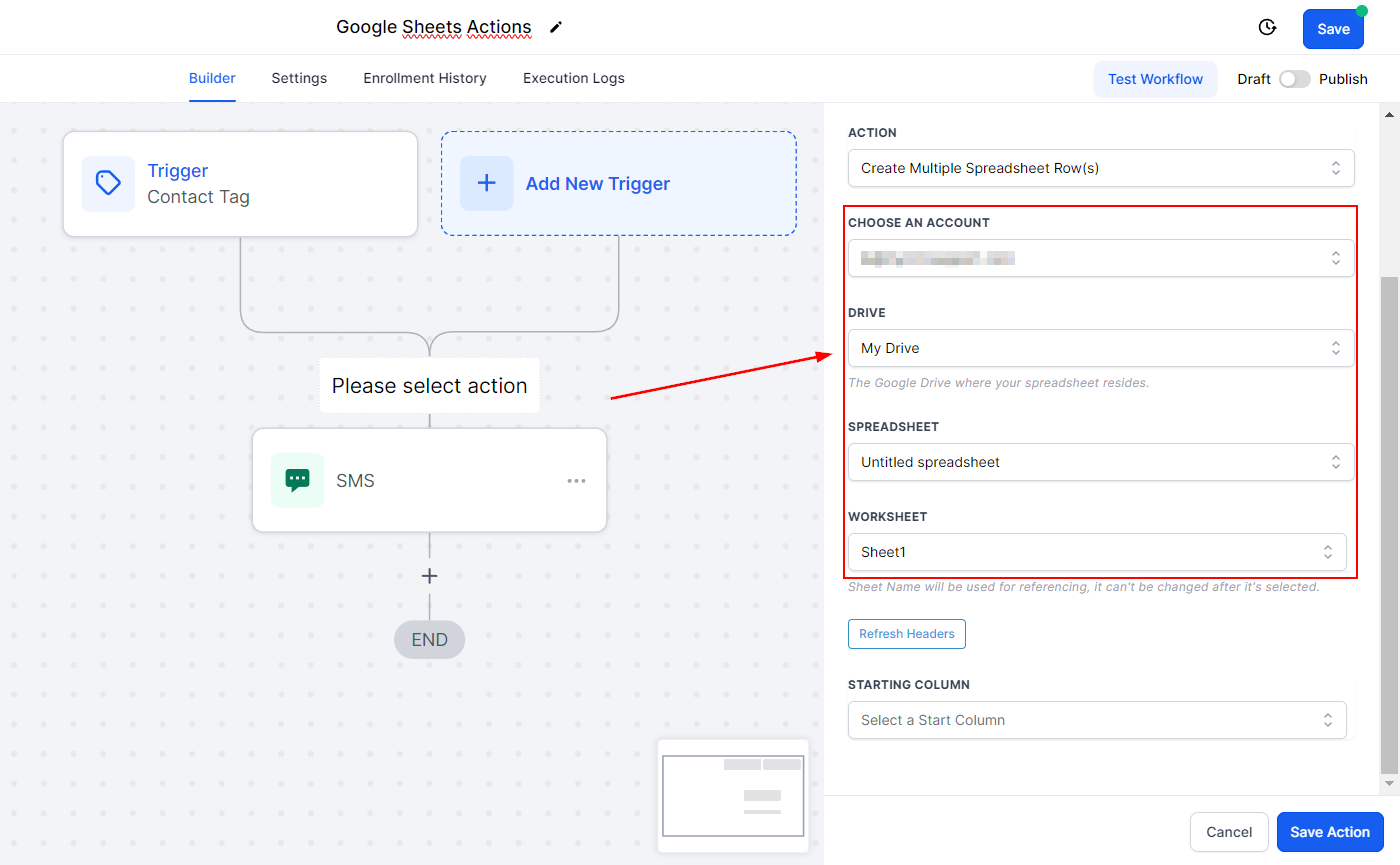
Choose a starting and ending column, header names will be displayed but if you see any discrepancies click “Refresh Headers” to fetch the latest data.
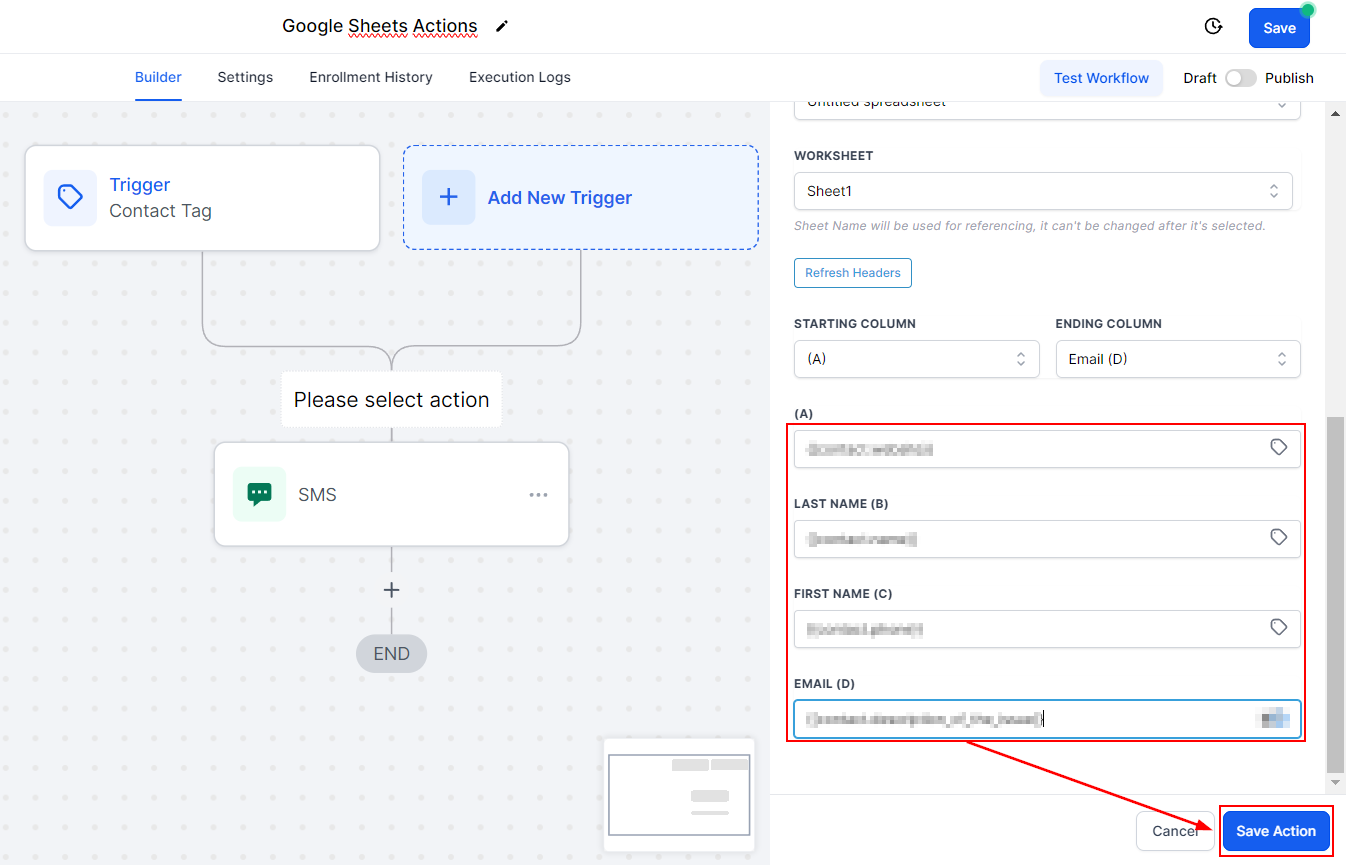
Insert the values you want to transfer to your Sheets then save the action.
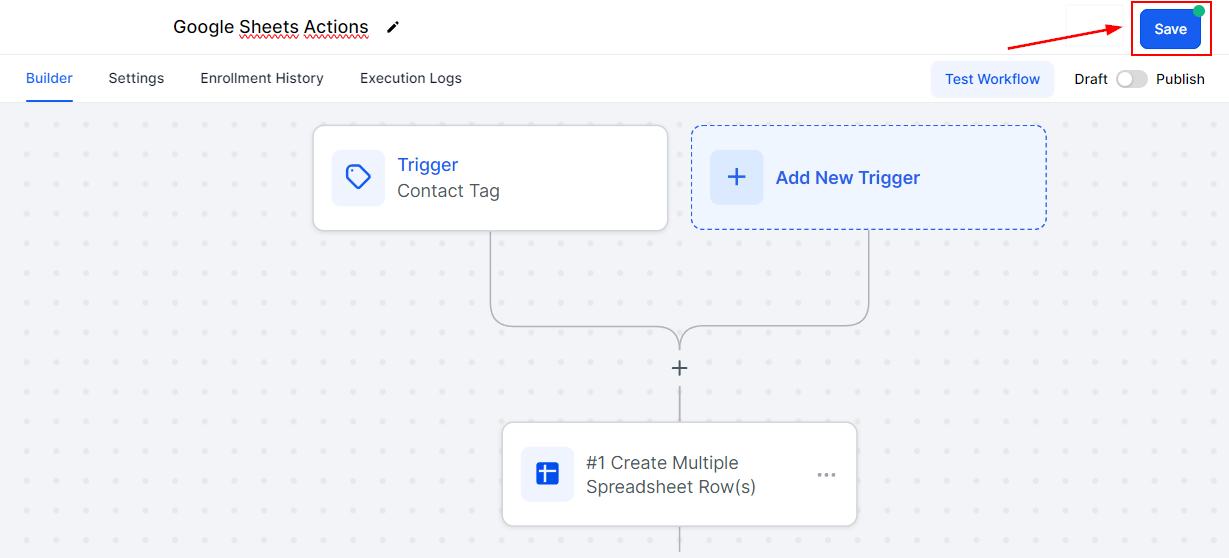
Save your workflow and you're done! This will send the data to your Google Sheets whenever the automation is triggered.
There you go! Enjoy all of the organizational benefits of having your data in a spreadsheet without the laborious task of moving it by hand.