
Text Formatter Action
Summary:
Quickly fix the text format of any field with this action.
Data comes in many forms, sometimes in numbers, sometimes in checkboxes that your customers selected, and sometimes that data is weirdly formatted text. Luckily you have an awesome tool at your disposal.
The “Text Formatter” Action lets you grab text from any field and change it to match your needs. There are a few options to cover, so let's start by clicking the "+" sign to add the action. You can look it up by scrolling down to internal tools or looking for it in the search bar.
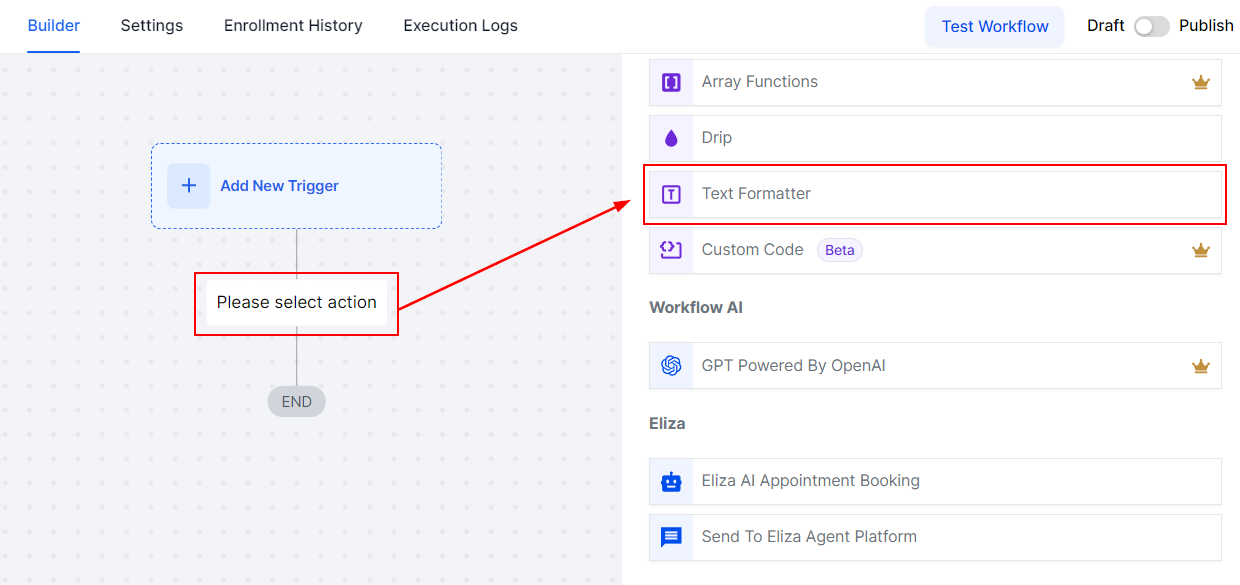
Action Type
After clicking on it, you'll need to select the Action type, which determines how the text will be formatted. The available actions include:
Case Types
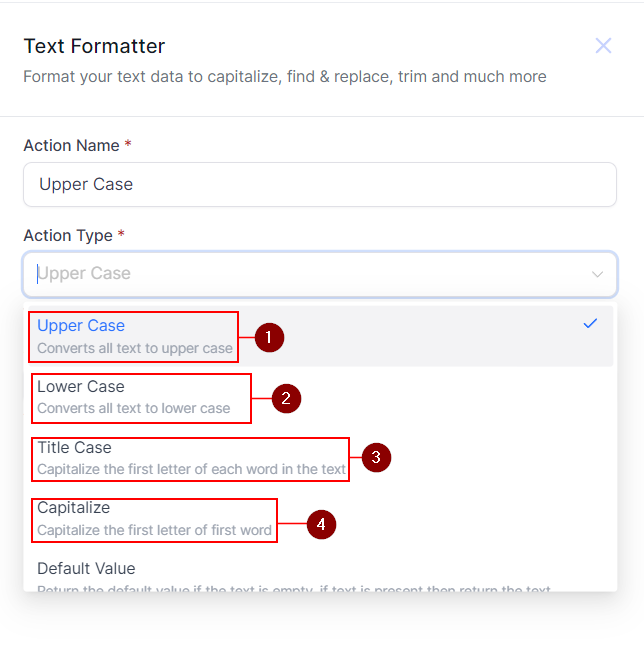
These change the way the text case shows. It consists of 4 options that, once selected, give you a small example of how the text will look.
- Upper Case: Converts all characters in the text to uppercase
- Lower Case: Converts all characters in the text to lowercase.
- Title Case: This capitalizes the first letter of each word.
- Capitalize: This capitalizes the first letter of the text.
Substitution Types
Substitution tools allow you to replace, supplement, or clean up text fields. They include:
- Default Value: If the text you added is empty it returns it to the value you set as default.

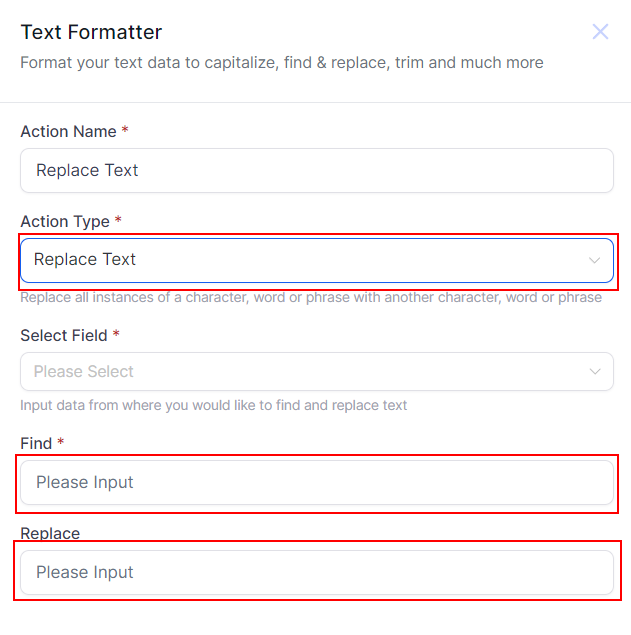
- Replace Text: Replaces occurrences of specified text with a new value.
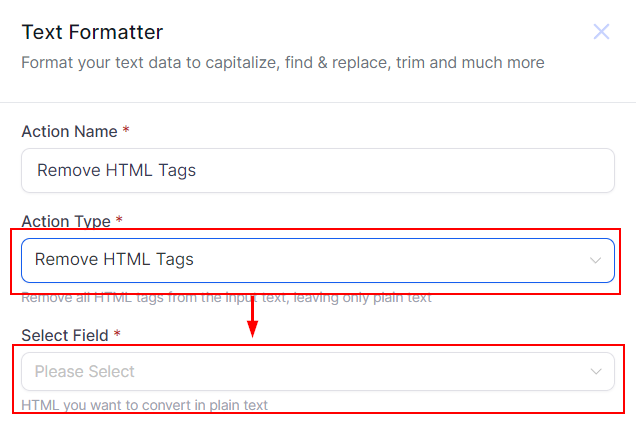
- Remove HTML Tags: Strips HTML tags from the text converting them into plain text.
Length Reduction Types
Length reduction options help you manage text size to fit specific limits or display requirements.
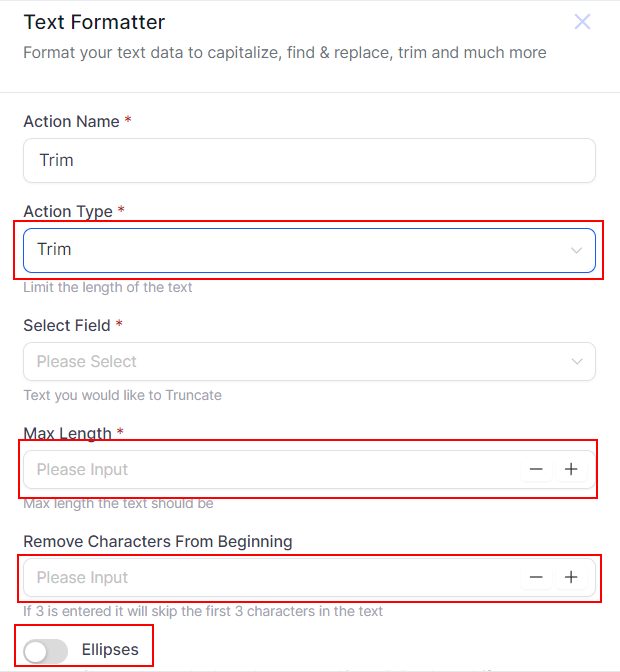
- Trim: Shortens the text to a specified length, this can remove characters from the beginning or replace the text after a certain point with ellipses.
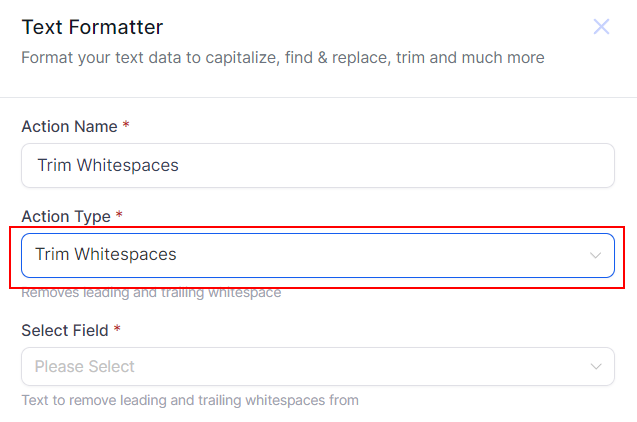
- Trim Whitespaces: Remove whitespace from the beginning and end of text.
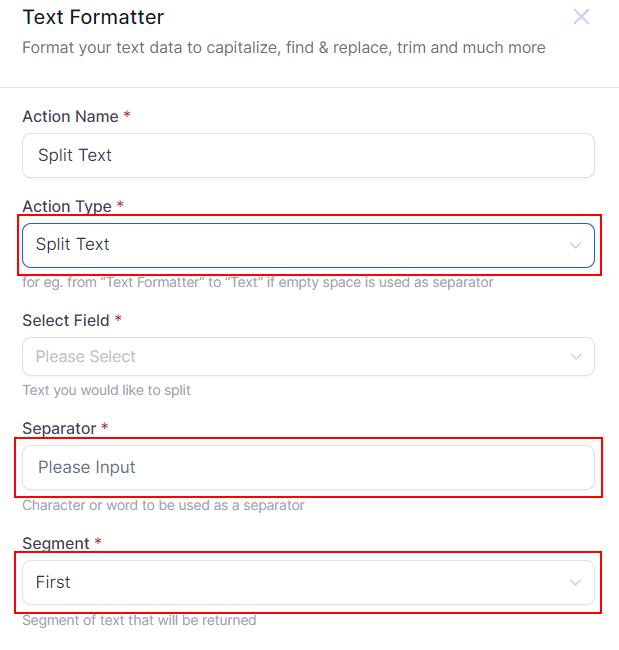
- Split: Splits the text into multiple segments based on a specified delimiter, the segment you select will be the new text in the field.
Length Counting Types
Length counting tools provide metrics for text, helping you understand its structure and use it effectively.
- Word Count: Provides the count of words in the text.
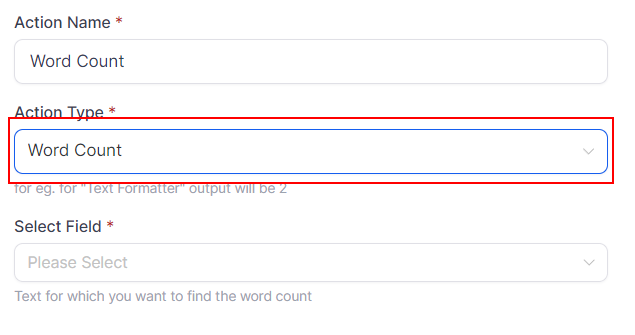
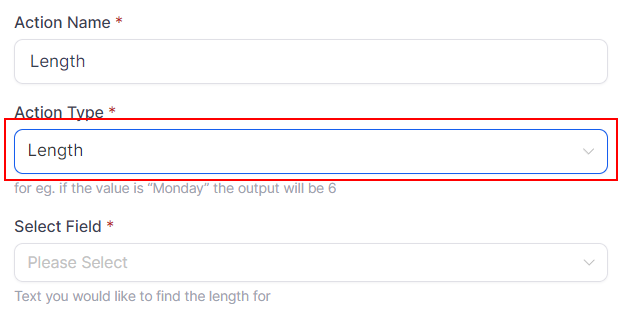
- Length: Provides the character count of the text.
Information Retrievers Types
These features help you retrieve specific details from your text fields.
- Find: Locates the first occurrence of a specific text pattern within the text and returns its position.

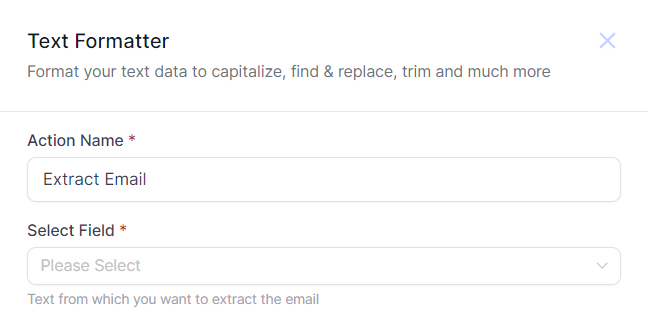
- Extract Email: Retrieves the first email address from the text.
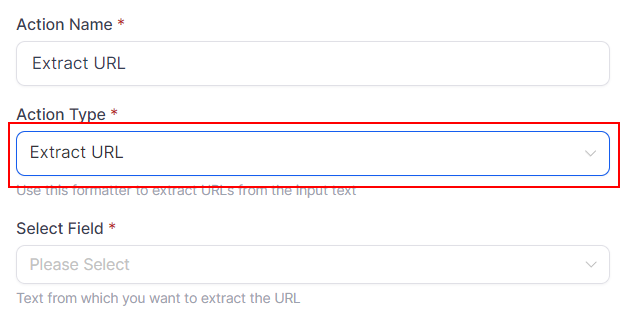
- Extract URL: Retrieves the first URL from the text.
The Text Formatter Action is a great feature for transforming raw data into actionable information. Whether reformatting text, counting words, or extracting critical details, this feature simplifies your workflows and enhances your data handling capabilities.