
How to Add Guests to an Appointment
Summary:
Adding Guests to Appointments
When scheduling appointments, you might be dealing with bigger teams or other occasions on which it's necessary to include more than one participant. Our CRM has simplified this process by allowing the primary attendee to add guests directly through the booking widget or appointment modal.
Setting the Option to Add Guests
To add guests to an appointment first enable the option for the desired calendar by going to the Calendar section and selecting the Calendar Settings Tab.
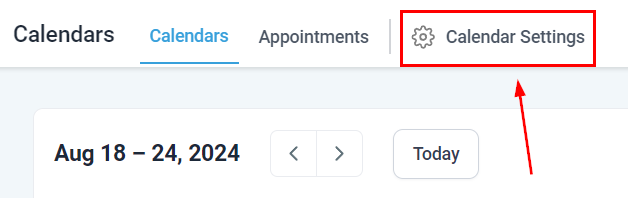
You can enable this option in these Calendar Types:
- Simple Calendar (previously Unassigned Calendars)
- Round Robin Calendars
- Collective Booking Calendars
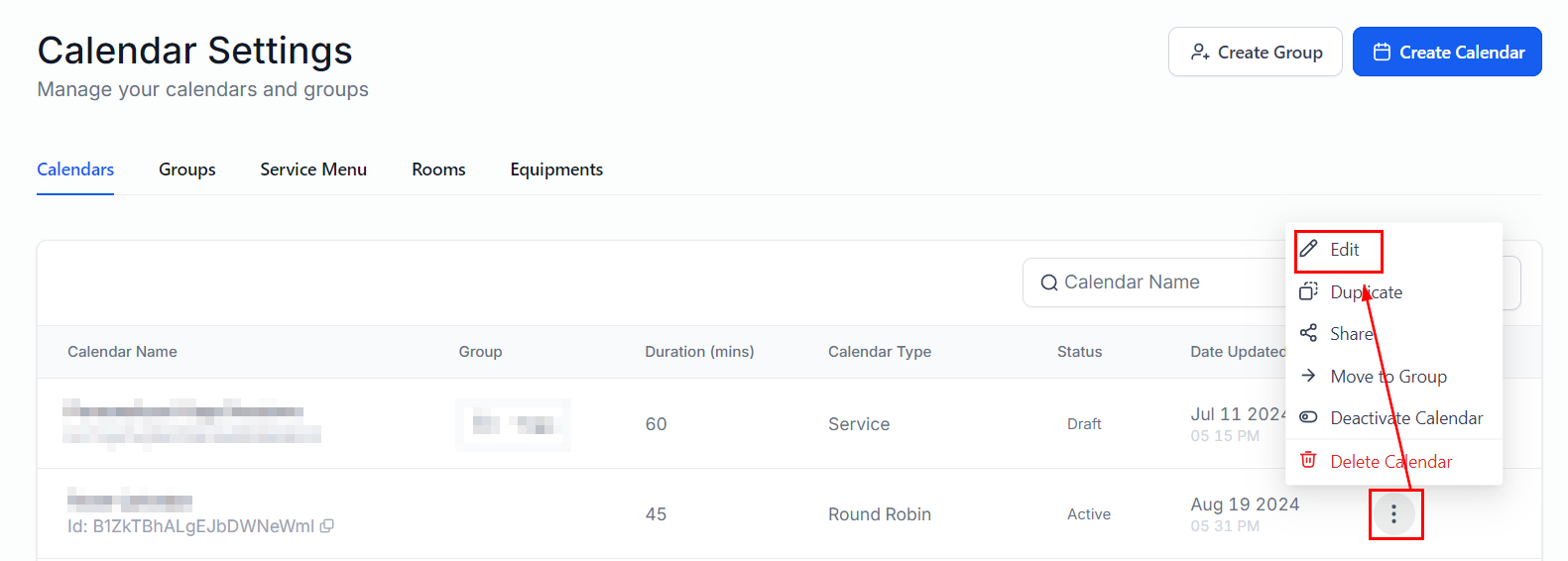
Click the three dots icon and select Edit.
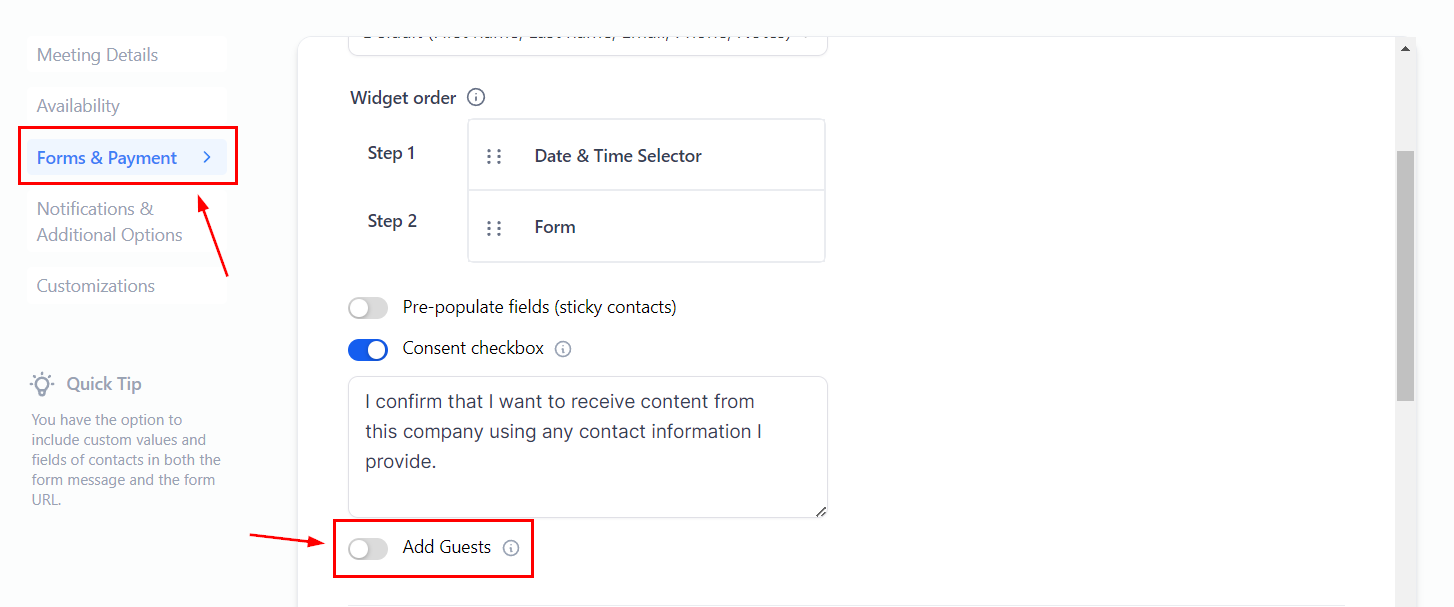
Head over to the Forms and Payment section and enable Add Guests.
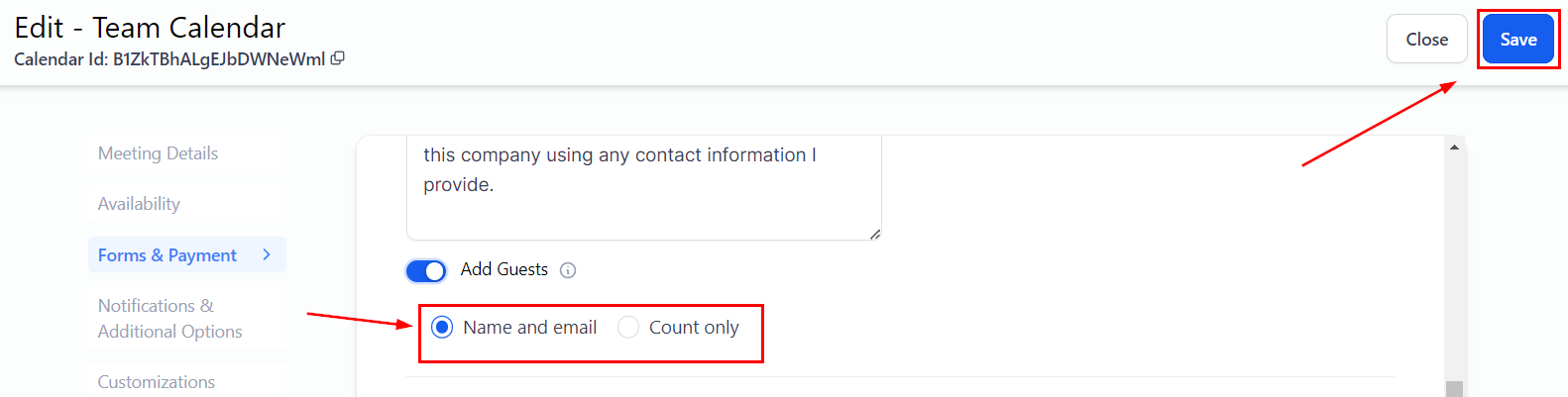
We recommend using Name and email for guests as it allows you to know who will be joining but you can select count only if you feel that information is unnecessary. Once selected click Save at the top right corner.
Email Notifications
You can send email notifications to all participants, ensuring everyone is informed about the appointment details. To do so head to the Notifications & Additional Options section and check the box for Guests.

Booking and Editing Appointments with Guests
Manually booking an appointment with guests follows the same procedure as any other appointment. You can do so from either the Calendar section by clicking on “+ New”

Or from the contact's appointment tab directly.

Click on Add Guests to select the extra attendees.

You can select the attendees from your contact list or click Add New Guest if they aren't a contact already.

Once all attendees have been selected click Done to close the Guest selection.

Editing an existing appointment to add or remove guests is also possible, provided the total number of guests remains within the allowed limit.


Cancellation and Rescheduling
The primary attendee can cancel or reschedule the meeting using the links provided in the booking confirmation. Guests do not have this capability.
Frequently Asked Questions (FAQs)
How can attendees add guests?
Attendees can add guests by inputting their names and emails within the Calendar booking widget.
Are guests required to make payments?
No, only the primary attendee is required to make a payment.
How many guests can be added?
Up to 10 guests can be added directly, or a maximum of 100 guests by count for certain calendar types.
Can the primary attendee be removed while editing an appointment?
No, the primary attendee cannot be removed during editing.