
How to Configure Staff Member Selection in Round Robin Calendars
Summary:
Specifically tailored for Round Robin calendars and the Neo widget type, the Staff Member Selection feature introduces a dropdown menu on the booking widget, enabling users to select a specific staff member for their appointments. This feature is designed to elevate user choice and improve customer satisfaction across various industries.
Specifically tailored for Round Robin calendars and the Neo widget type, the Staff Member Selection feature introduces a dropdown menu on the booking widget, enabling users to select a specific staff member for their appointments. This feature is designed to elevate user choice and improve customer satisfaction across various industries.
Benefits of Staff Member Selection
- Increased Customer Satisfaction: Clients selecting their preferred staff member leads to a more personalized and comfortable experience, enhancing satisfaction.
- Improved Efficiency: Streamlines the booking process, reducing the need for additional requests or changes post-initial booking.
- Better Customer Retention: Positive experiences with specific staff members make it easy for customers to rebook, improving loyalty.
- Improved Business Reputation: Positions your business as customer-centric, and responsive, and enhances your reputation in the market.
How to Activate Staff Member Selection
Access Calendar Settings
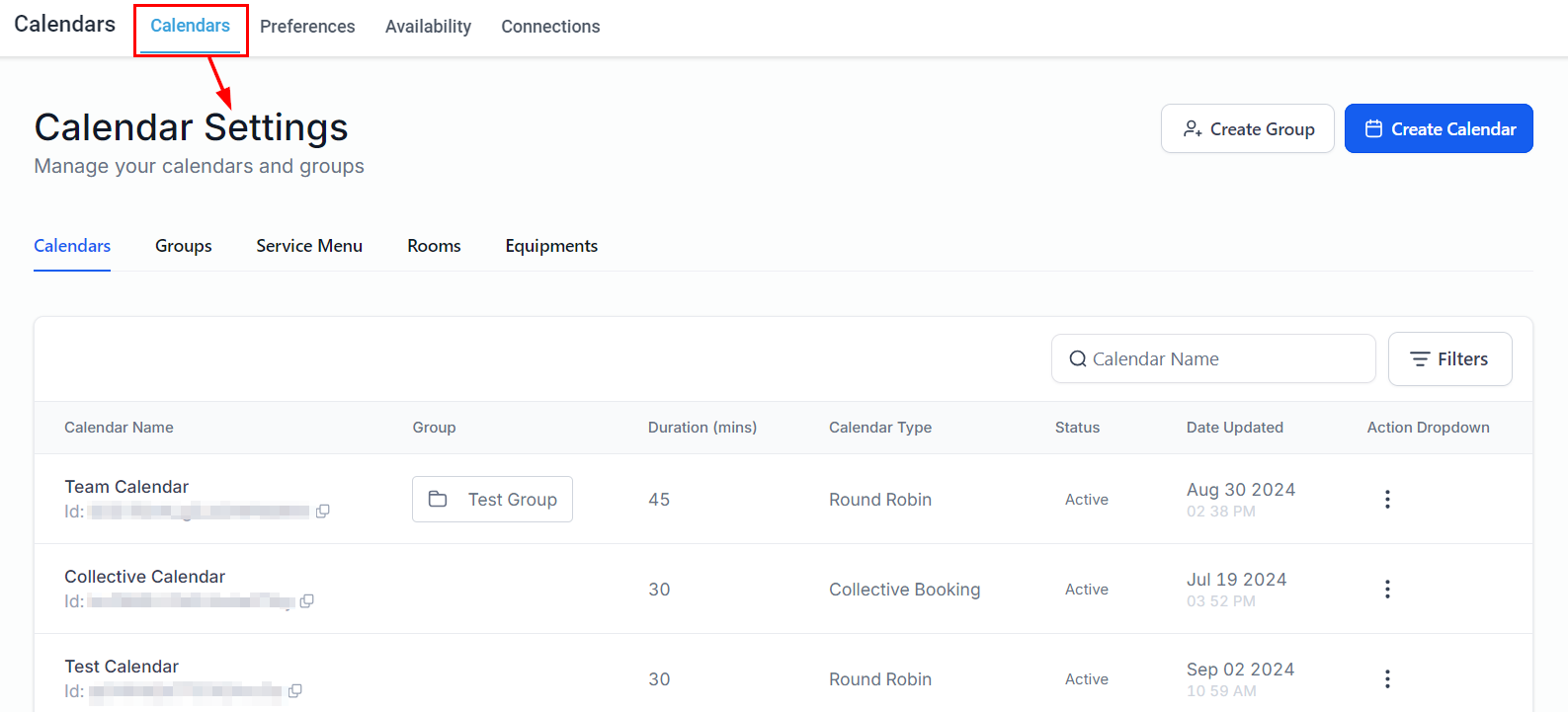
Access the Calendar Settings section by selecting "Calendars" followed by "Calendar Settings" within the platform. Alternatively, you can navigate to "Settings" and then select "Calendars."
Create or Edit a Round-Robin Calendar
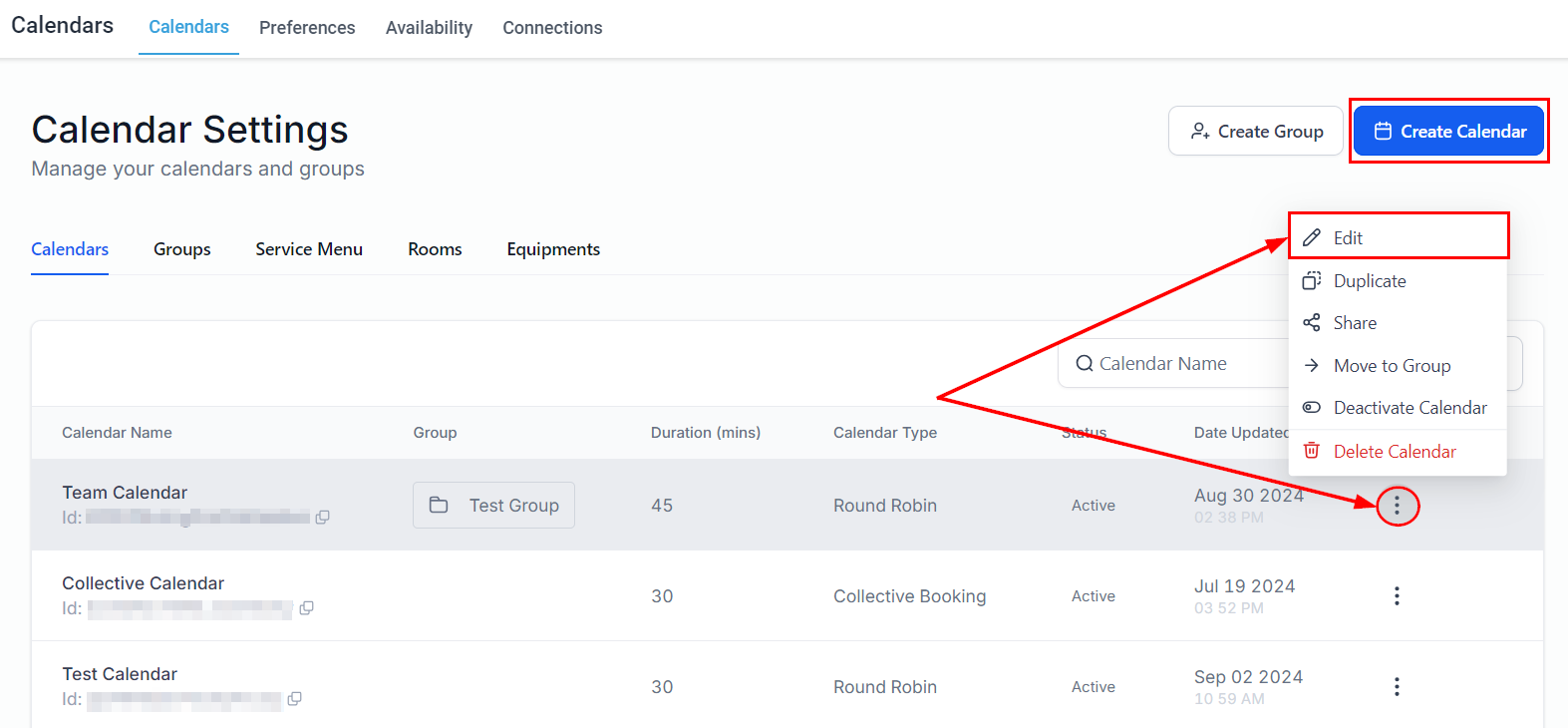
Choose the three-dot action dropdown for the Round-Robin calendar you wish to edit and select the "Edit" option. Alternatively, you may create a new Round-Robin calendar.
User Selection
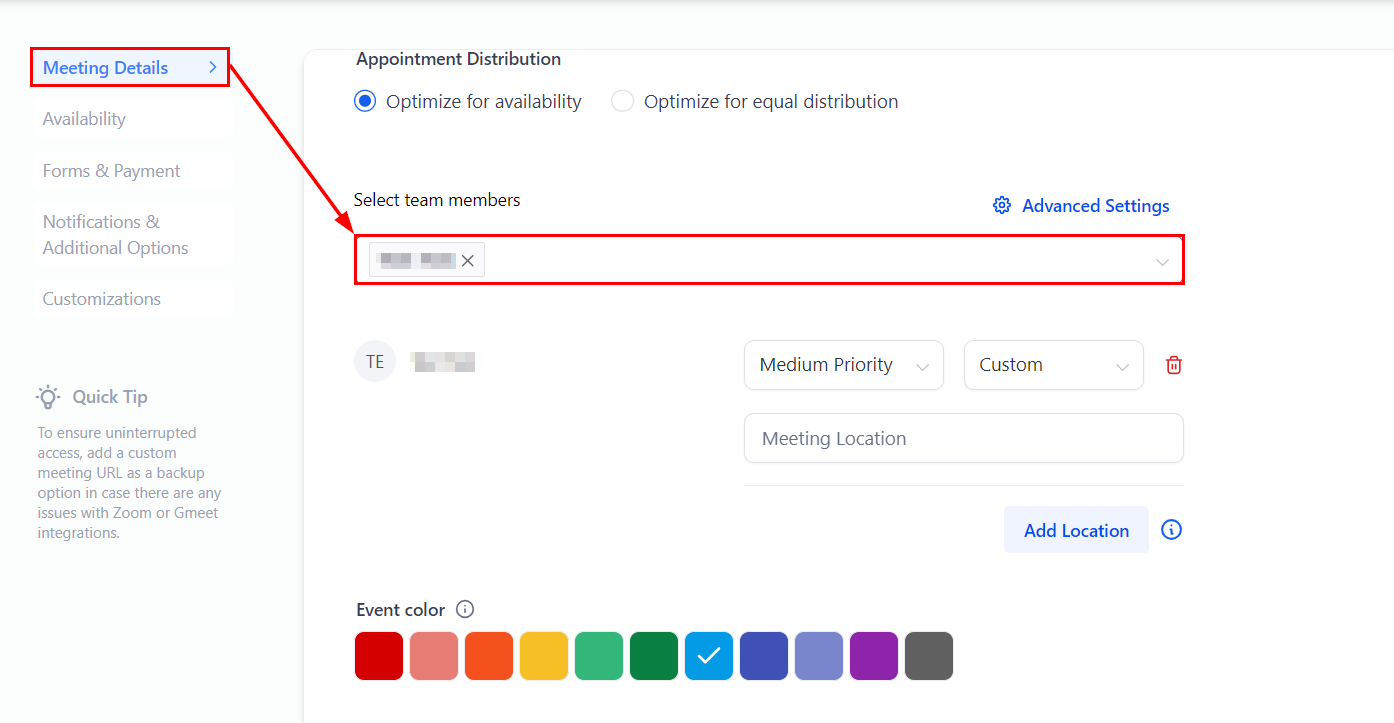
Select staff members from the dropdown menu to assign them to the calendar.
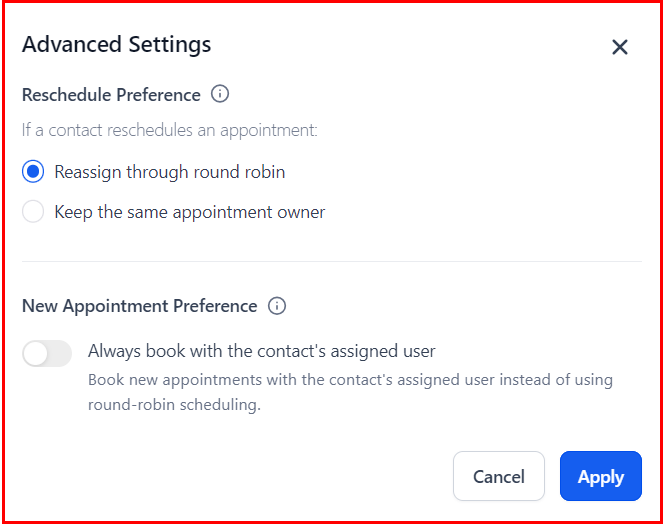
Advanced Settings
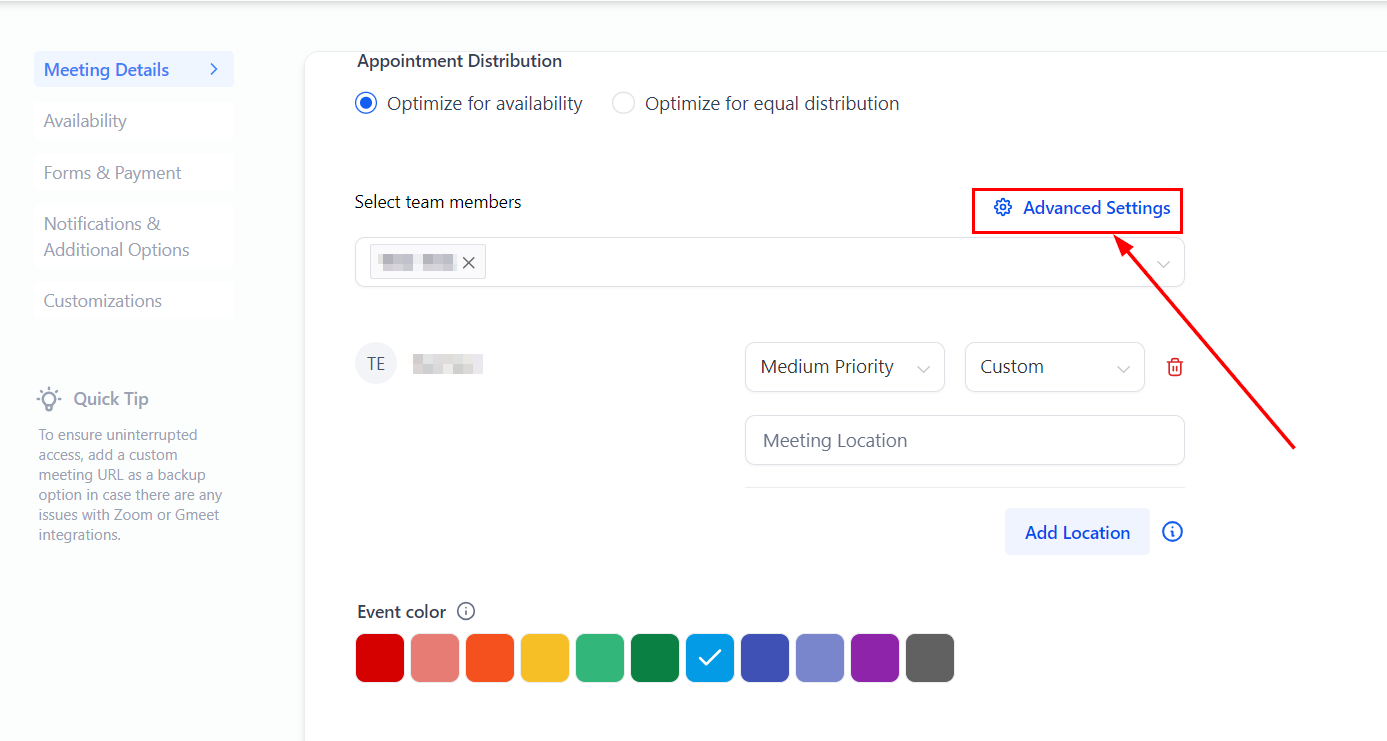
Choose your preferences for new appointments and rescheduled appointments.
Reschedule Preference
You have the flexibility to determine who should be assigned to a rescheduled appointment when a contact reschedules using the booking widget. You can choose to:
- Reassign through round-robin scheduling.
- Maintain the same appointment owner each time, ensuring the same user is assigned to the rescheduled appointment.
New Appointment Preference: Always Book with the Contact's Assigned User
This feature allows you to book new appointments with the contact's assigned user instead of utilizing round-robin scheduling. You can decide whether you want the contact to be booked with the same user every time a new appointment is scheduled.
To ensure new appointments are scheduled with the contact's assigned user, the form must be positioned first in the booking widget order. You can reorder the widget from the Forms & Payments tab.
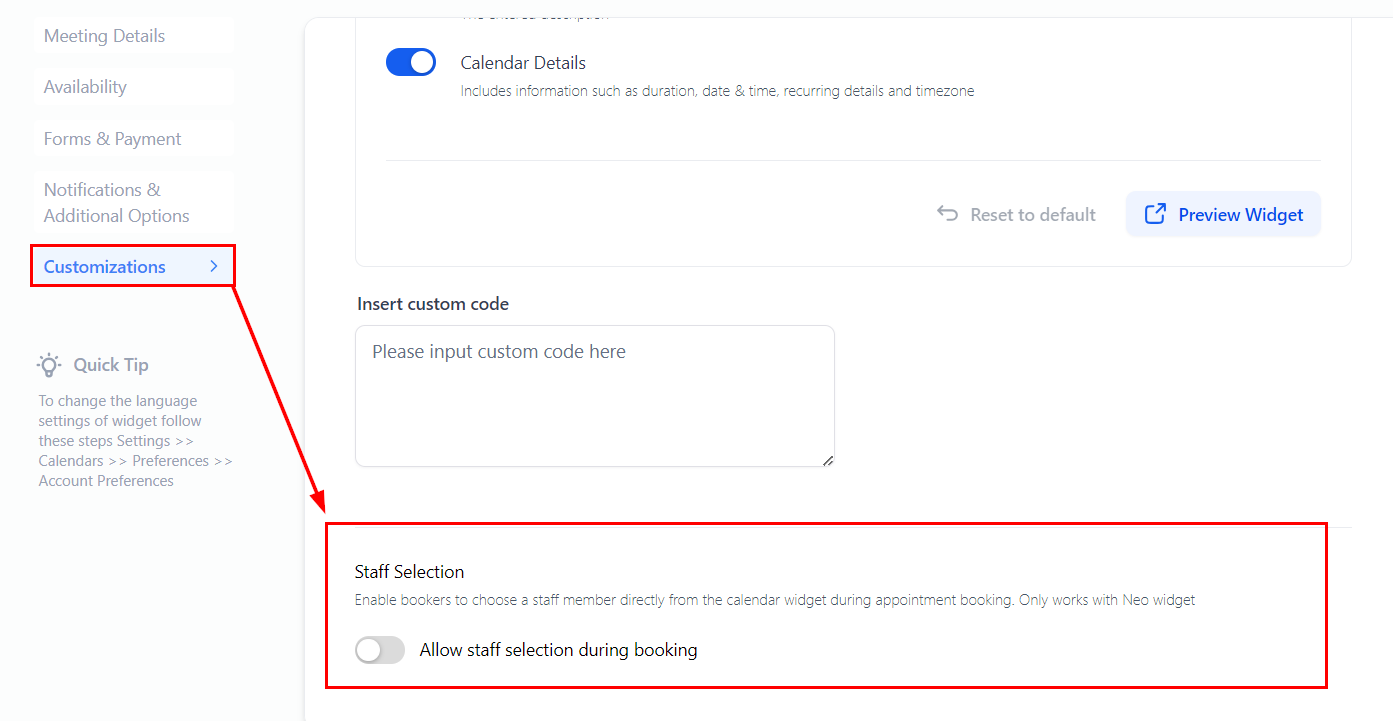
Allowing Staff Selection
To enable contacts to select their preferred staff member, navigate to the "Staff Selection" option within the Calendar customizations and toggle the switch.
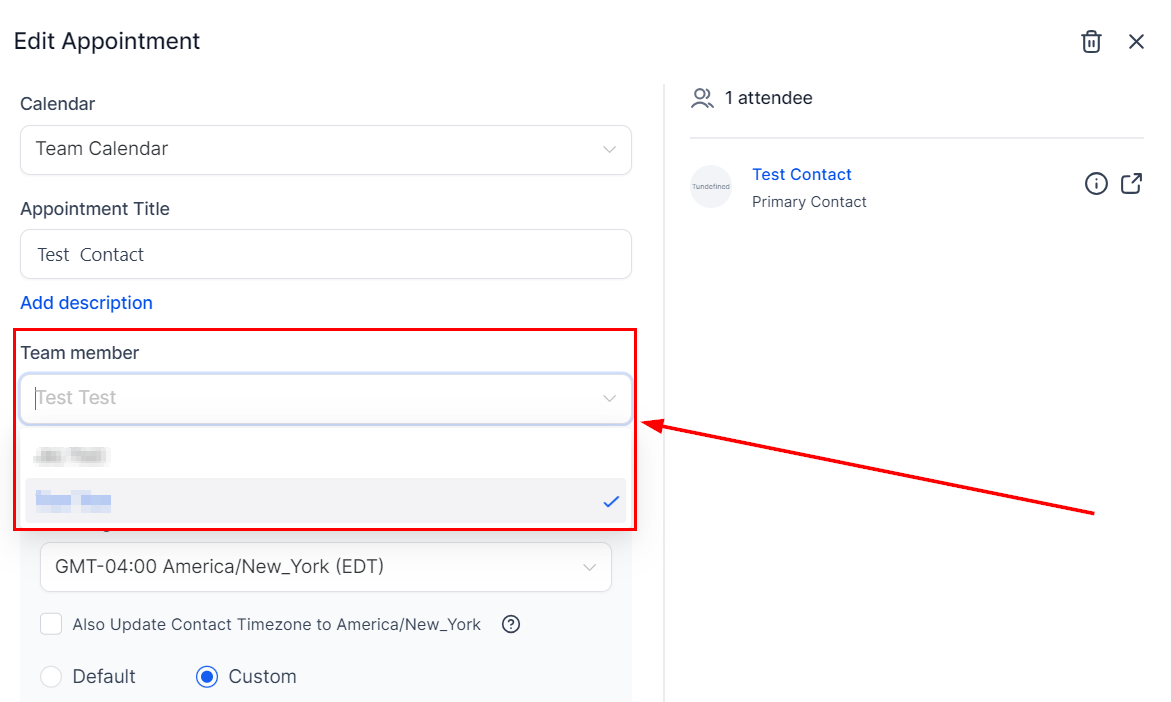
Rescheduling with Staff Member Selection
Internal Rescheduling:
From the contact's appointments tab or the Appointments tab in the Calendars menu, select a different staff member.
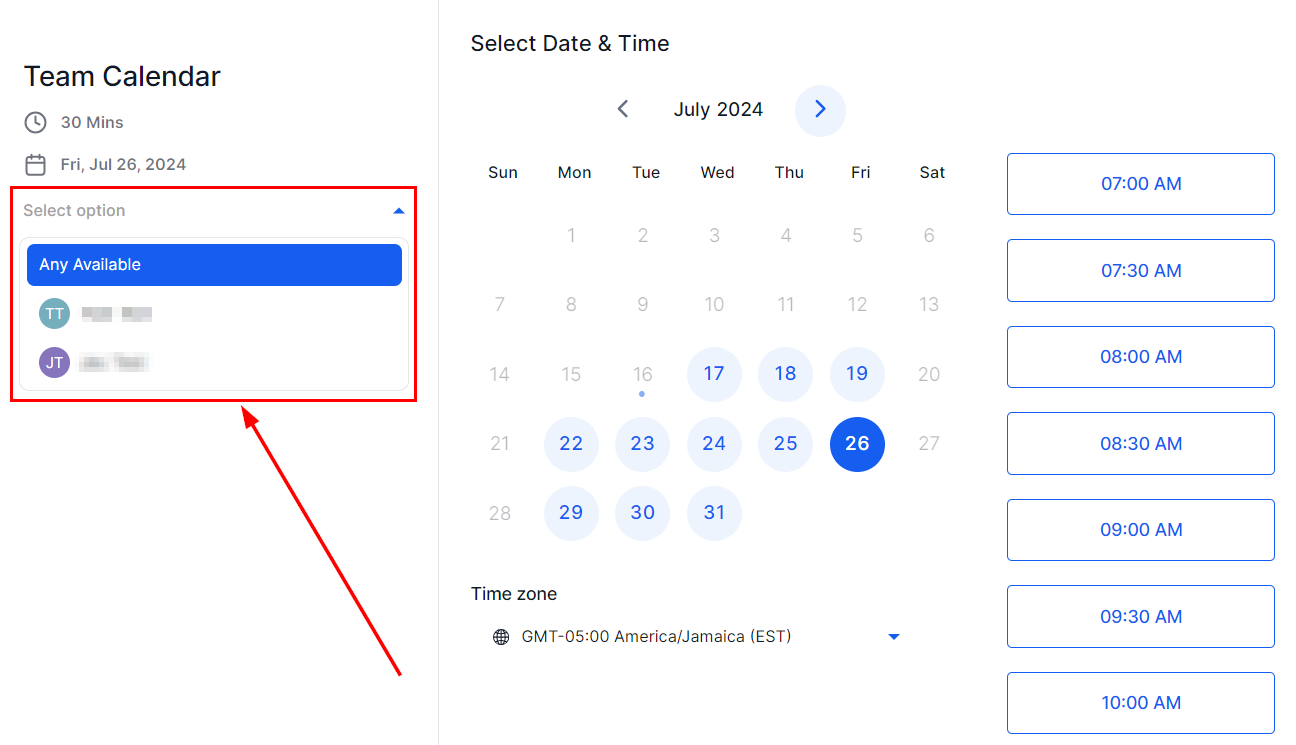
Client Rescheduling
Clients receive a rescheduling link, allowing them to choose a new staff member during the rescheduling process.
Implementing the Staff Member Selection feature enhances user choice, streamlines bookings, and boosts customer satisfaction. This personalized approach fosters client loyalty and strengthens your business reputation. Leveraging these settings ensures an efficient, client-focused scheduling process.