
How To Edit/Update The Calendar Availability & Slot Settings
Summary:
Configure the duration and intervals for your appointments, and have control over your time by setting up scheduling notice for all of your calendars.
Each of your calendars has its own set of rules and parameters, starting with the type of appointment it is those differences result in meetings that might not be the same length or frequency. When creating or editing a calendar you can modify the days, times, and frequency inside the Availability tab, so let's check how it works!
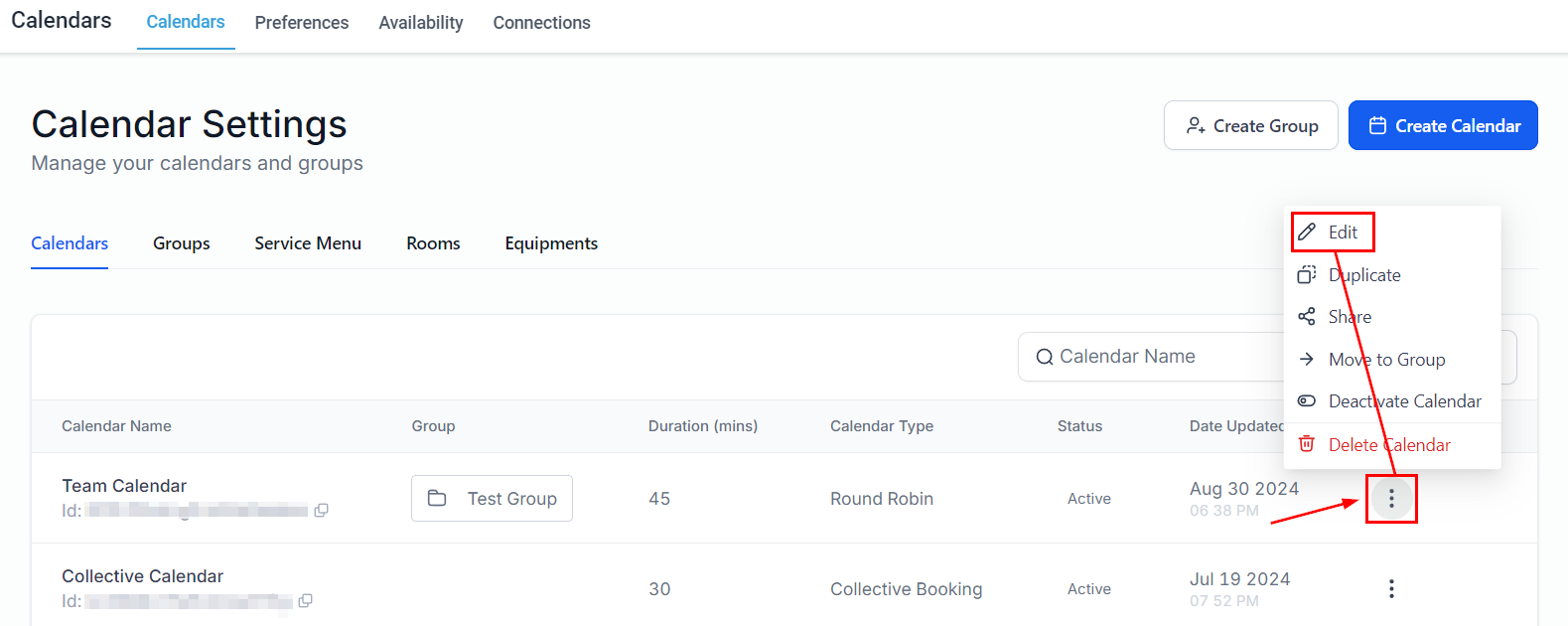
To access them go to your Calendar Settings inside the Calendar section.

Click the three-dot icon next to the desired calendar and select the Edit option.
Available Hours
These will be the days and times your calendar is available for booking, if your personal availability differs from that of a calendar appointments will only be booked during the hours in which both coincide.
Weekly Available Hours
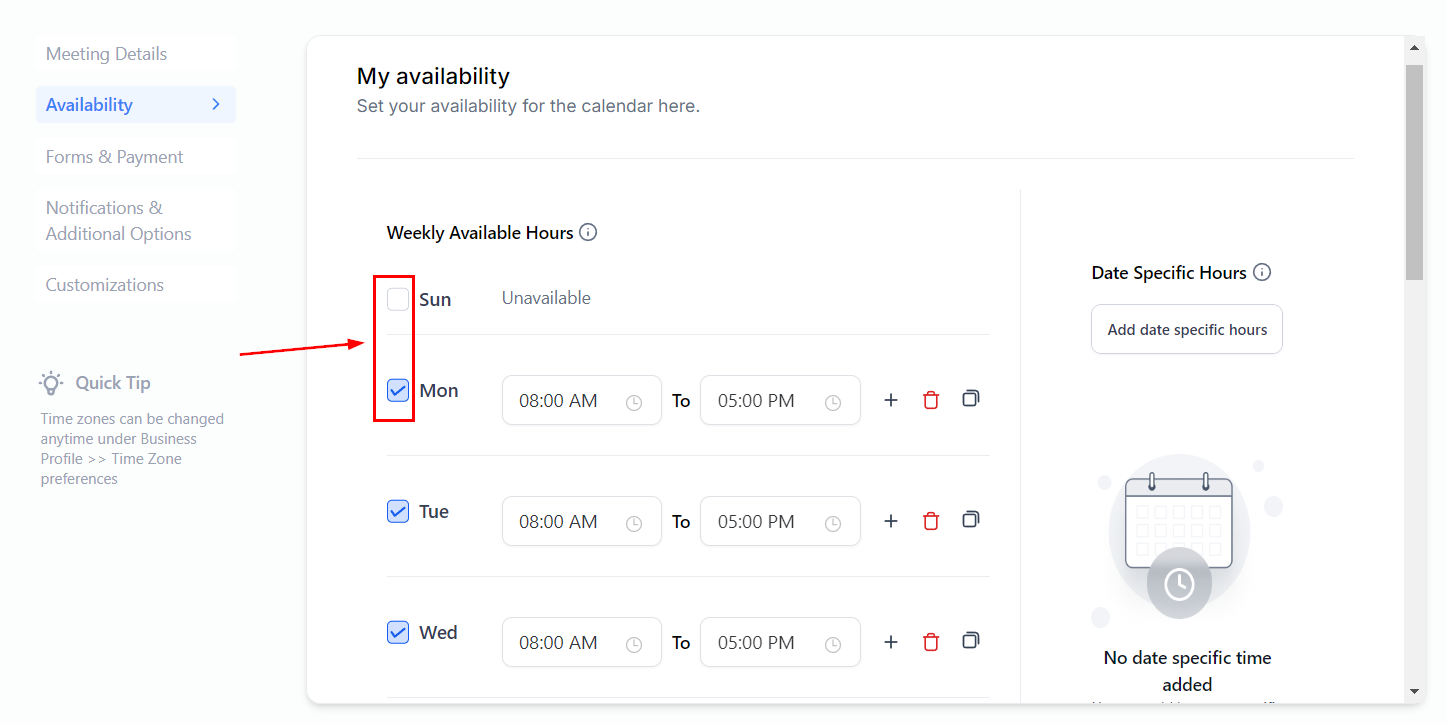
These are the regular days and times the calendar is available for booking. You can change the days by checking or unchecking the box next to the weekday.
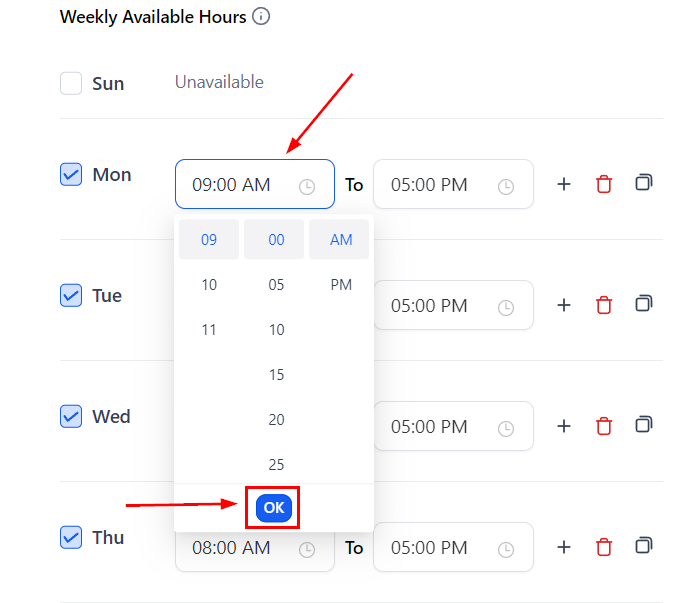
To change the available hours click on the starting or ending time, this allows you to select a new time from the scroll menu, and click Ok to set it.
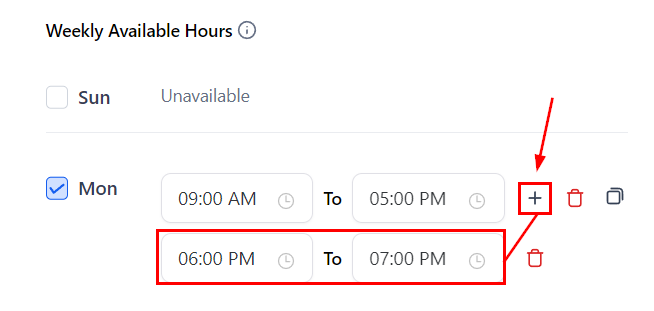
When you have a gap between the available time, click the + sign button to add the extra hours.
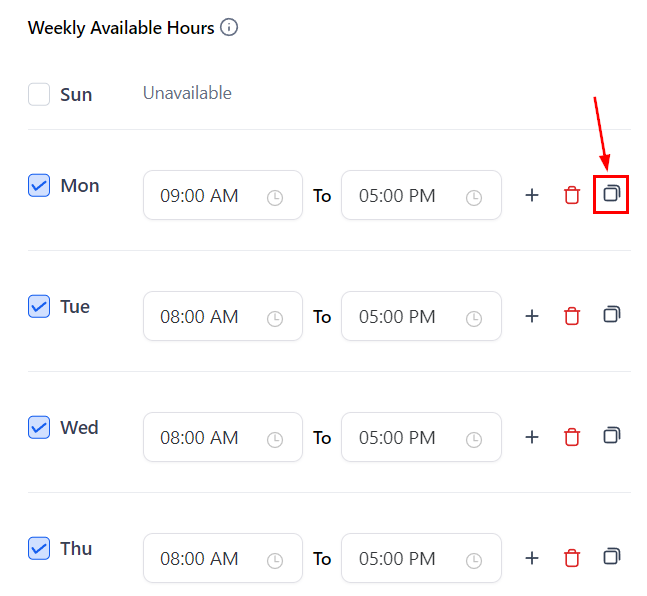
After setting the available hours for a day you can click the two square icon to copy to all other selected days.
Date Specific Hours
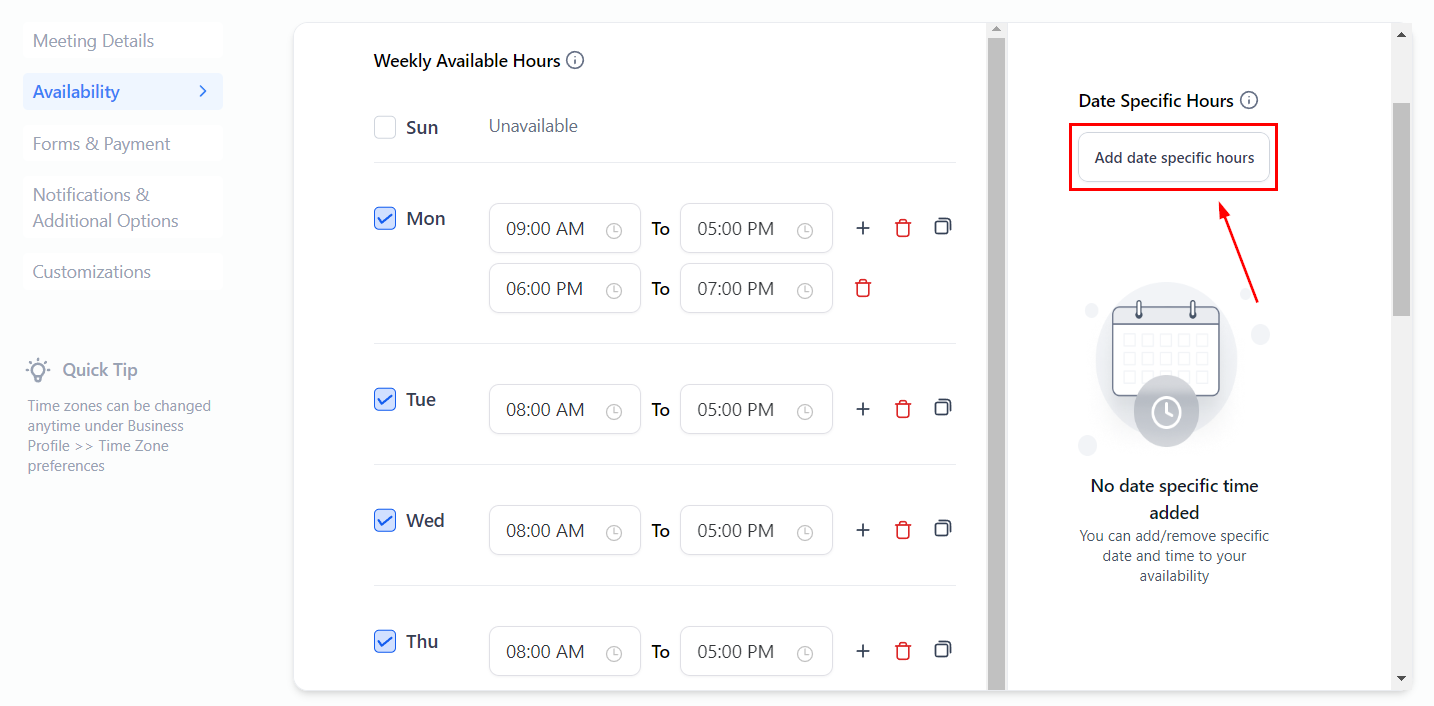
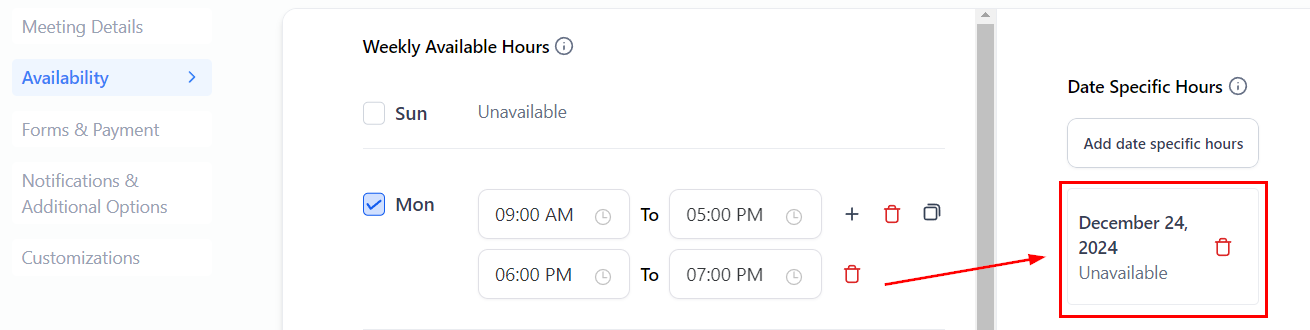
By setting Date Specific Hours you can override your regular weekly schedule for selected dates, to do so click Add Date Specific Hours.
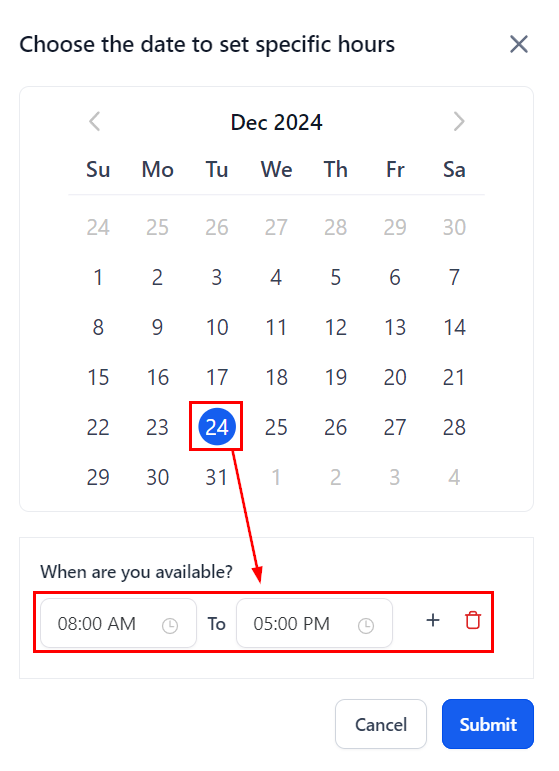
Click the date you need to customize then set your available hours or click the trash can icon to mark it as unavailable.
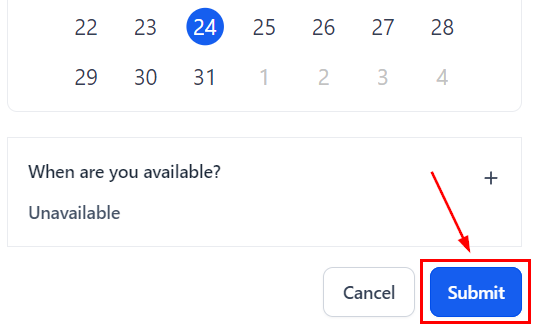
Once satisfied click Submit.
Any Date Specific Hours you've submitted will be listed on the right side of your Weekly Available Hours.
Slot Settings
This defines the expectations for each available time slot. They may vary a little depending on the type of calendar selected but generally, they are:
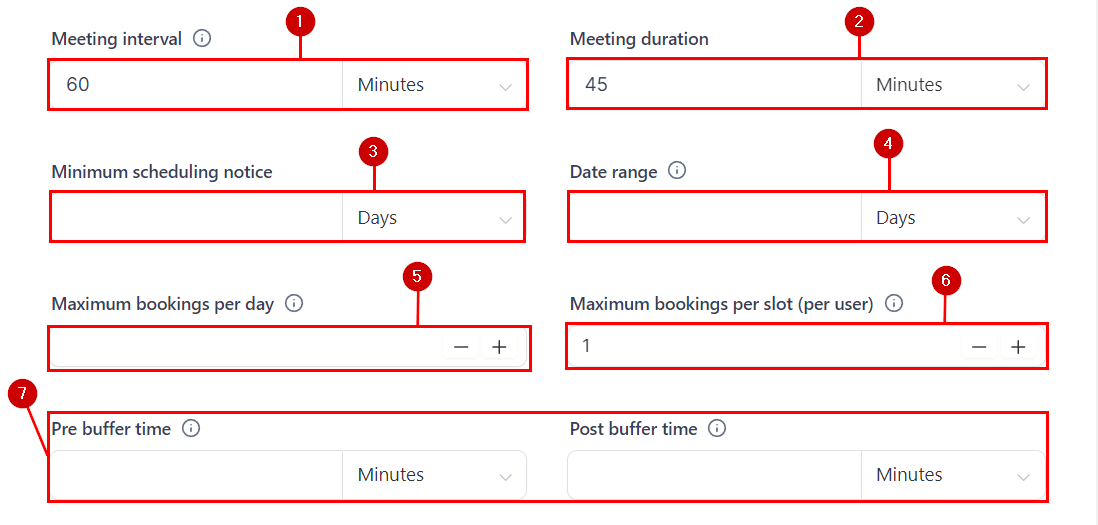
- The meeting interval controls how frequently the appointments can be booked.
- The Meeting Duration sets the expectation for how long the appointment will last.
- To prevent surprise appointments set a Minimum scheduling notice, this will limit how soon contacts can schedule with you.
- The Date Range limits how far in advance an appointment can be booked.
- The “Maximum bookings per day” sets the total appointments allowed in the calendar per weekday.
- The “Maximum bookings per slot” defines how many contacts can be scheduled in the same time slot in a team member's calendar.
- The Pre and Post Buffer Time function as a cushion between appointments, providing users time to rest and reset.
Now you are ready to set the availability for your calendars and ensure the hours are perfect for you and your team. Keep in mind, that these available hours will apply to the entire calendar and do not affect each user's available hours, if you'd like to learn more about how to configure your profile hours please check the article “How to Update Your Personal Availability”. For more information on managing calendar availability check the articles “How to Set Up Recurring Appointments” and “Look Busy in Calendars”.