
Contact Details - Information Panel
Summary:
Let's explore the right-side tab of your contact card where you'll find additional information about them and their interactions with your company.
On the far right side of any contact card, you'll find additional information about the contact in the contact information panel. This information is designed to give you more control over each contact in your system and allows you to perform different actions for each contact.

The contact information panel includes seven tabs - Activity, Task, Notes, Appointments, Documents, Payments, and Associations, providing more control over different aspects of each contact in your account.

Contact Activity Tab
Contact activity is essential when tracking where the contact visited your website, how they contacted you (via email, phone, or text), and even when they made a purchase.

Contact Activity History
In the Activity tab, you can view historical data and a timeline of your contact's activities, including any interactions with your website. Please note that website activity will only be displayed if your website is built within the platform.

Contact Attribution
Attribution is a very important tool when understanding where your contact FIRST interacted with your company, and where they LAST interacted with your company.

Contact Tasks Tab
You can manually create or check for pending items using the Task tab. To add a task, you need to give it a title, and a due date then assign it to a registered user if you so desire. This feature allows you to stay organized and manage your to-do list efficiently.

Contact Notes Tab
The Notes tab enables you to write down extra information for each contact, which can be a vital tool when dealing with customers and new leads.
- Easily locate your notes by sorting them by Date Created.
- Creating a note is as easy as selecting the tab, clicking +Add, and entering the information. Each note has a timestamp and can be edited later, so you can keep track of all relevant information about each contact.
- Instantly locate specific notes using the search functionality.

Contact Appointments Tab
In the Appointment tab, you can schedule appointments for sales, customer support, or any other purpose, making it easier to manage your time and stay organized.

Contact Documents Tab
In the Documents tab, you will have a backup of all important files related to that customer, whether that be a contract you sent out to them, a PDF they sent back, or any internal documents related to that person.

Contact Payments Tab
In the Payments tab, you can perform payment-related actions on your end and keep track of any transactions with your contact, whether it be subscriptions, invoices, or fulfilled payments.

Payment Actions
These are the operations you can complete on behalf of your customers, allowing you to take the initiative and minimize errors. There are six actions that you can perform:

- Add Cards on File: This allows you to add credit or debit card information to a contacts record for easy checkout, fees, and subscription payment.

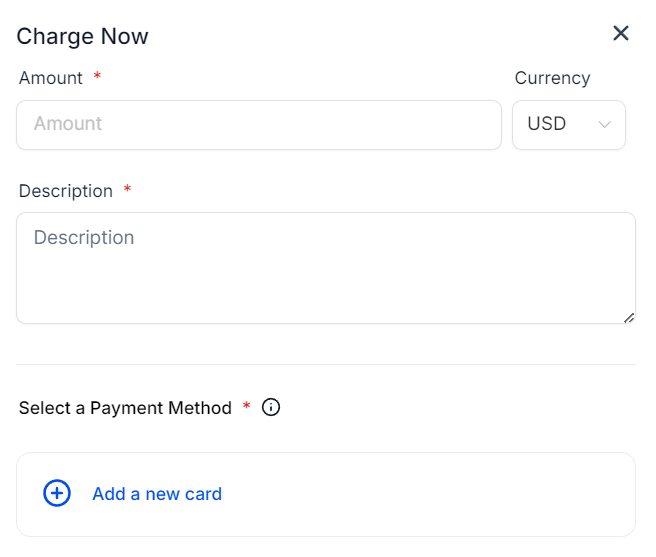
- Charge Now: With this feature, you can take payment by adding the amount and a short description, making it easy to collect payment, even when in the middle of a call.
- Create Subscription: This will open a pop-up window for you to select the starting date and products for the customer's subscription.

- Create Invoice: Selecting this option will redirect you to the invoice builder where the contact details will be preadded for you.

- Manage Cards: All stored cards will be displayed in a list, with each entry showing the last four digits, expiration date, and any associated label. Both test and live mode cards will appear in their respective lists and can be deleted from those lists. If a card is associated with an active subscription, a prompt will appear to notify you before confirming the deletion. Even if the card is deleted after the prompt, any subscriptions linked to the card will no longer have an associated payment method for automatic billing.

- Create Estimate: Selecting this option will redirect you to the estimate builder where the contact details will be preadded for you. Add the relevant products for the estimate, then verify customer and business information before sending.

Transactions, Subscriptions, Invoices, and Estimates
These tabs let you keep track of the status and details of Transactions, Subscriptions, Invoices, and Estimates that the contacts have with you.

Contact Associations Tab
In this section, you can view the related objects and association labels linked to the contact. Additionally, you can add more associations by clicking the "+Add" button. Up to 10 association labels can be applied between two contacts.

Enhance your contact management today using these seven options in the Contact Information Panel.