How To Delete Multiple Contacts
Summary:
Using Bulk Actions with Contacts or Smart Lists, you can perform multiple one-off actions on your chosen contacts.
Whether it be a burnout list, spam contacts, or people who've opted out there will come a time when you need to delete a few contacts from your system. If you need to delete contacts, one or many, this article is for you.
Deleting Contact(s)
To delete the contacts to the Smart Lists tab inside the Contacts section.

Select the contacts by clicking the checkbox next to them, then click the Trash can Icon.

Type DELETE to confirm the action then click Delete.

NOTE: Once you click "Delete" for any contact(s), it will also remove the corresponding: Conversations, Notes, Opportunities, Tasks, Appointments, and Manual Actions the contact(s) has. It will also stop any active Campaigns and Workflow for the contact(s).
After clicking Delete the action will start processing and the pop-up will change to this:

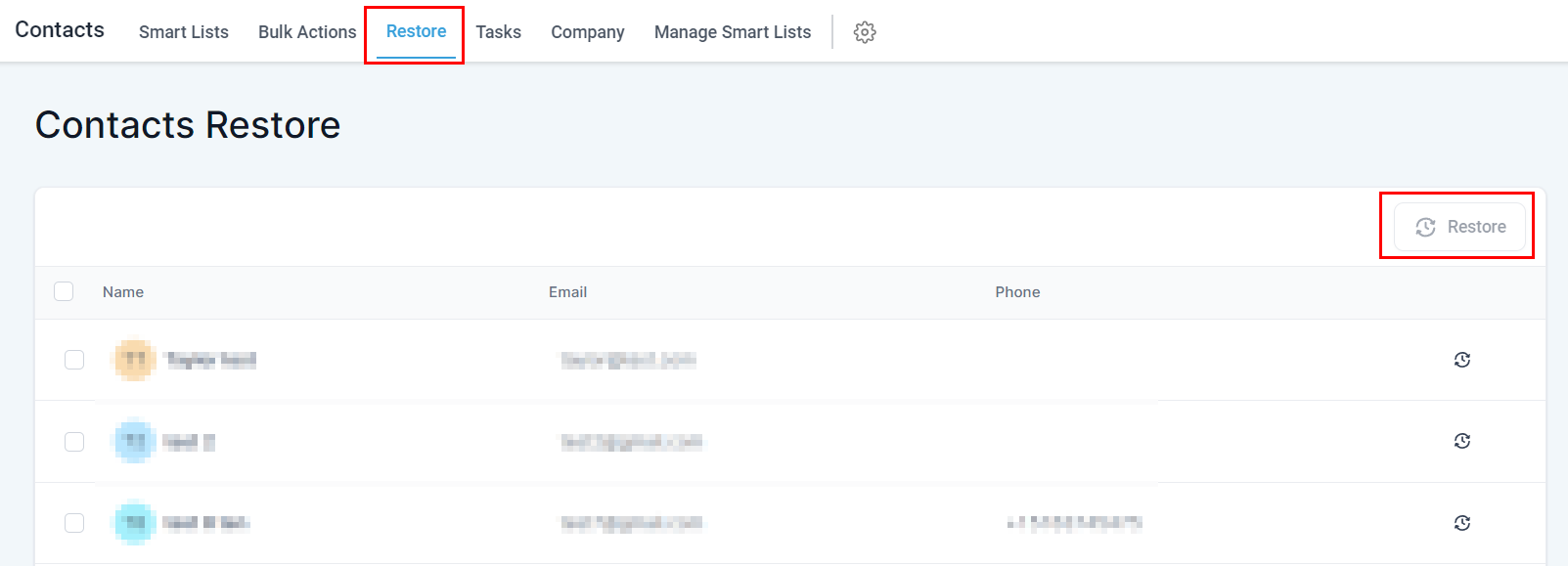
Deleted by Accident
Did you click someone you didn't mean to? Don't worry – even after they are deleted, you can always recover a contact by going to the "Restore" section of your reliable Customer Relationship Manager (CRM). So breathe easy!