
How to Input Multiple Phone Numbers for a Contact
Summary:
This feature enables the addition of up to eleven phone numbers for each contact, offering enhanced flexibility in managing clients and leads.
This feature enables the addition of up to eleven phone numbers for each contact, offering enhanced flexibility in managing clients and leads. You can conveniently update and edit these numbers within the contact details page, ensuring that all information remains up-to-date. By assigning a primary phone number and categorizing additional numbers with labels such as Home, Landline, Mobile, and Work, you maintain clarity and consistency in communication. Additionally, this functionality supports making calls to multiple numbers, thereby refining your outreach strategy.
Adding Multiple Phone Numbers
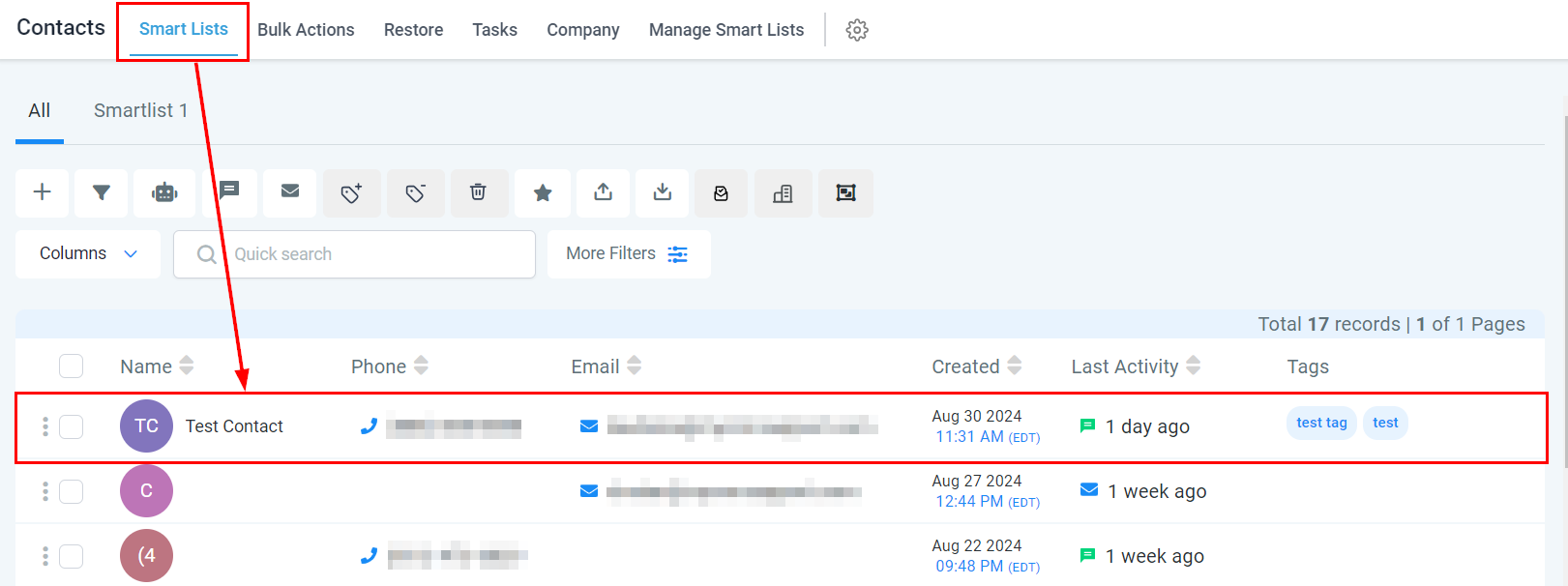
To add phone numbers, navigate to your contacts page and either select an existing contact or create a new one.
In the 'Phone Numbers' section, click on 'Add Phone Numbers' to input additional numbers, up to a maximum of eleven.


Input the number into the designated field, and then click 'Save' to record the information.
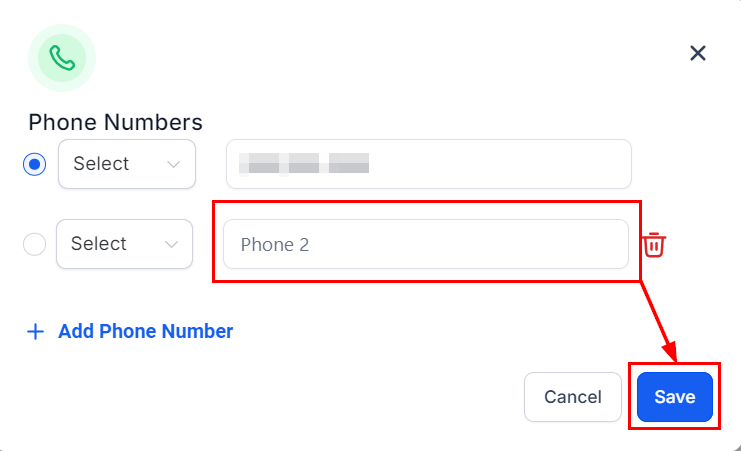
Repeat this process until all numbers have been added.
Designating a Primary Phone Number
Select the radio button next to the desired number to designate it as the Primary number.

Adding Labels to Phone Numbers
Choose the appropriate label from the dropdown menu when adding or editing a phone number.

📌Note: Each label can only be applied to one number per contact.
Don't forget to hit Save to maintain your changes!
Managing Phone Numbers
Click the pencil icon next to the phone number to change or delete the phone number, or modify the associated label.
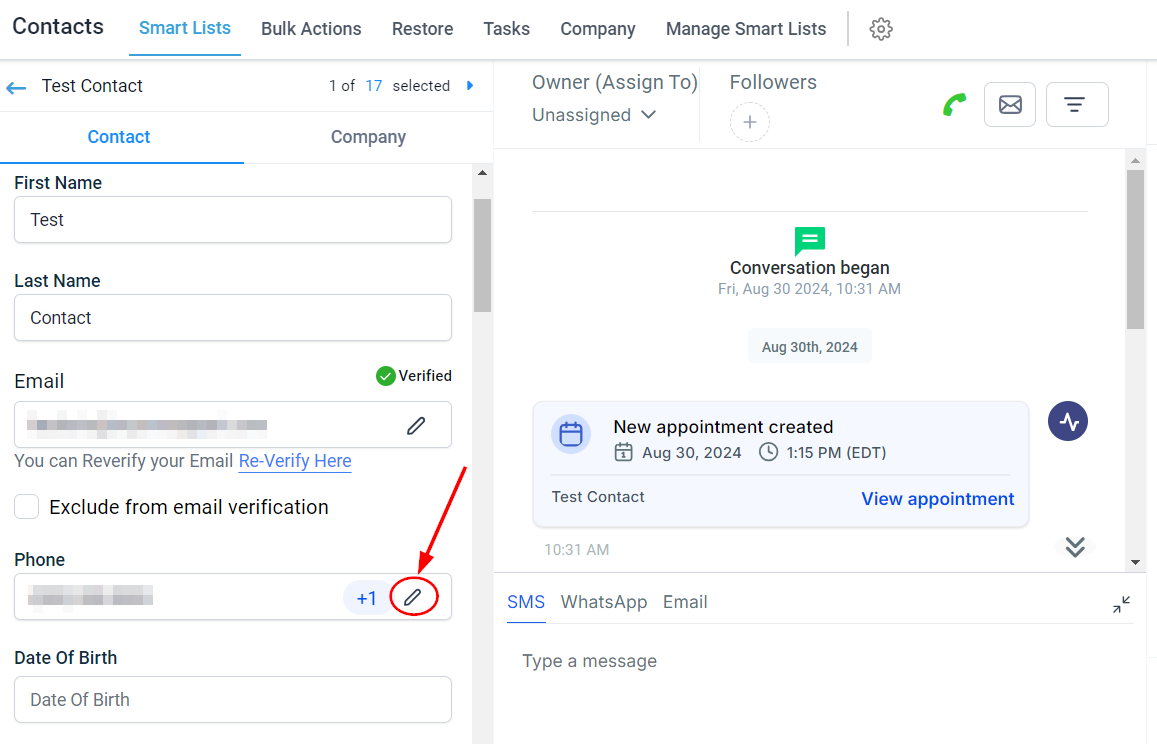

📌Note: The primary phone number can be edited, but it cannot be deleted until another number is selected as the default.
Click save after making the necessary adjustments.
Making a Call on an Additional Phone Number
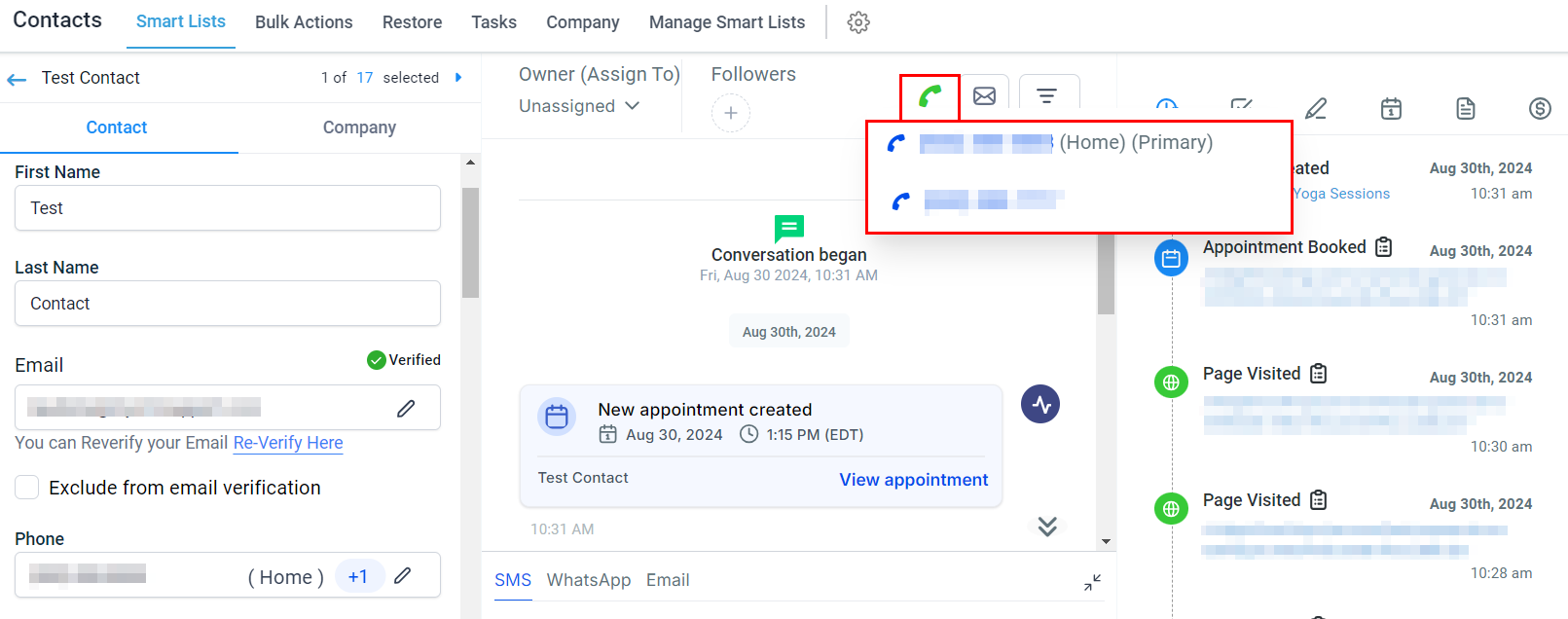
To initiate a call, hover over the phone icon within the Contact Details section. A list of associated phone numbers will appear, allowing you to select the desired number to call.
By leveraging this feature, you can efficiently manage multiple phone numbers for each contact, ensuring seamless communication and up-to-date information. The ability to categorize and designate primary numbers enhances clarity, while the flexibility to initiate calls directly from the contact details page optimizes your outreach efforts. Incorporate this functionality into your client management strategy to maintain consistency and improve overall communication.