
How To Send Review Requests To Multiple Contacts
Summary:
Using Bulk Actions with Contacts or Smart Lists, you can perform multiple one-off actions on your chosen contacts.
If you wish to request reviews for your products or services from clients, simply select the desired contacts within the Contacts tab and click the 'Send Review Requests' button to initiate the process.

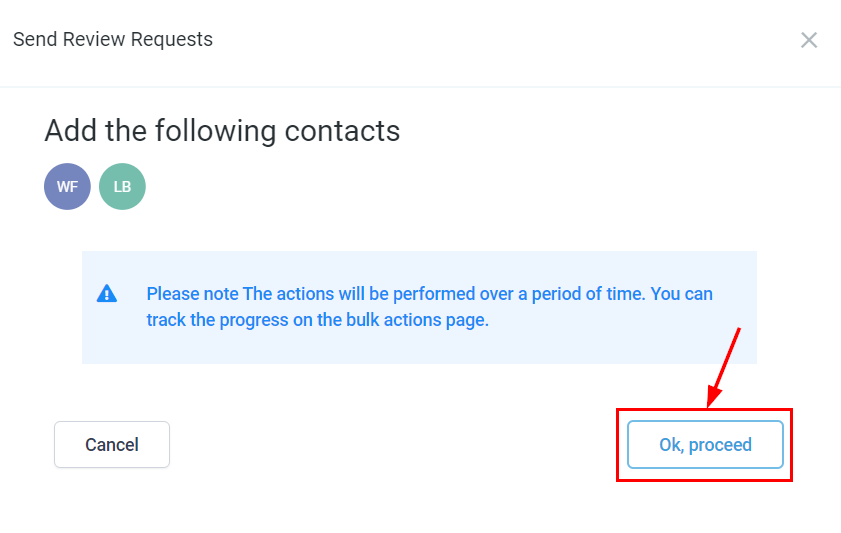
Proceed with the action once you have confirmed the selected contacts.
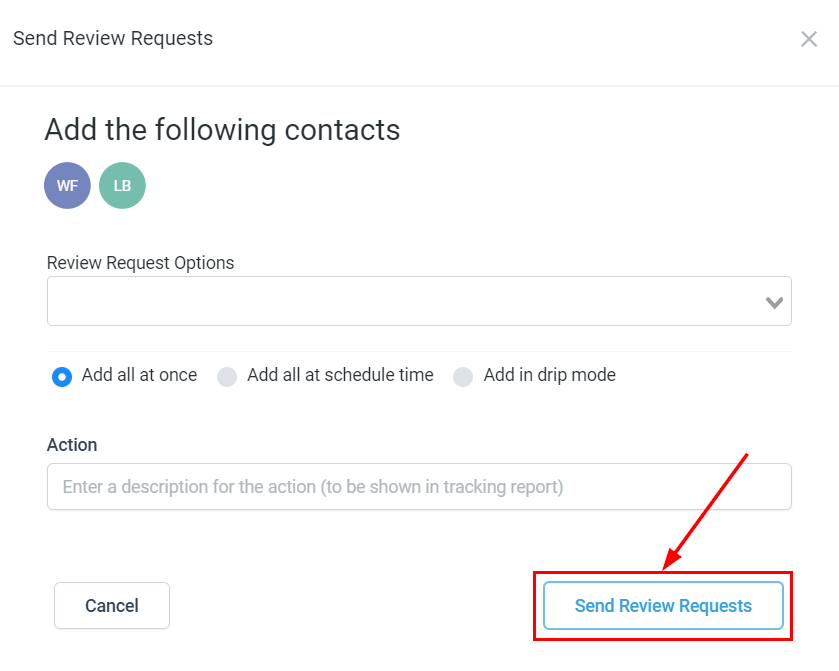
Review Request Options
Choose to send your requests via email, SMS, or WhatsApp from the dropdown menu, depending on your preference.

- Add All at Once: The "Add All at Once" feature allows you to send review requests to all selected contacts simultaneously, saving time and ensuring prompt delivery of requests for quicker feedback collection.

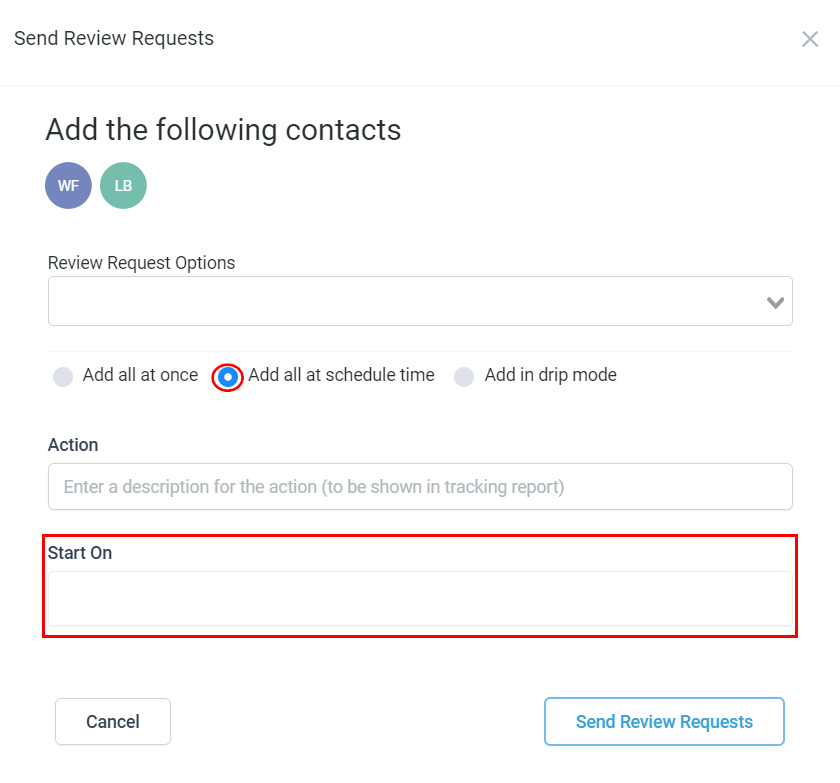
- Add at a Scheduled Time: Activate the "Add at a Scheduled Time" option to arrange for review requests to be sent at a specific date and time. This feature enables you to plan and organize your outreach efforts in advance for more timely communication with clients.Start On: Set the specific date and time to schedule the addition of your contacts to the review request. This ensures that your outreach is well-organized and timed to your preferences, leading to a more efficient feedback-gathering process.
- Start On: Set the specific date and time to schedule the addition of your contacts to the review request. This ensures that your outreach is well-organized and timed to your preferences, leading to a more efficient feedback-gathering process.
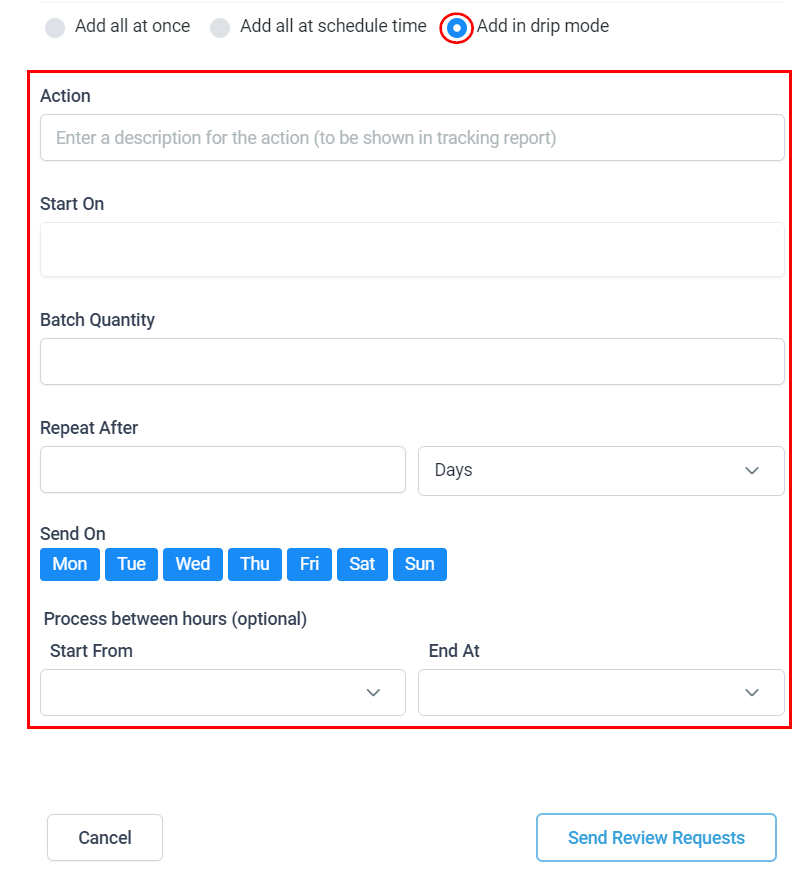
- Add in Drip Mode: For large contact lists, consider using the "Add in Drip Mode" option to send review requests in batches. This approach prevents overwhelming your clients with simultaneous requests.Start On: Set the specific date and time to begin the addition of your contacts to the review request.Batch Quantity: Specify the number of contacts to be included in each batch.Repeat After: Set the interval between batches, which can range from seconds to days.Send On: Select the days of the week you want to send the batches.Process Between Hours (Optional): Define the time window for processing the batches.
- Start On: Set the specific date and time to begin the addition of your contacts to the review request.
- Batch Quantity: Specify the number of contacts to be included in each batch.
- Repeat After: Set the interval between batches, which can range from seconds to days.
- Send On: Select the days of the week you want to send the batches.
- Process Between Hours (Optional): Define the time window for processing the batches.
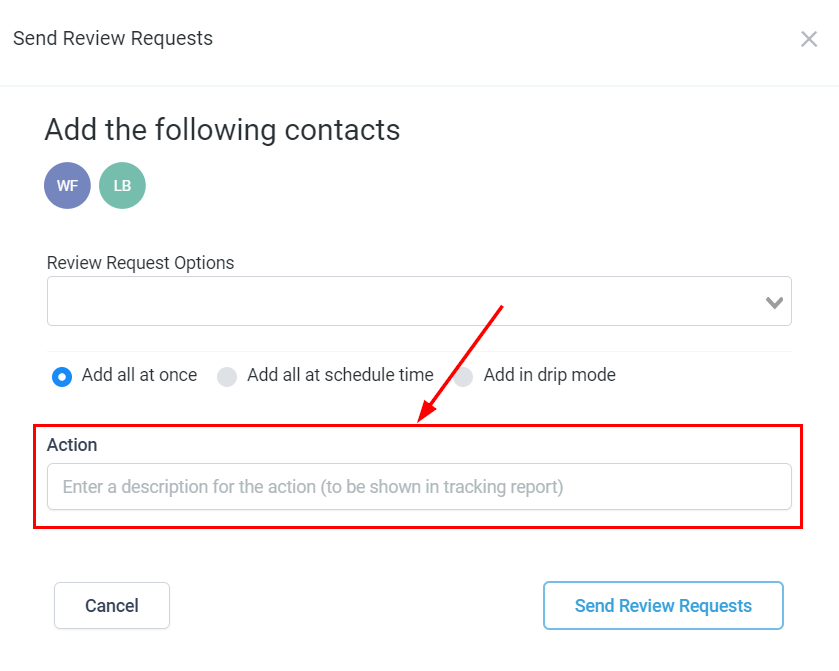
Action
Assign a recognizable name to this action, which will be displayed in the tracking report for easy reference. Ensure the name is clear and identifiable for future tracking purposes.
Send Review Requests
Verify your choices, then click the "Send Review Requests" button to initiate the bulk action.
This feature allows you to efficiently gather feedback from multiple contacts at once. Furthermore, you can customize the review request format within the 'Reputation' section for a more tailored experience.