
How to CC and BBC for email composer
Summary:
Our email composer has some cool features that help you send emails to different people in a smart way. These features are called CC (Carbon Copy) and BCC (Blind Carbon Copy), and they make your emailing experience better.
When sending emails there might be times when you need more people than just the contact to receive the communications, there's when CC and BCC come in. CC (Carbon Copy) and BCC (Blind Carbon Copy) allow you to include additional recipients, when using the CC file everyone can see each other's email addresses if you want to keep the additional recipients private use the BCC field instead.
When to Use CC and BCC?
- Customer Communication: If you're talking to a customer but need help from your boss or another team, CC them to keep everyone informed.
- Confidential Stuff: If you want to keep a boss in the loop about a customer's situation but want to keep their email from the client use BCC.
- Mass Email: If you want to send an email to many people, like a school announcement, but you don't want everyone to see each other's email addresses, use BCC.
- Vendor Chat: If your business deals with different companies, and you need to talk to all of them, put the main company in "To" and CC the others. This way, they all know who's talking to you.
How to Use CC and BCC?
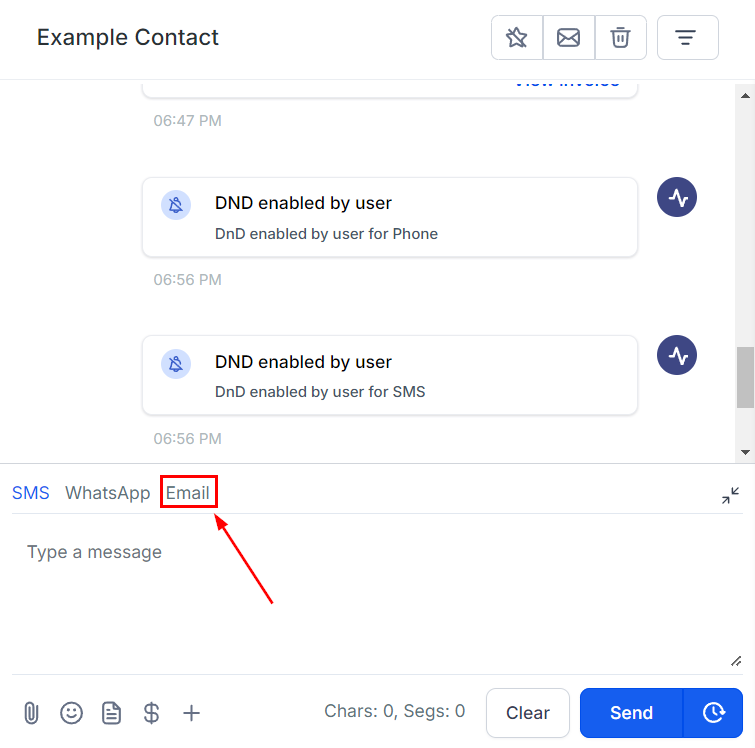
Go to the contact you'd like to be the main recipient and click on the email channel.
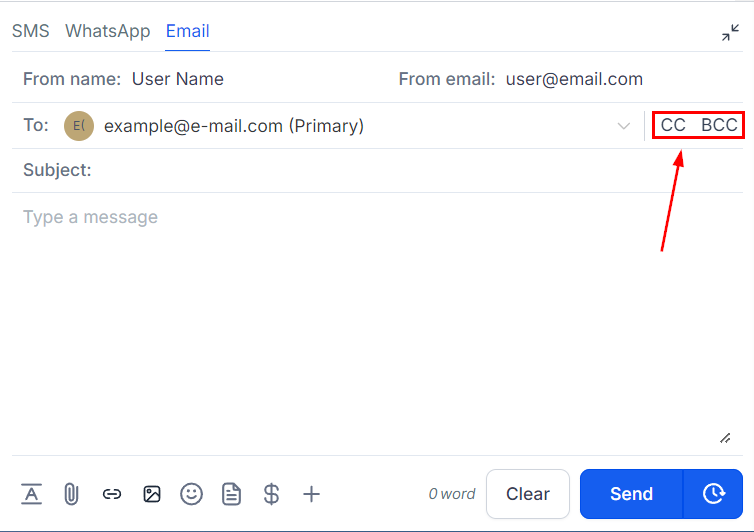
Look for the CC and BCC boxes next to the "To" box. They're easy to spot.
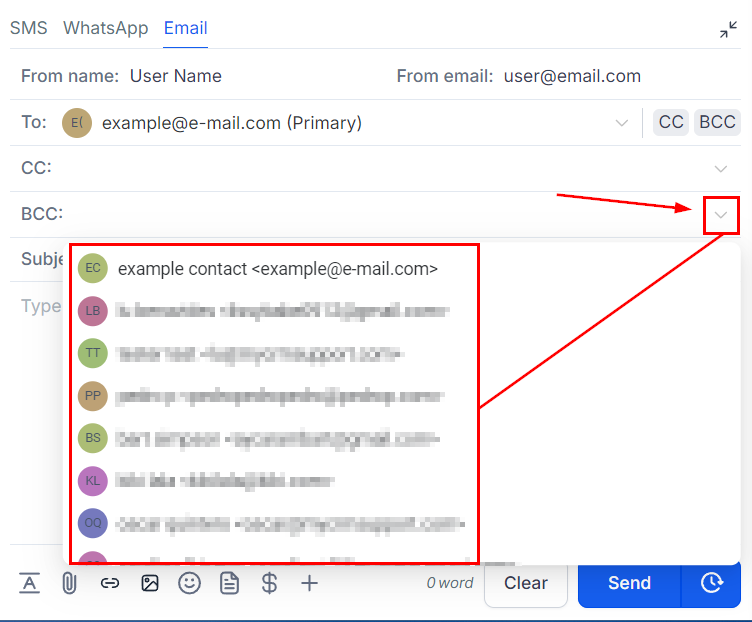
Click CC or BCC to open them. Now, you can type in the email addresses of the people you want to add. You can also choose from your contacts.
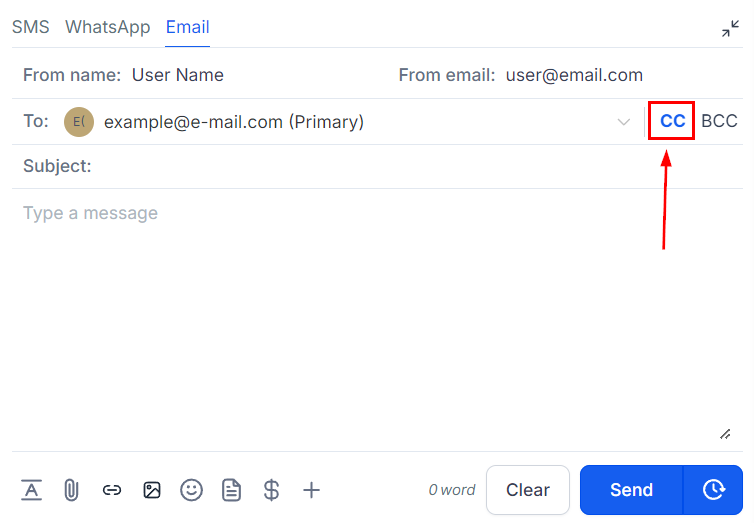
After adding everyone, click CC or BCC again to close them. Your choices are saved and each field you've added recipients in will be highlighted in blue.
When you get an email with CC or BCC people, you can click "reply all" to answer everyone. But remember, you can't take out CC or BCC people in the middle of a conversation. Now you know how to use CC and BCC to email different people. It helps you share information and keep some things private when needed. Enjoy your improved email experience