
How to Schedule a Message in Conversations
Summary:
In this article, we will discuss how to schedule an Email or SMS from the conversation section.
Maintaining open communications with your customers is key to ensuring their satisfaction. However, there will be times when your work hours don't align with your customer's time, or a message is needed but not urgent. For those occasions, one of the options you have at your disposal is Scheduling messages.
To use this feature head to the Conversations section and select the contact you'd like to reach out to.
How to Schedule a Message?
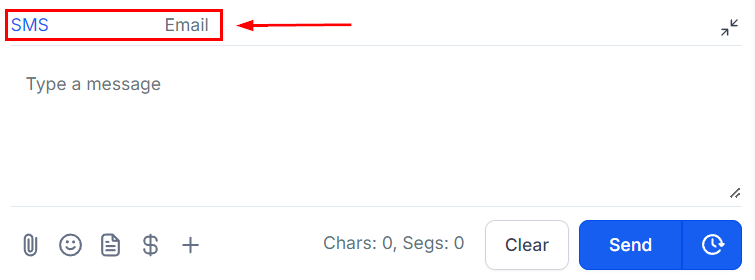
Select the channel you want to send the message with.
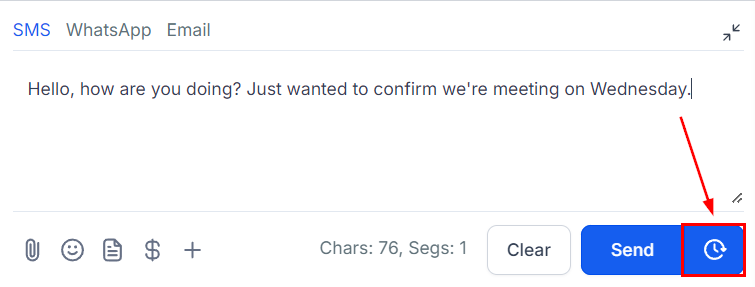
Compose your SMS/Email as normal then click on the timer icon next to send.
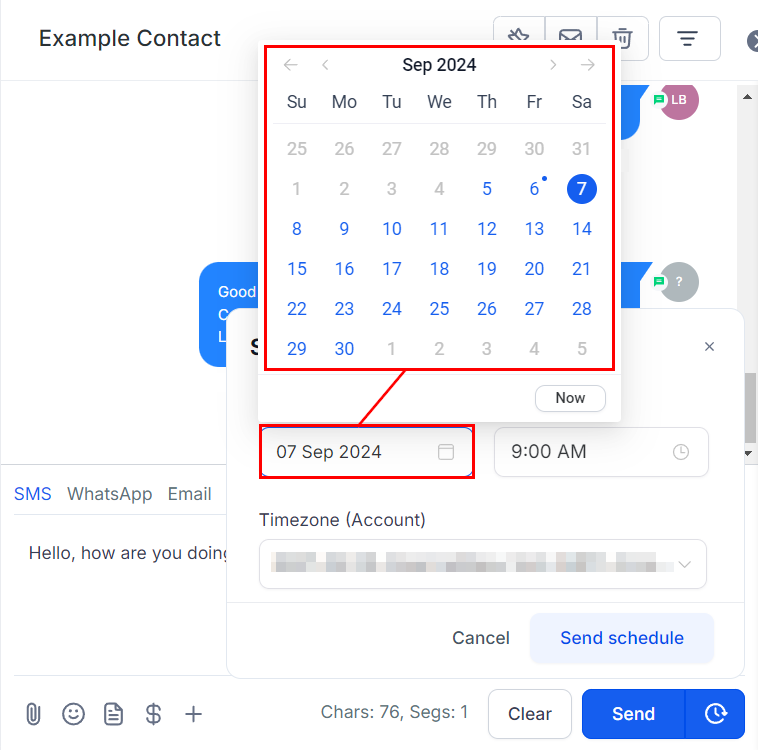
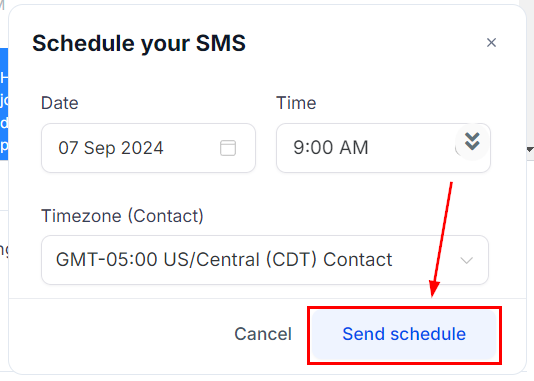
Select the date from the calendar.
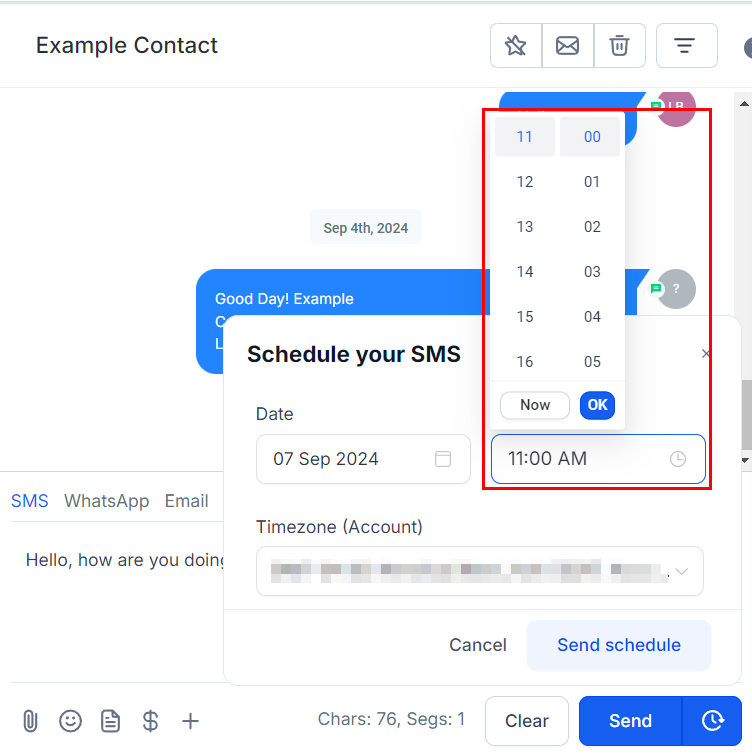
Set the time to send the message, the time selector is in the 24-hour format.
Select the timezone to send the message in, by default this will be the customer's time but you can change it as needed.
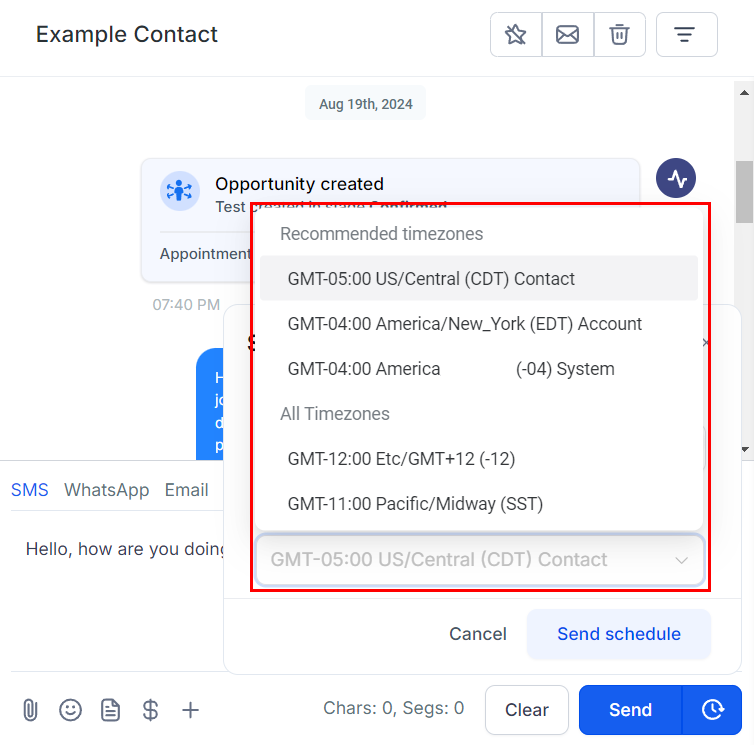
Click on Send Schedule, and you're done.
How to Cancel a Scheduled Message?
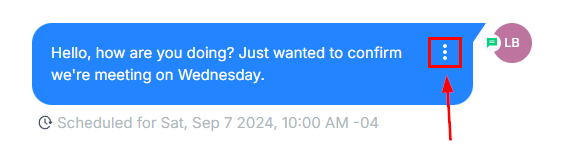
Click on the three dots icon next to the scheduled message you want to cancel.
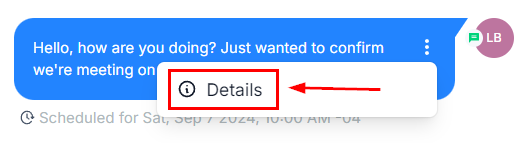
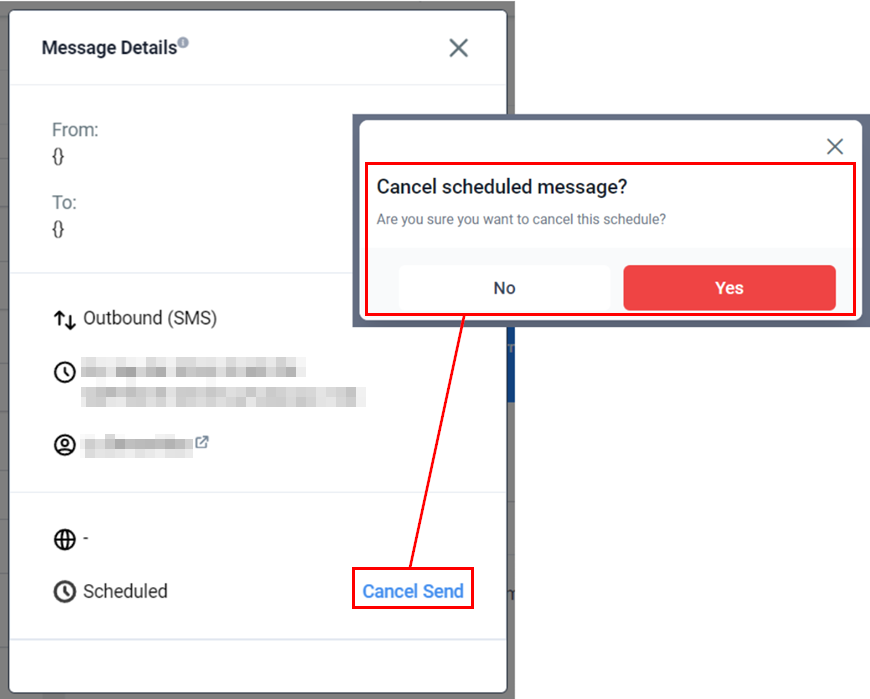
Click Details, this will open a pop-up with the message's info.
Click Cancel Send, this will open a window for you to confirm the message's cancelation. Once you refresh the page the message will be gone.
📌Note: If the scheduled time passes before you try to cancel it this will not be available.
And there you have it, now you can schedule messages for SMS or Emails that way even when you're away or busy you can still reach out to them as needed.