
Connecting Twitter account (Social Posting)
Summary:
Social Planner provides you with all of the tools necessary to engage and interact with your audience through Twitter
Connecting your X (formerly Twitter) account to the social planner helps you engage and interact with your audience, by adding your accounts ensuring you never miss an opportunity. It allows you to tweet, like, and retweet from the comfort of your CRM.
Connecting Your Account
If you don't have any social media account connected yet, you will see this page, click on the X icon in the wizard with the connect option as shown below to start setup.

If you already have an account connected, click on the Setting option (Gear icon) at the top right corner of Social Planner.

After clicking the Connect Social button, there will be an option to add a Twitter account.

Authorize Twitter Profile
When you connect your Twitter account, fill in your username and password. Then, authorize permissions with Lead Connector by selecting the blue Authorize App button.
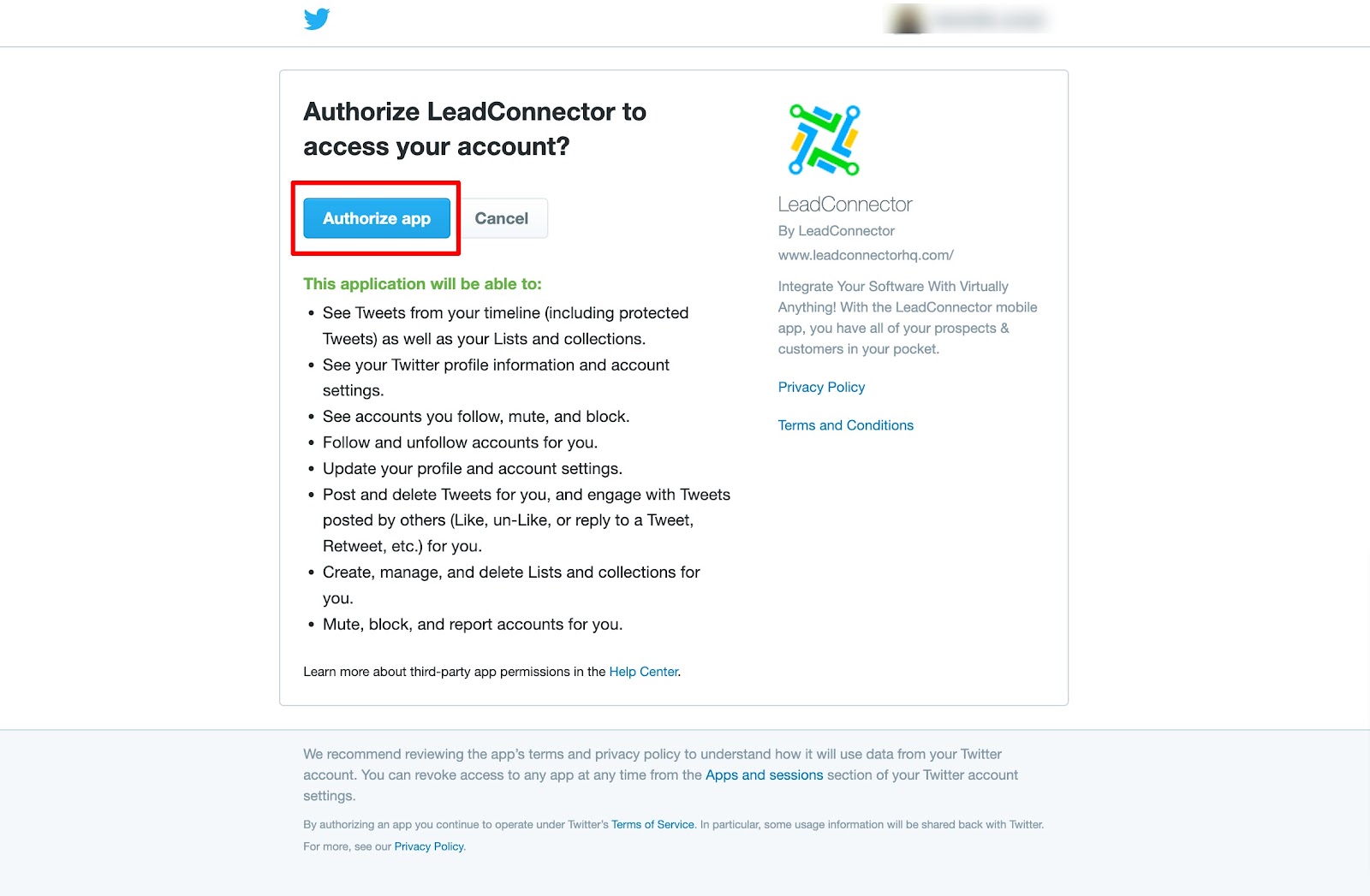
Once you have selected the correct account to link to the Social Planner, you can access and manage your content easily through the Social Planner giving you enhanced control over your content scheduling and social media management.