
How to Bulk Delete Posts in the Social Planner
Summary:
Scheduling Posts from the Social Planner helps you keep an active presence on social media. However, managing many accounts at once also means when you make a mistake several posts will contain it. For those still unpublished, you can follow these steps to remove it.
Scheduling Posts from the Social Planner helps you keep an active presence on social media. However, managing many accounts at once also means when you make a mistake several posts will contain it. For those still unpublished, you can follow these steps to remove it.
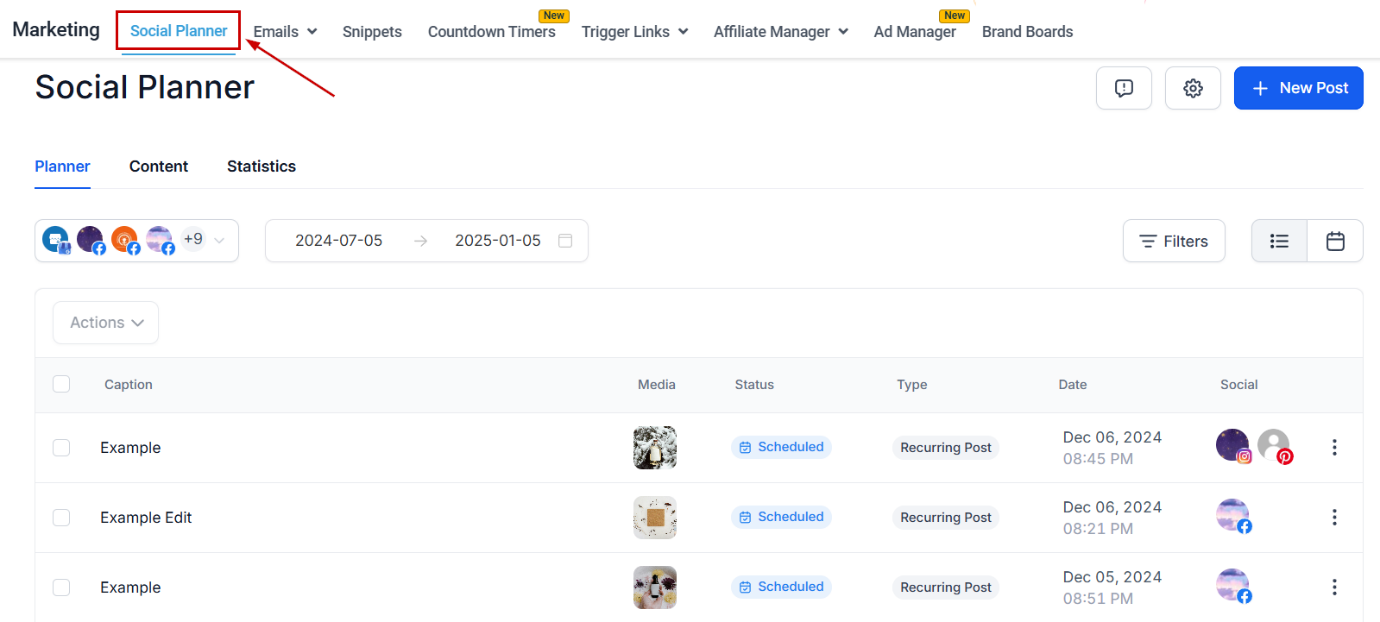
Start by navigating to the Social Planner tab inside the Marketing section.
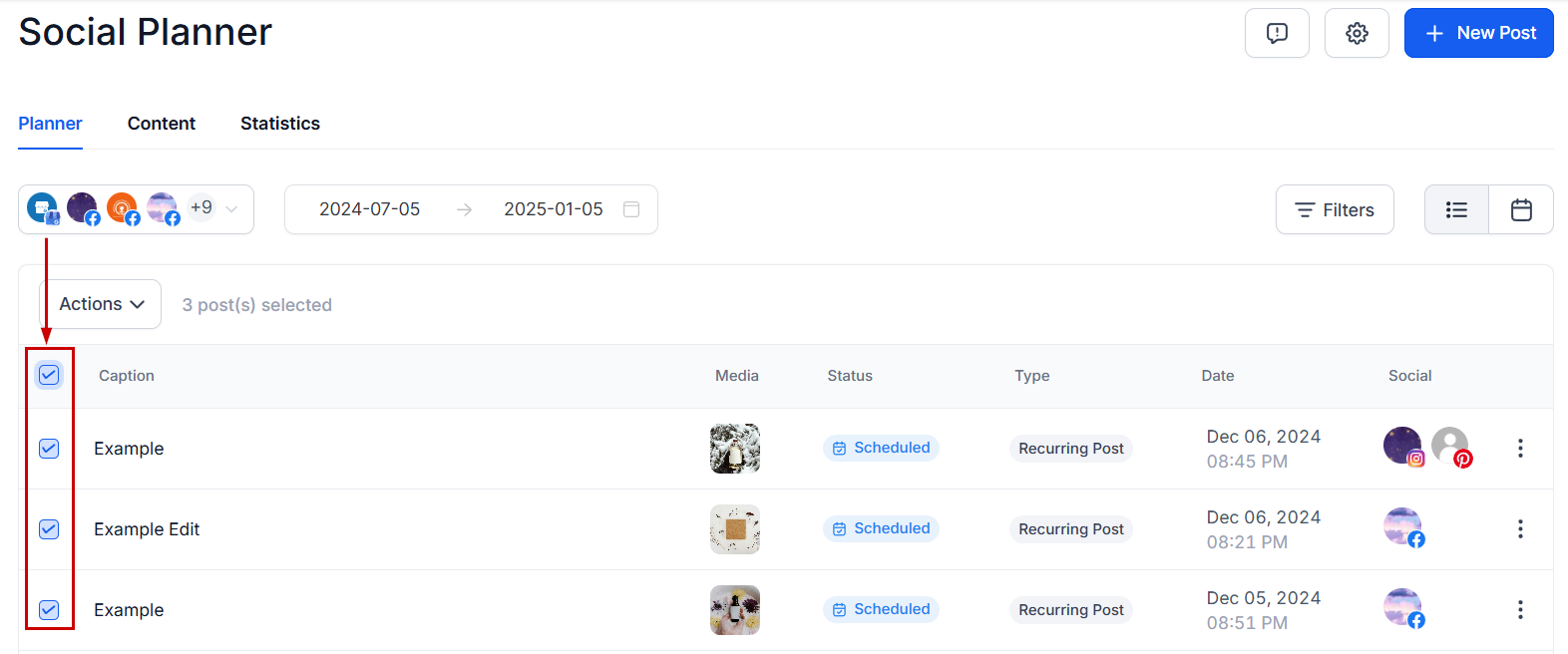
Check the box next to all posts you’d like to delete or check the box at the top. You can bulk delete a maximum of 50 posts in one go.
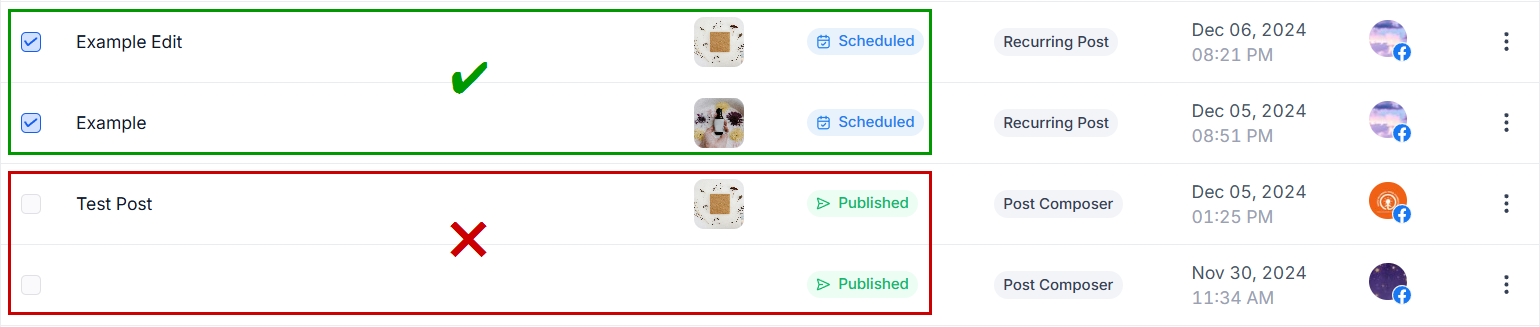
Multiple posts in the draft, scheduled, failed, and In-review stages can be deleted but not the 'published' ones.
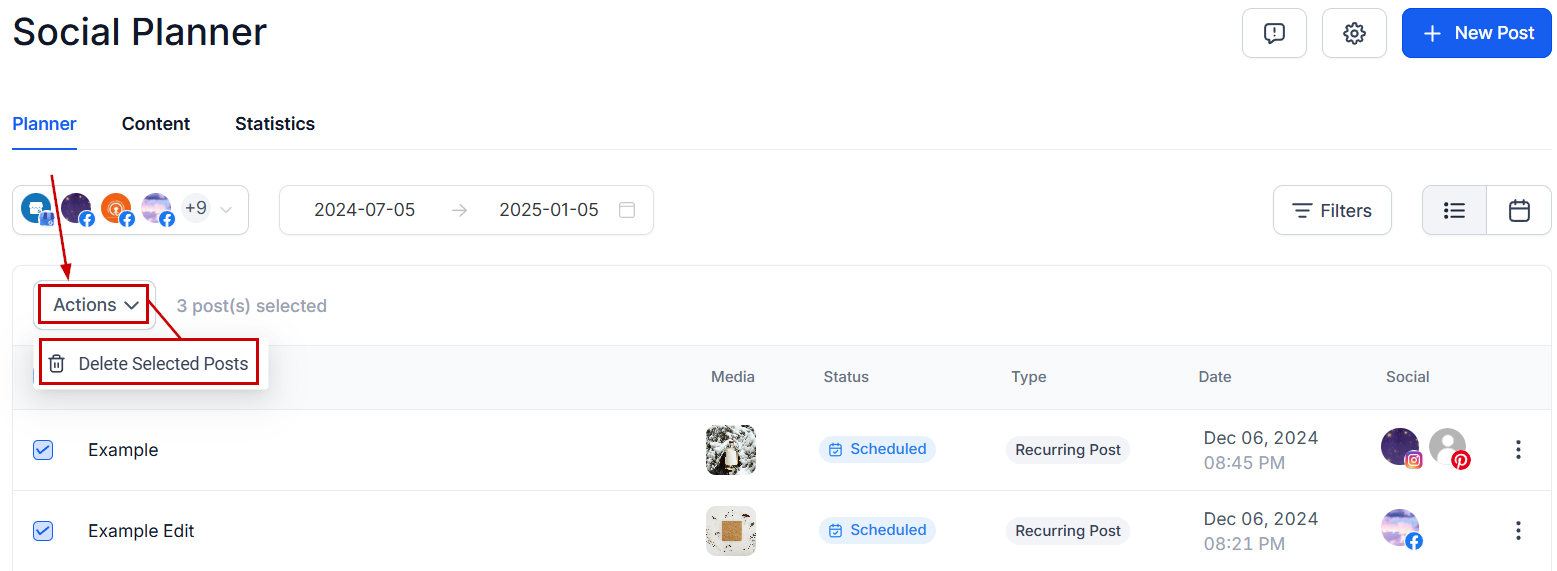
Open the Actions drop-down menu and click Delete Selected Posts.
📌Note: The deletion is done in the social planner module, it does not delete the post directly from the socials.
Use the Bulk Delete Posts action to easily remove multiple posts from your upcoming schedule, keeping your social media tidy, error-free, and appealing helping you make the most of your social media presence.