
Namecheap MX Records
Summary:
If your domain is pointed to our BasicDNS, PremiumDNS or FreeDNS, you can configure mail service and MX records in your Namecheap account.
This article will help set up MX records in your Namecheap account settings.
If your domain is pointed to our BasicDNS, PremiumDNS, or FreeDNS, you can configure mail service and MX records in your Namecheap account.
NOTE: Before setting up your mail service, be sure that there is no CNAME record created for a bare domain, (e.g., yourdomain.tld) in the Host records section, or email will not work correctly. CNAME has the highest priority and prevails over all the other records for the hostname, including MX Records which are responsible for mail delivery.
To set up MX records for your domain, follow these steps:
1. Sign into your Namecheap account in the top left corner of the page.
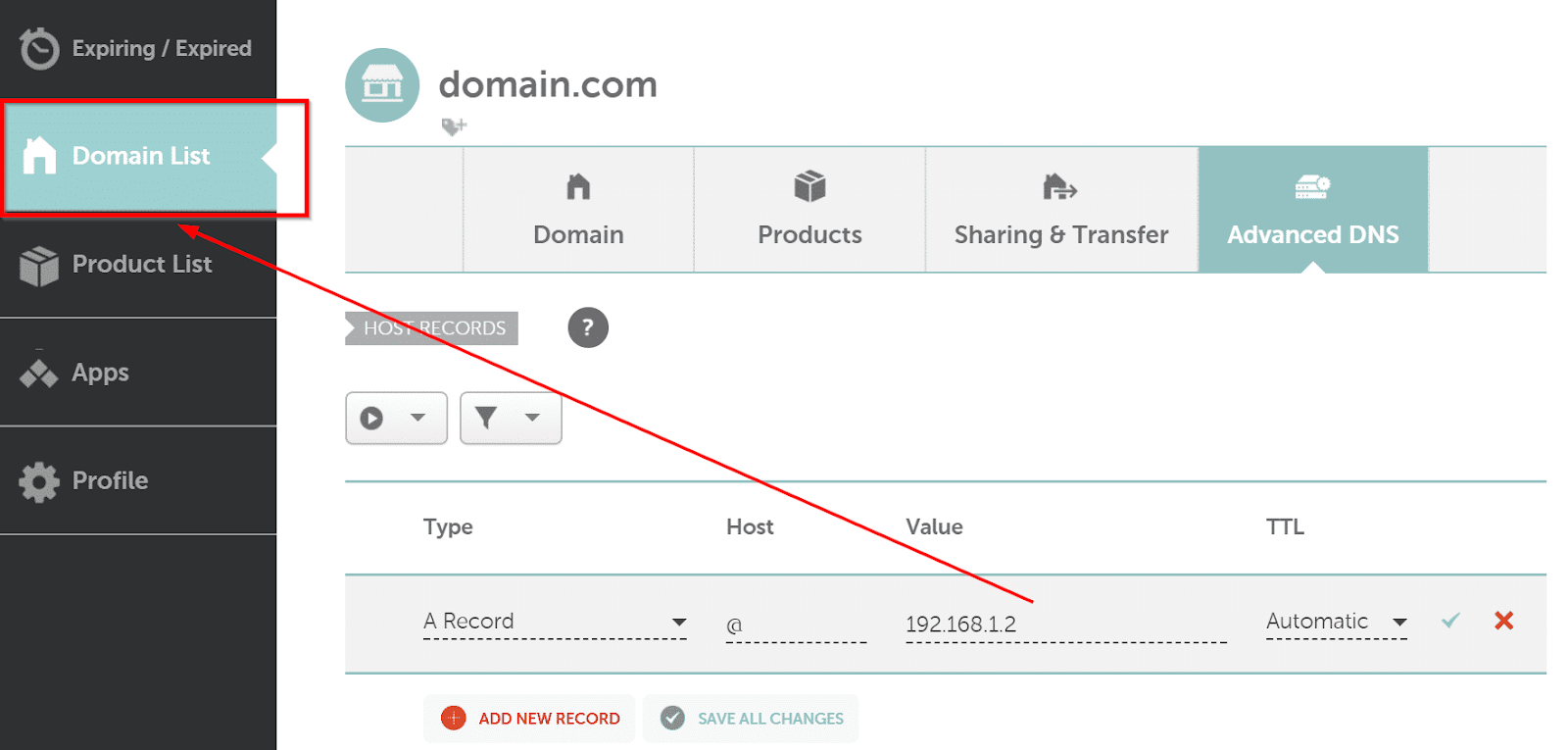
2. Select Domain List in the left sidebar:
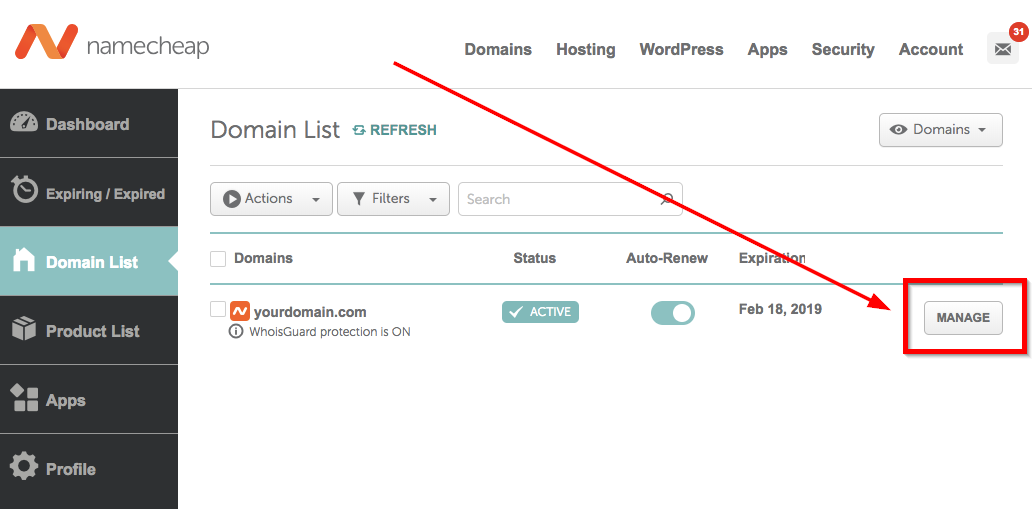
3. Click Manage next to the domain name you wish to set DNS records for:
4. Navigate to the Advanced DNS tab and go to the Mail Settings section (not able to edit Host Records?
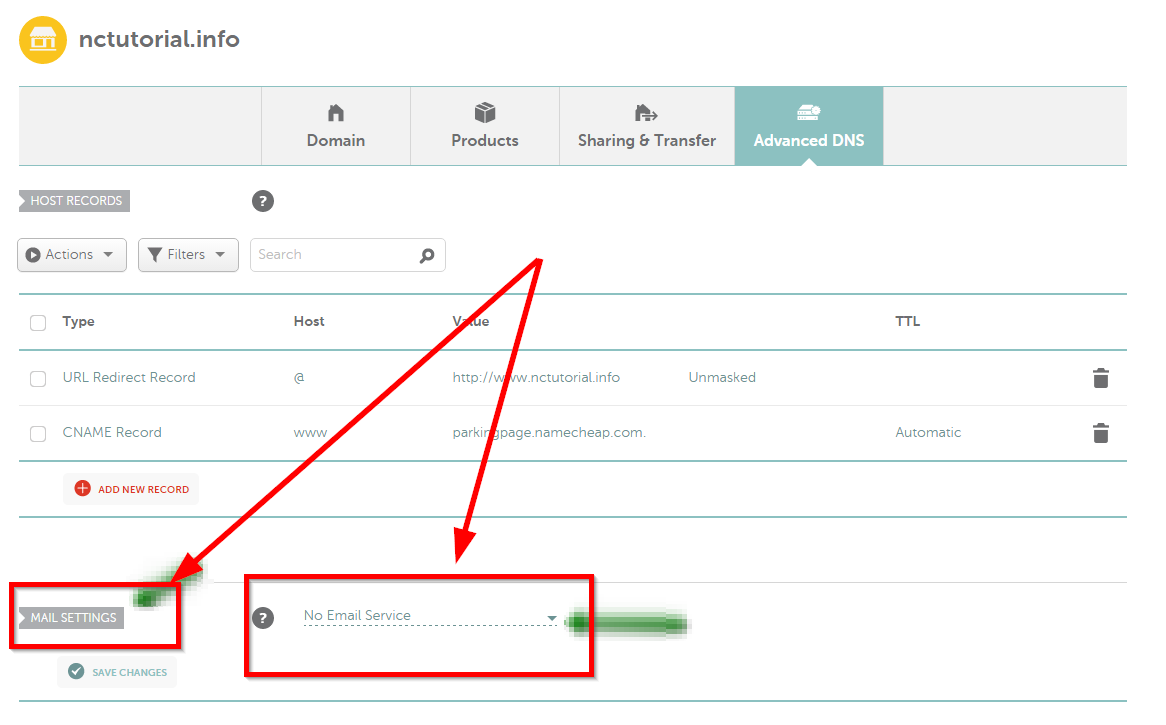
Here, you may choose one of the following Mail Settings depending on the mail service you wish to use:
No Email Service- if you wish to use no mail service. Your domain will have no MX records.
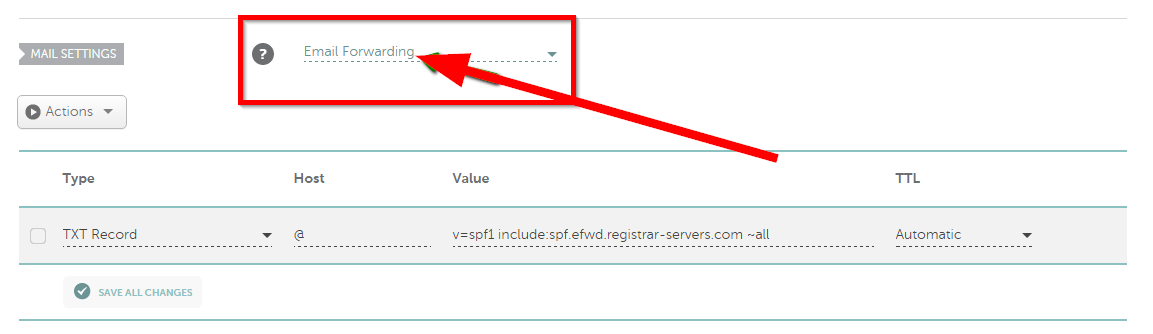
Email Forwarding- if you wish to create personalized e-mail addresses for a domain and forward emails to other email accounts of your choice. The MX records will be set up automatically after selecting this option:
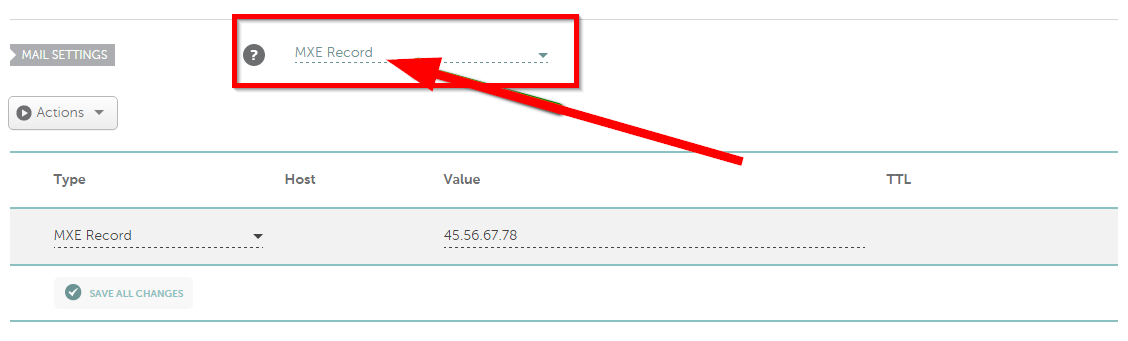
MXE record is used for forwarding mail to a mail server's IP address:
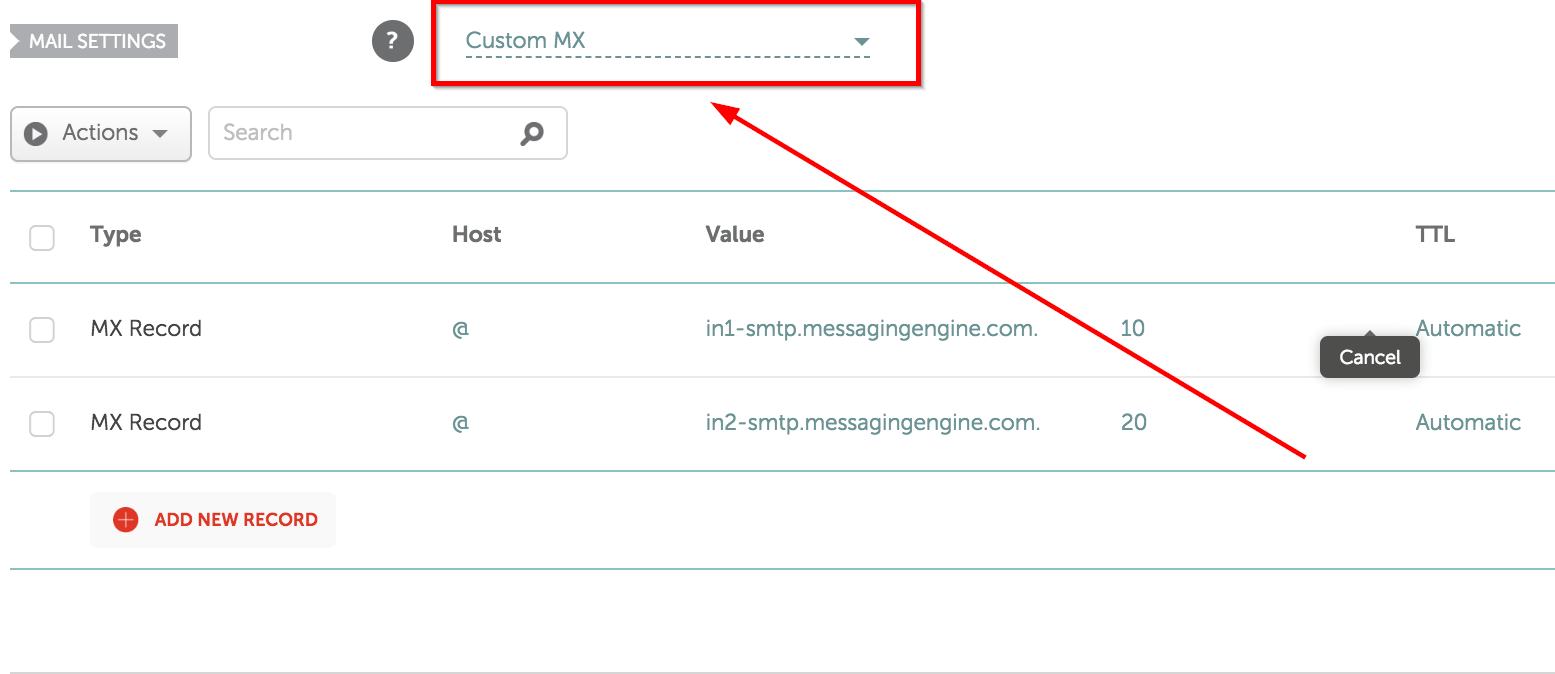
Custom MX is used to set MX records for third-party mail services, like cPanel webmail service (if you wish to use cPanel mail service with default nameservers), Zoho mail, Outlook.com, etc.
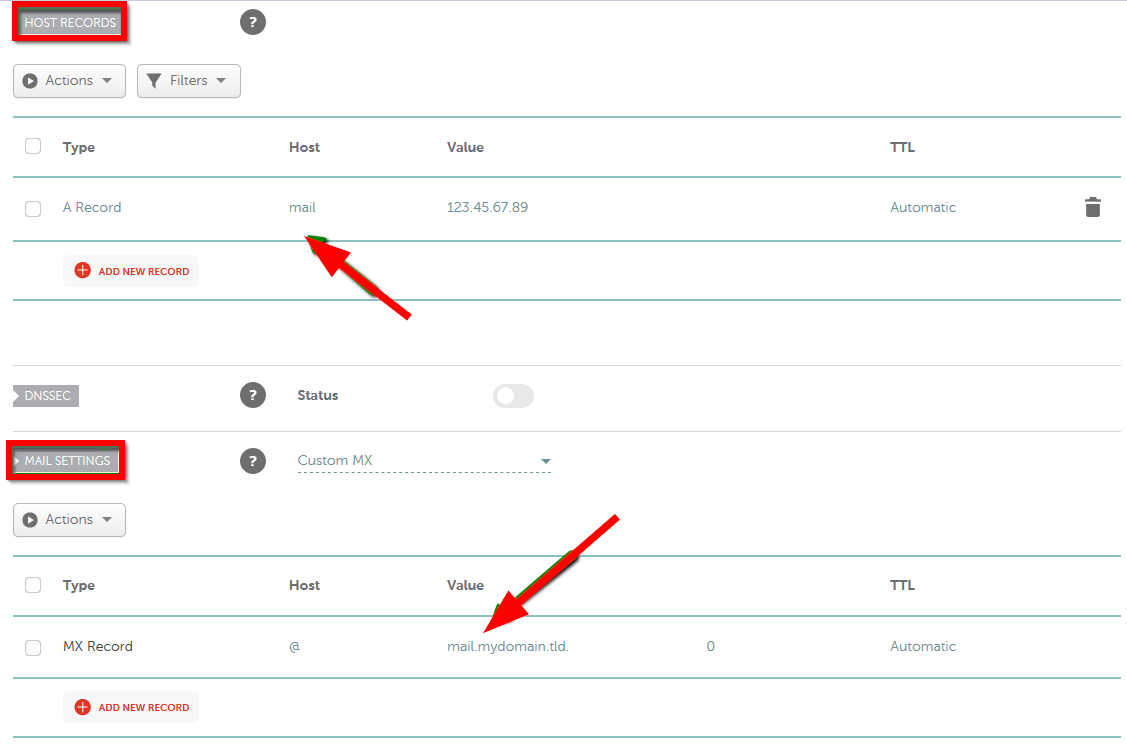
It is possible to indicate your domain as the mail server address like mail.domain.tld or domain.tld. Please note that the corresponding A record pointing to the IP address of the mail server should be created in the DNS settings:
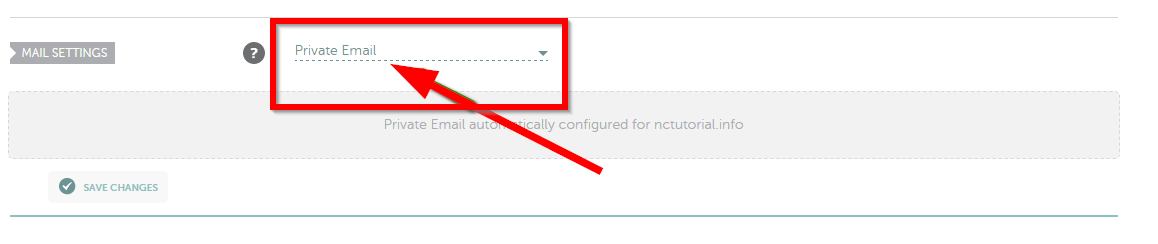
Private Email- if you wish to set up MX records for the Namecheap Private email service. The MX records will be set up automatically after selecting this option:
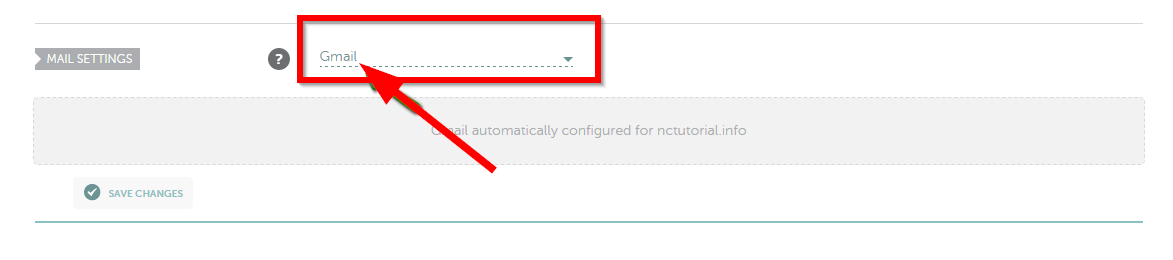
Gmail- if you have a G Suite subscription, select the Gmail option to set up the records needed for this mail service:
Once all necessary settings are selected, be sure to save changes. Normally, it takes 30 minutes for newly created records to take effect.