Managing Media Files and Folders
Summary:
Here you will find all previously uploaded media files where you can manage your media library and even keep it organized with folders.
There are several actions you can perform with the images in the Media Library. Simply right-click on an image or folder to access various options for organizing your files and folders.
Folders
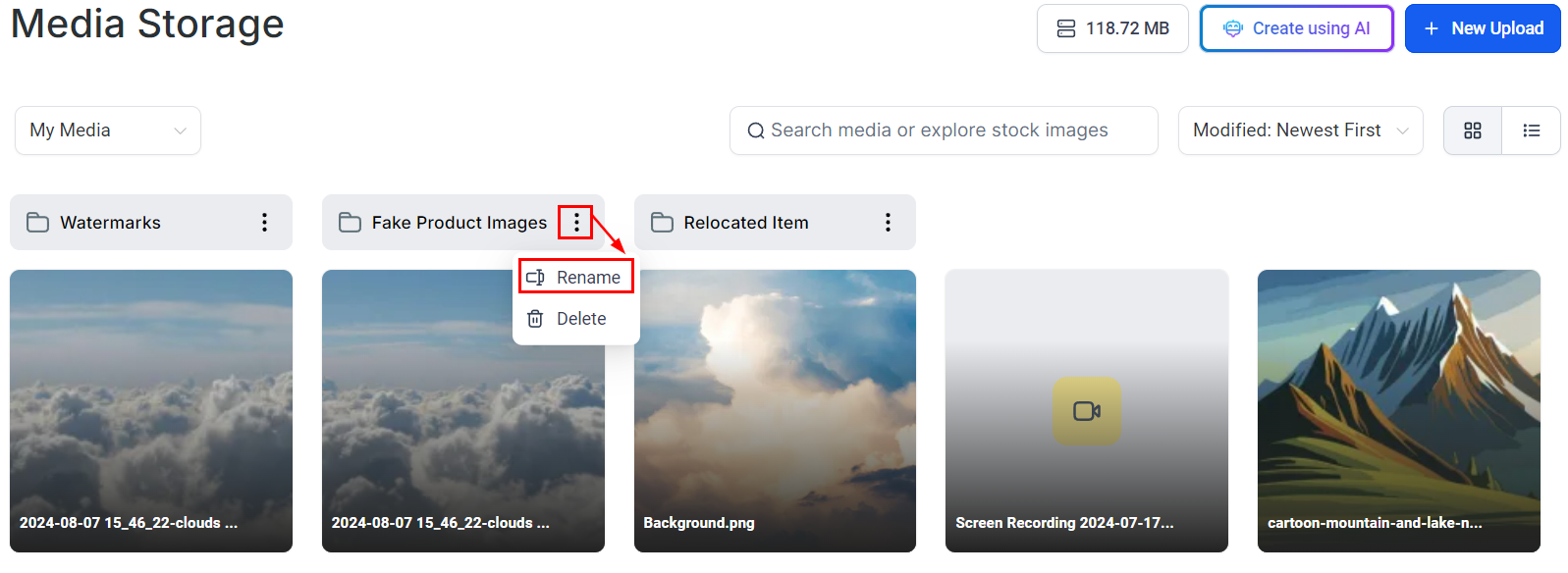
Renaming a Folder
To update the name of a folder, right-click on the folder and select the Rename option.
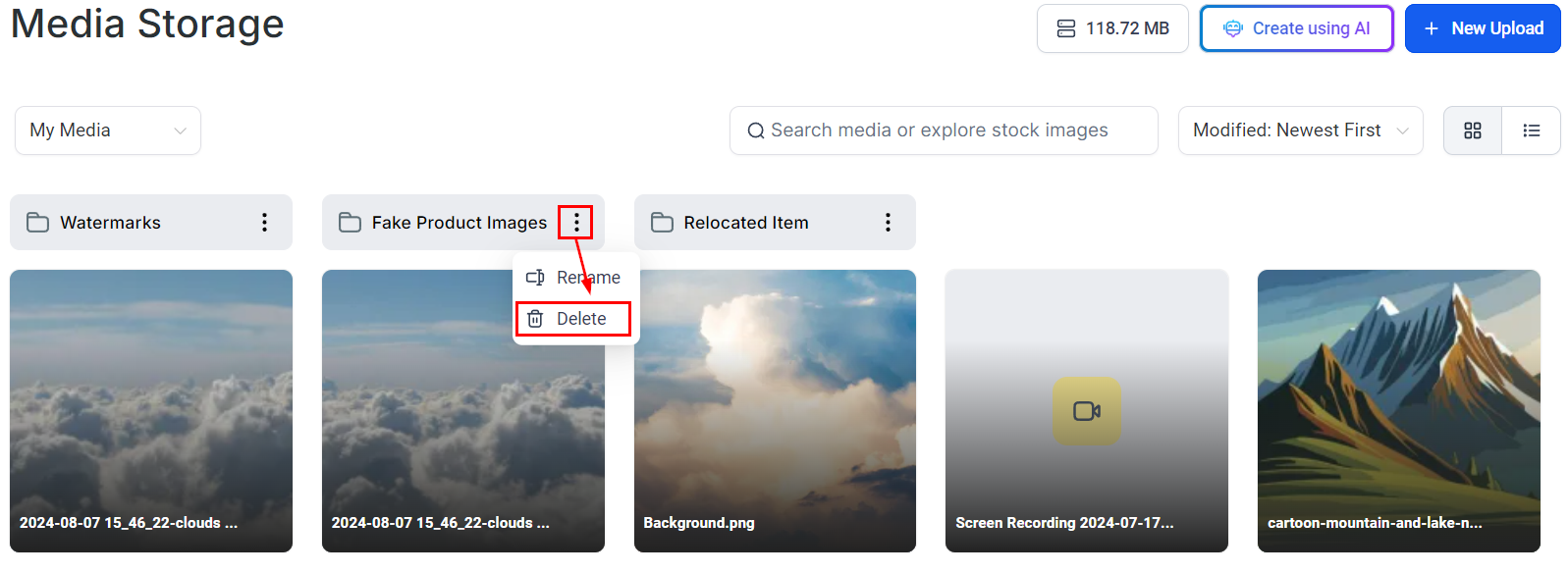
Deleting a Folder
Delete unused or irrelevant folders to keep your media library organized, easier to navigate, or free up space.
Files
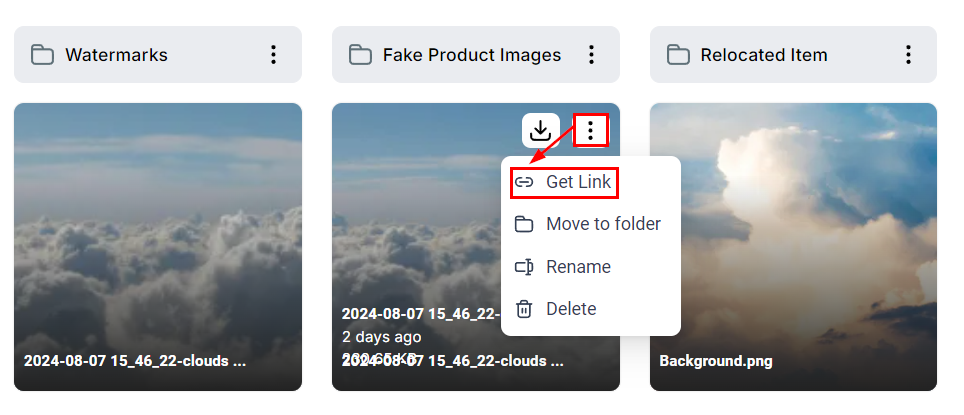
Get Link for a file
The Get Link option will allow you to retrieve the unique link for each image for you to be able to use it in your funnel or a website project. Once you click on "Get Link", your system will copy the unique link to the clipboard that you can paste wherever it is meant to be used.
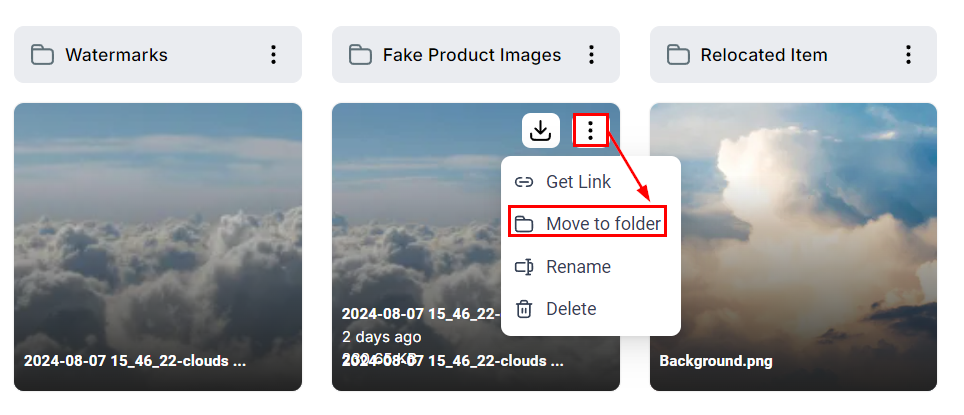
Move to Folder
Quickly move the selected file to a different location or a specific folder within the Media Library.
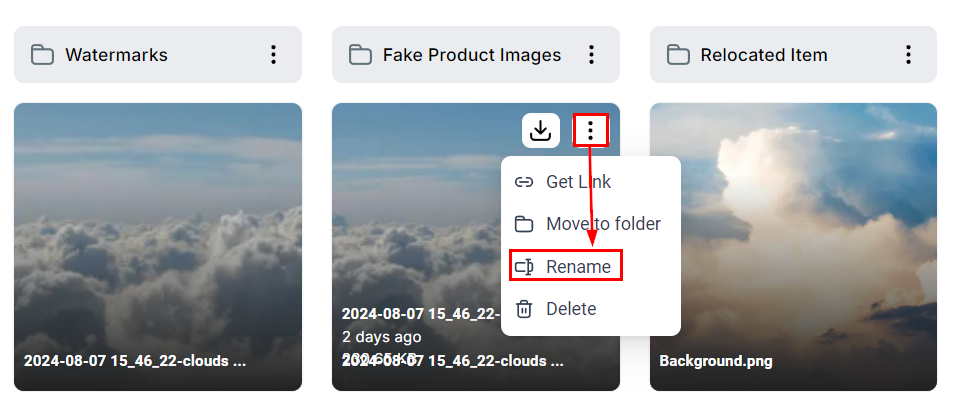
Rename
You can Rename your file by selecting the Rename option as shown below.
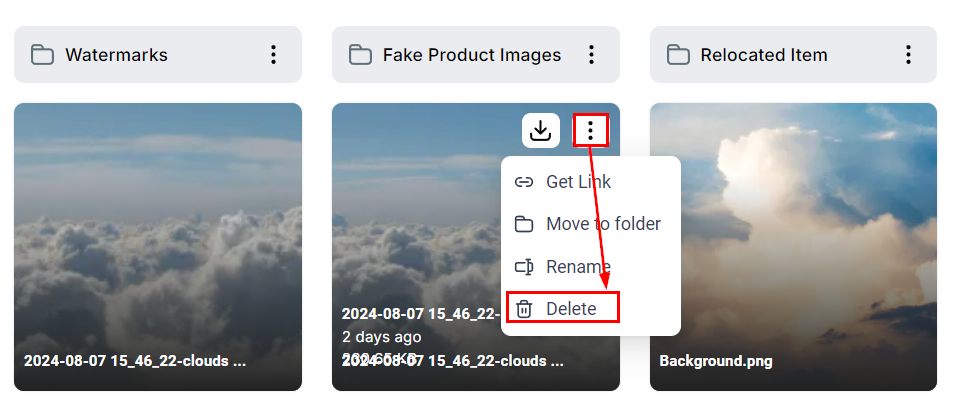
Delete
Remove a file from your media library by selecting the Delete option as shown below.