
Learning Tab (Courses)
Summary:
All you need to know about the Learning Tab within your Community.
The learning tab allows you one more point of contact with your communities, this added connection can turn a regular group lurker into a proactive brand advocate. Your courses will enable you to create learning opportunities for your clients, offer extra value to your audience, and, with paid offers, even allow you to leverage your audience's attention into revenue.
Adding a Course
Admins and Owners can easily add courses to the Learning Tab by clicking on the "Add Courses" option. This process is straightforward and user-friendly. To start, click on +Add Course this will open a pop-up window.

Select the Course you want to add from the dropdown menu.

Define the course visibility- whether you will allow all members to have open access to the community, require members to reach a specific leaderboard level, make a one-time payment or subscription, or wait for a predefined duration after joining to unlock access.

After completing the steps above, click the “Add Course” button. This will add the course to your group for all your community members to be able to access it.

Option Menu
Sometimes course offerings may need to be updated, changed, or even removed. Clicking the ellipsis icon on top of a course will open the options menu, so you can manage the selected course.

Notifications
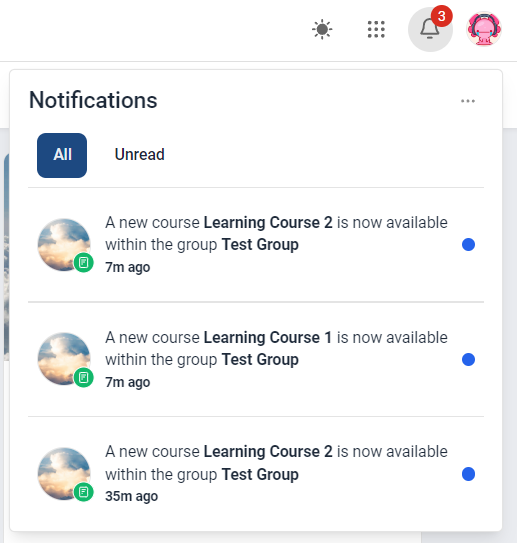
To ensure that no one misses the exciting learning opportunities your platform offers all users receive email notifications whenever an admin or owner adds a new course to the group, keeping your audience informed about the latest educational resources available.
That's all there is to know about the Learning tab! Gain more lasting customers today by taking advantage of this feature.