
Membership Settings
Summary:
This section allows you to customize your entire membership portal for your account.
This section allows you to customize your entire membership portal for your account. Before you go live with any of your portals you need to set up these three sections below in a way that is easier for visitors to find.
To access the Settings open the drop-down menu for the Courses tab inside the Memberships section and select Settings.

Site Details
Here you can set up your site info and Branding.

Site Info
- Title: You can customize the title of your membership portal here. Whatever name you use will be for the entire membership portal, so it's advisable to use your company's name.
- Site URL: Here you can find the URL members will use to access your site.
- Advanced: Manage your Custom JS, CSS, and Tracking Code in the Advanced dropdown.

Branding
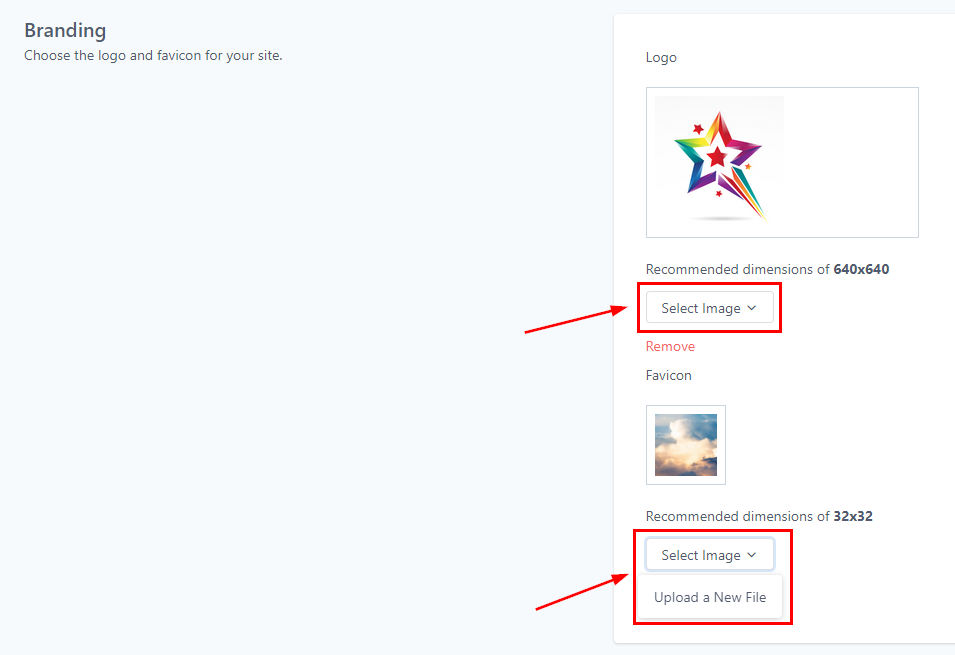
Here you can add your Logo and Favicon to your site. The recommended dimensions of the image are 640x640 for your logo and 32x32 for your Favicon. When you click on the "Select Image" menu below the Image icon and click "Upload New Files", it directs you to the upload page where you can upload the image you want to use from your local device.
Building Settings
Enable the Download option to allow users to download original videos from your courses. Always click the Save button to confirm changes.

Domain Setup
This helps you to set up your custom domain on your membership site.

Setup Domain
Here you can customize your portal's Sub-Domain by entering a preferred sub-domain in the provided field. If you want to use a personalized web address, add a Custom Domain by typing it into the relevant field and clicking the Add Domain button. Once you've made your changes, click Update Domain to save and apply them.

Email Settings
You can customize your Email here. This allows you to send relevant emails to your course community.

You can send automated messages to your clients with Send Welcome Message, Send Drip Message, Send Offer Access Email, New Comments In Courses, and New Course Materials Unlocked options. Also, create default templates that enable you to send emails faster and more efficiently.

App Settings
You can customize the experience of your desktop and mobile progress app.

Enable PWA
Progressive Web Application (PWA) is a type of web app that can operate both as a web page and mobile app on any device. Toggle it on to enable it!
App Details
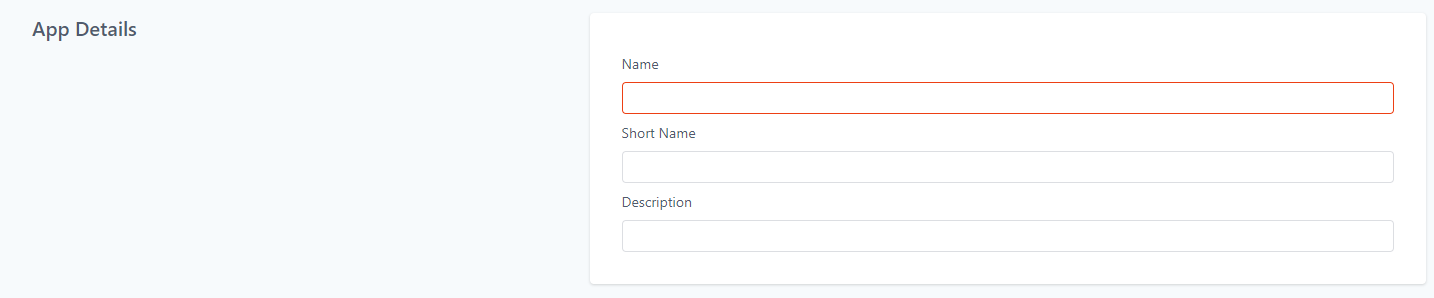
Here you can type in the App name. You can also have a short name for your app if the original name is too long or complex. Give a brief description to help visitors understand what your app does.
App Icon
These icons will appear in multiple places like the App drawer and splash screen. There are two image sizes to upload; the Recommended dimensions of 512x512 and the Recommended dimensions of 192x192.
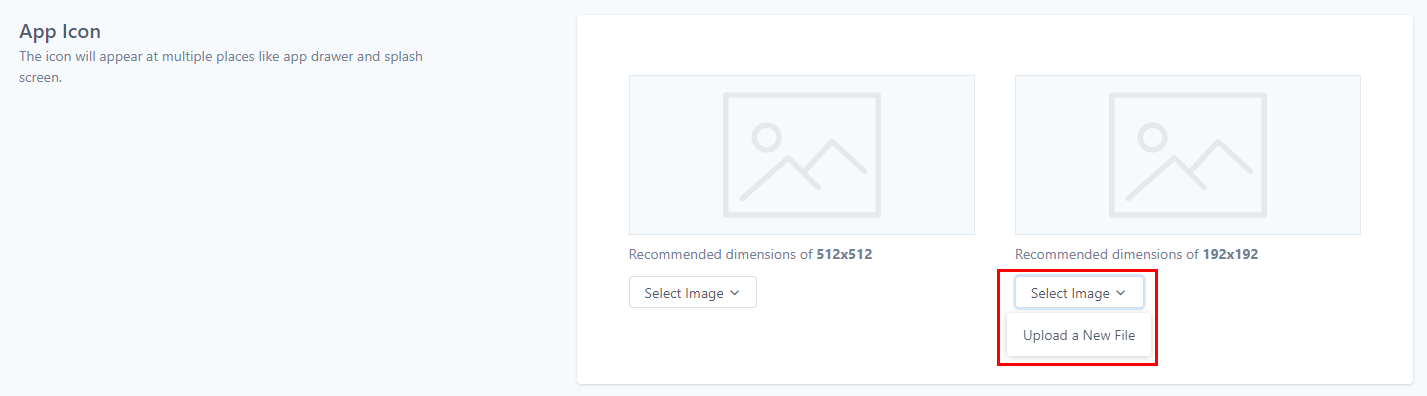
When you click on the "Select Image" menu below the Image icon and then click "Upload New Files", it directs you to the upload page where you can upload the image you want to use from your local device.
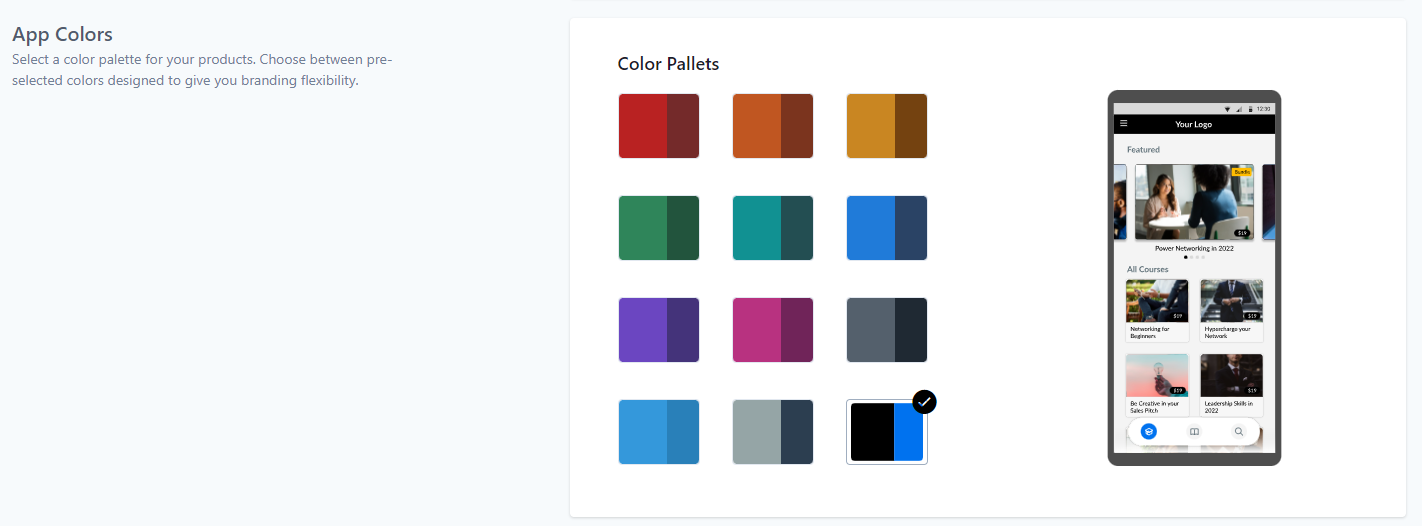
App Colors
Select a color palette for your products. Choose between pre-selected colors designed to give you branding flexibility
Customizing your membership portal is a straightforward process with these settings. Once configured, your portal will deliver a professional and user-friendly experience tailored to your audience.