
How to Use Business Card Scanner in the Mobile App
Summary:
By automating the extraction of details from business cards, users can save time and reduce the likelihood of errors, making contact creation simpler than ever before.
The Business Card Scanner feature empowers you to effortlessly scan business cards to create new contacts.
The addition of the Business Card Scanner allows users to create contacts in a much more seamless and user-friendly manner. This feature simplifies the process of inputting contact information, ensuring accuracy and efficiency. By automating the extraction of details from business cards, users can save time and reduce the likelihood of errors, making contact creation simpler than ever before.
How It Works
Open the Mobile App
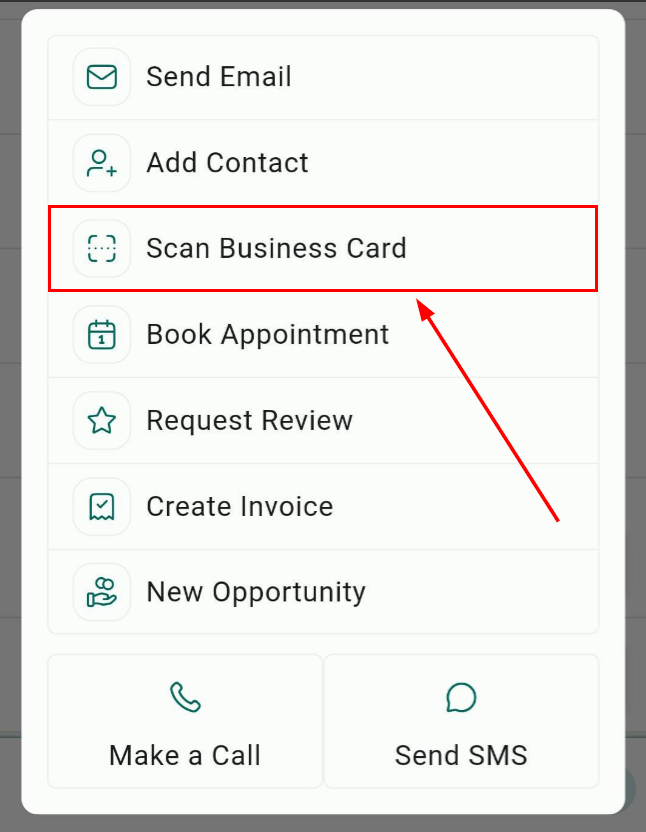
Begin by opening the mobile app and choosing an entry point to start scanning. You can begin from either the Contacts page, Contact Creation screen, or from the bolt quick actions button.
Contacts Page
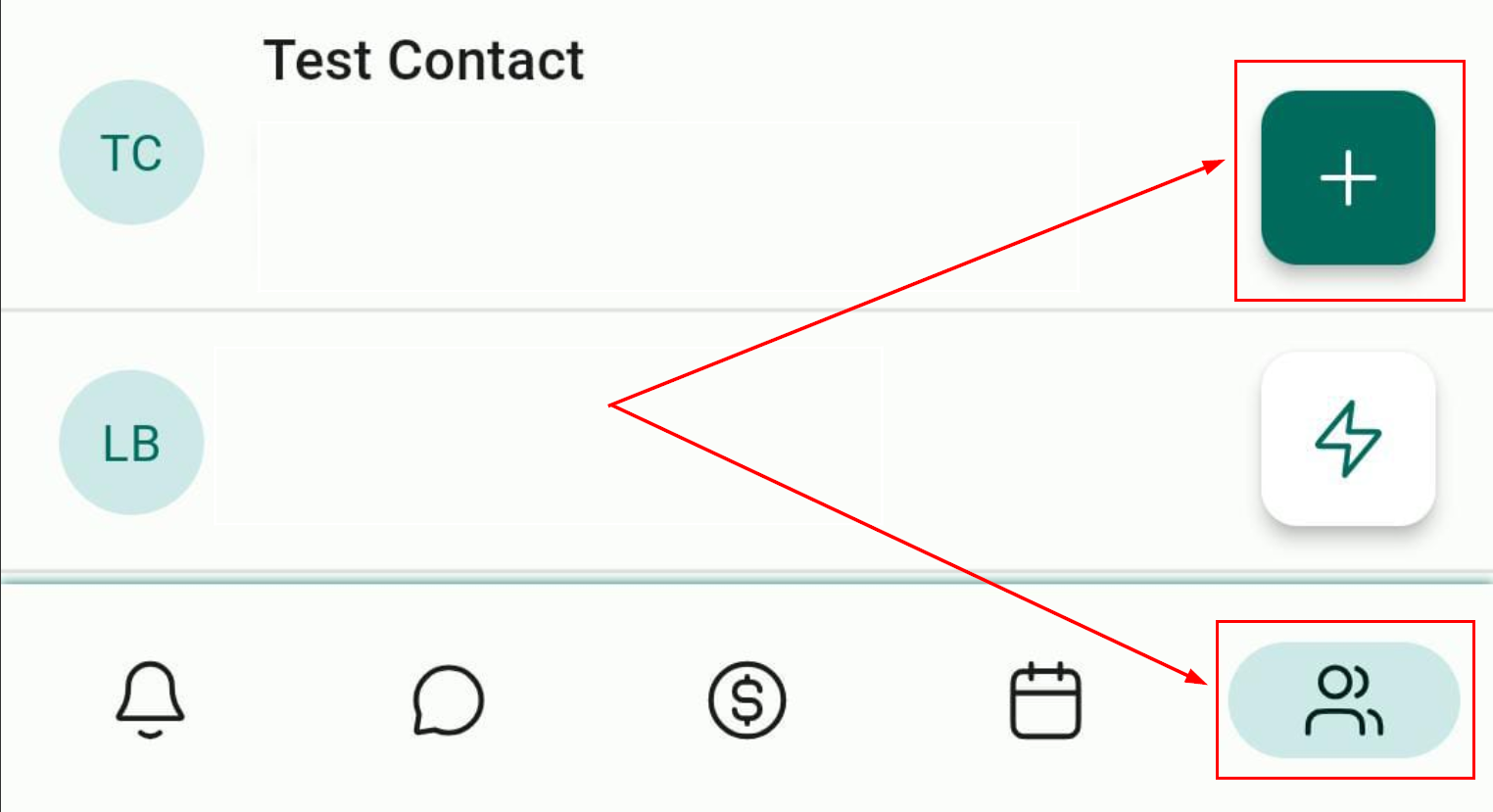
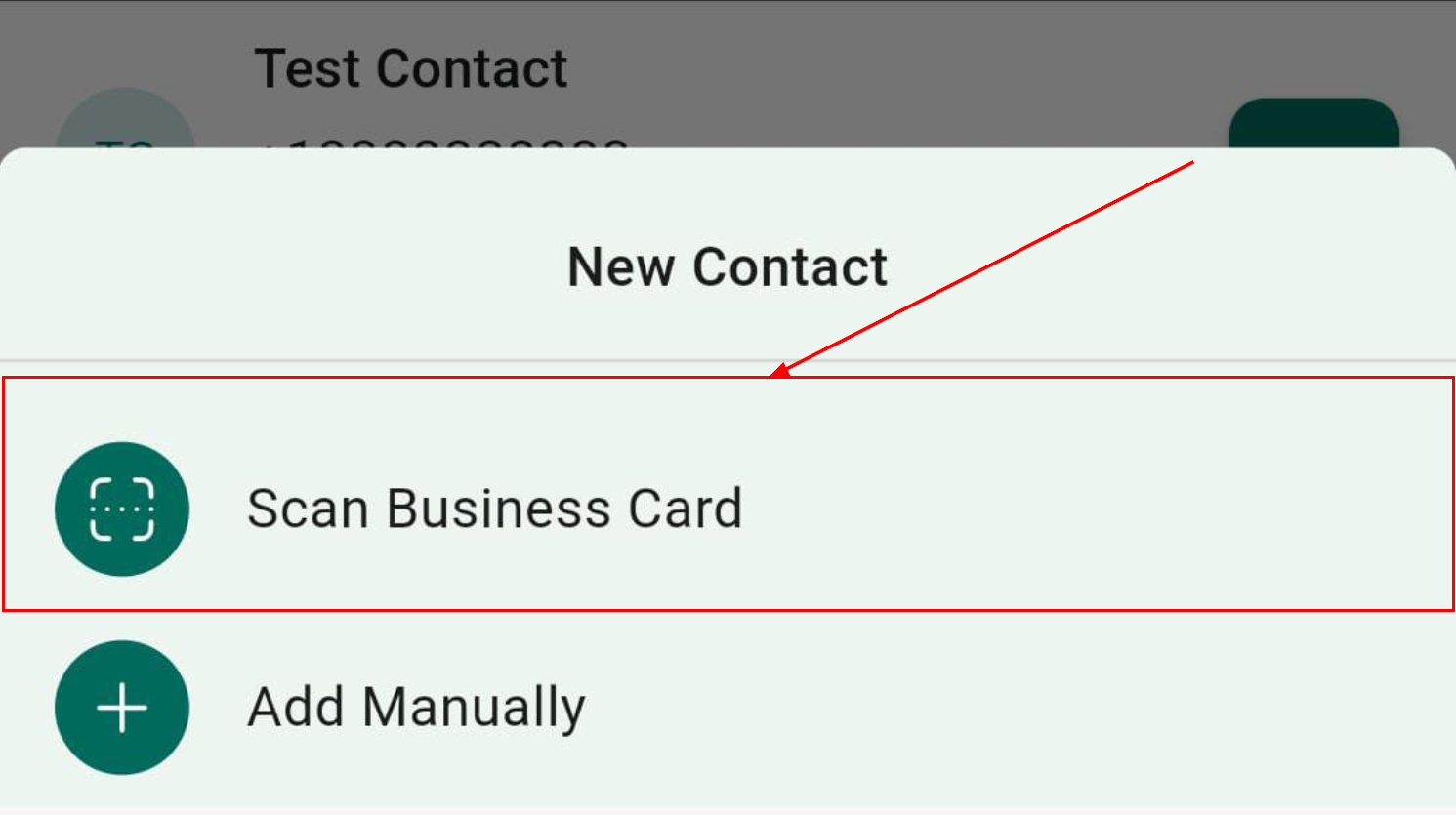
Head over to the contacts page, tap on the "+" icon, and select "Scan Business Card."
Contact Creation Screen
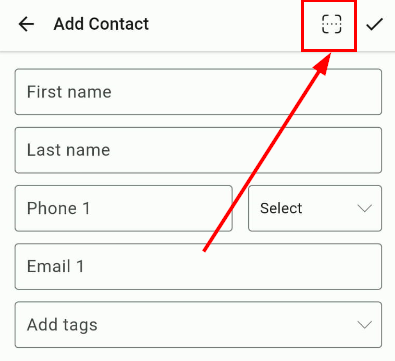
Tap on the scan icon at the top right of the contact creation screen.
Bolt Quick Actions Button
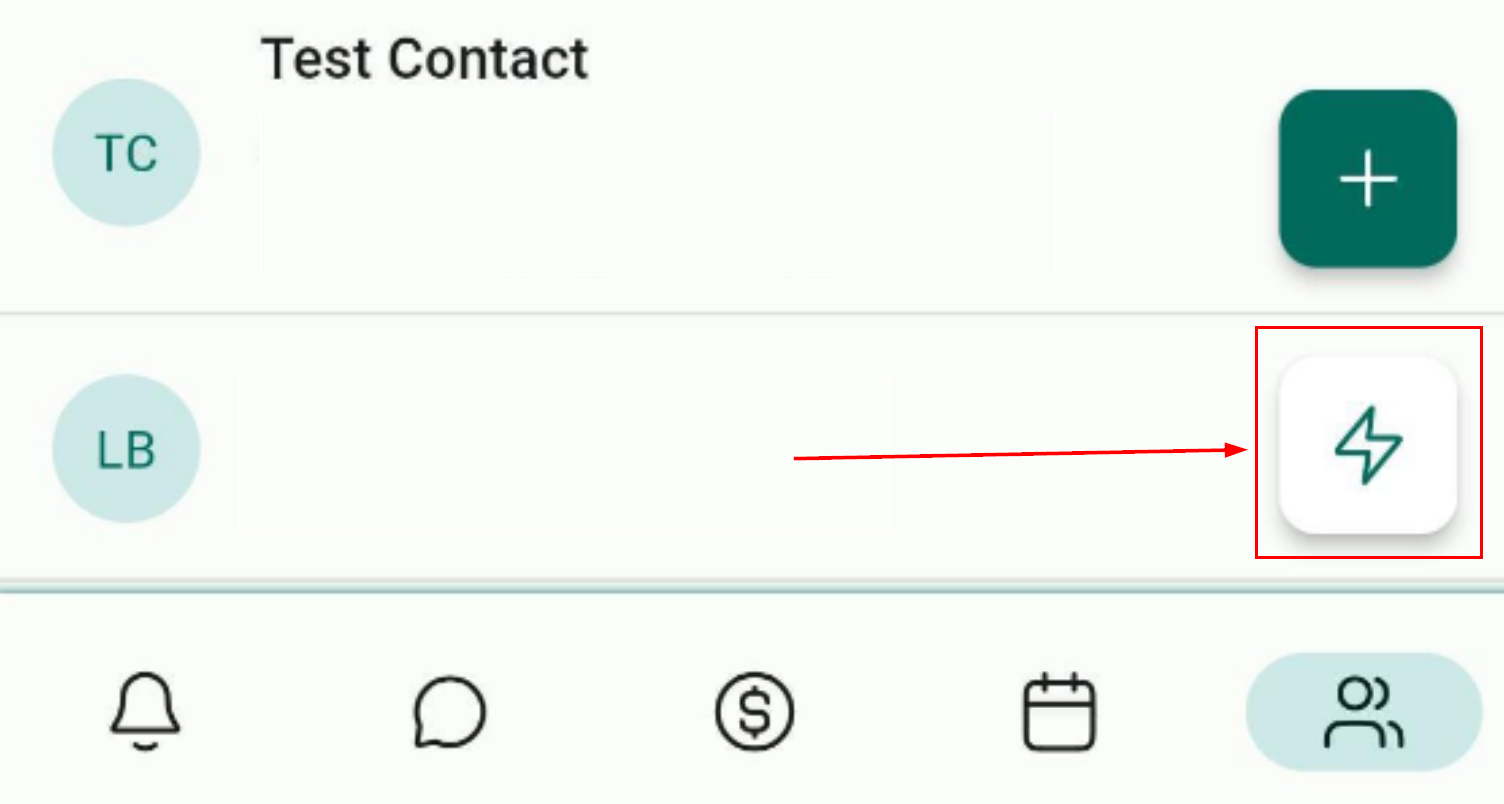
Tap on the bolt quick actions button and select “Scan Business Card.”
Position the Business Card
Once the scanner is open, position the business card within the rectangular box. The device will automatically extract the details from the card.
Edit Details
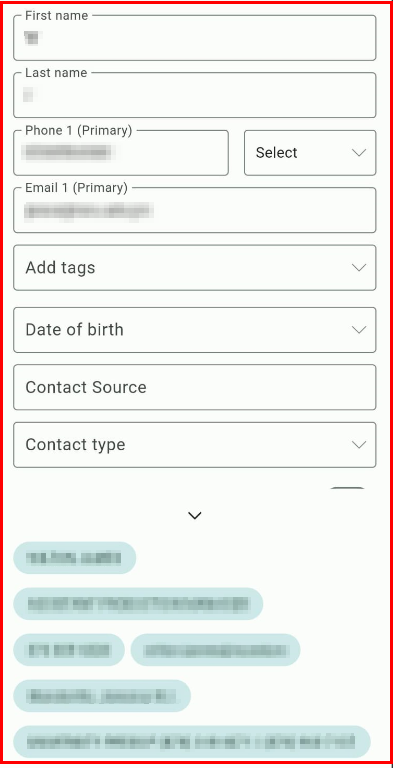
After the scan is completed, users can edit the details using the chips at the bottom or by typing manually with the keyboard.
Save the Contact
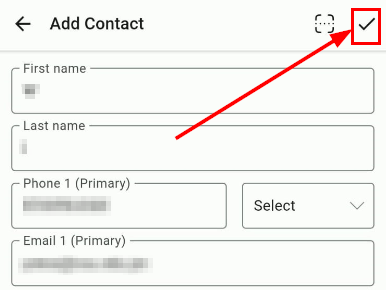
Once all the details are captured accurately, hit save to create the contact.
📌 Please Note: This feature is only available on iOS or Android devices with Version 3.74 or later.
By integrating the Business Card Scanner into our Mobile App, we aim to enhance your experience and streamline your workflow. Download the latest version of our app today and take advantage of this tool!