
How to Bulk Edit Opportunities
Summary:
This guide will walk you through the process of bulk editing opportunities, ensuring that you can manage your pipelines and track bulk actions in Opportunities effortlessly.
Managing opportunities efficiently is key to maximizing productivity and driving results. With enhanced features for bulk selection and multi-field updates, you can make multiple updates across opportunities with just a few clicks. This guide will walk you through the process, ensuring that you can manage your pipelines and track bulk actions in Opportunities effortlessly.
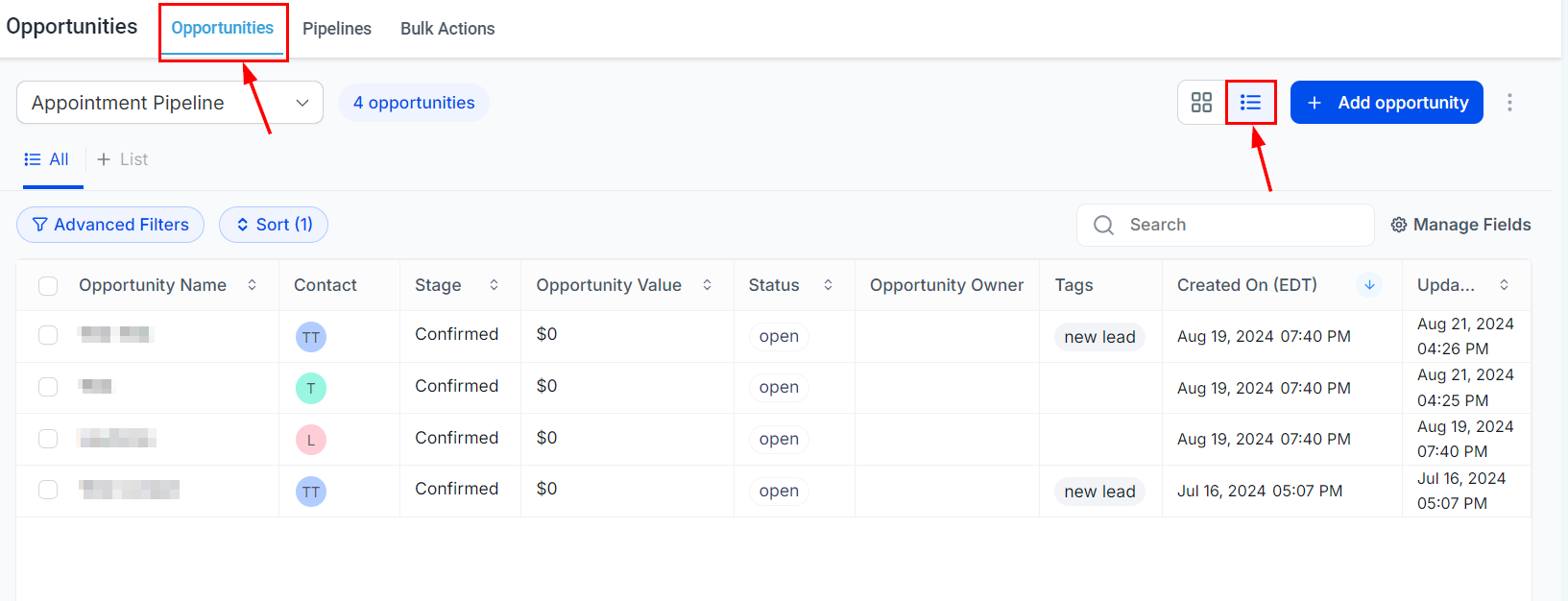
📌 Please Note: This feature is only available in the List View.
Key Features
- Bulk Selection: Easily select multiple opportunities at once, either individually or by selecting all available options.
- Multi-Field Updates: Update or clear various fields, including standard fields such as Pipeline Name, Stage, or Owner, as well as custom fields, across multiple opportunities in just a few simple steps.
- Pipeline Management: Effortlessly move opportunities between pipelines without the risk of copying or losing any data.
- Bulk Action Monitoring: Track the progress of your bulk edits on the Bulk Actions page, where you can view success rates and identify any errors that may occur.
How to Use
- Access List View: Navigate to Opportunities > List View.
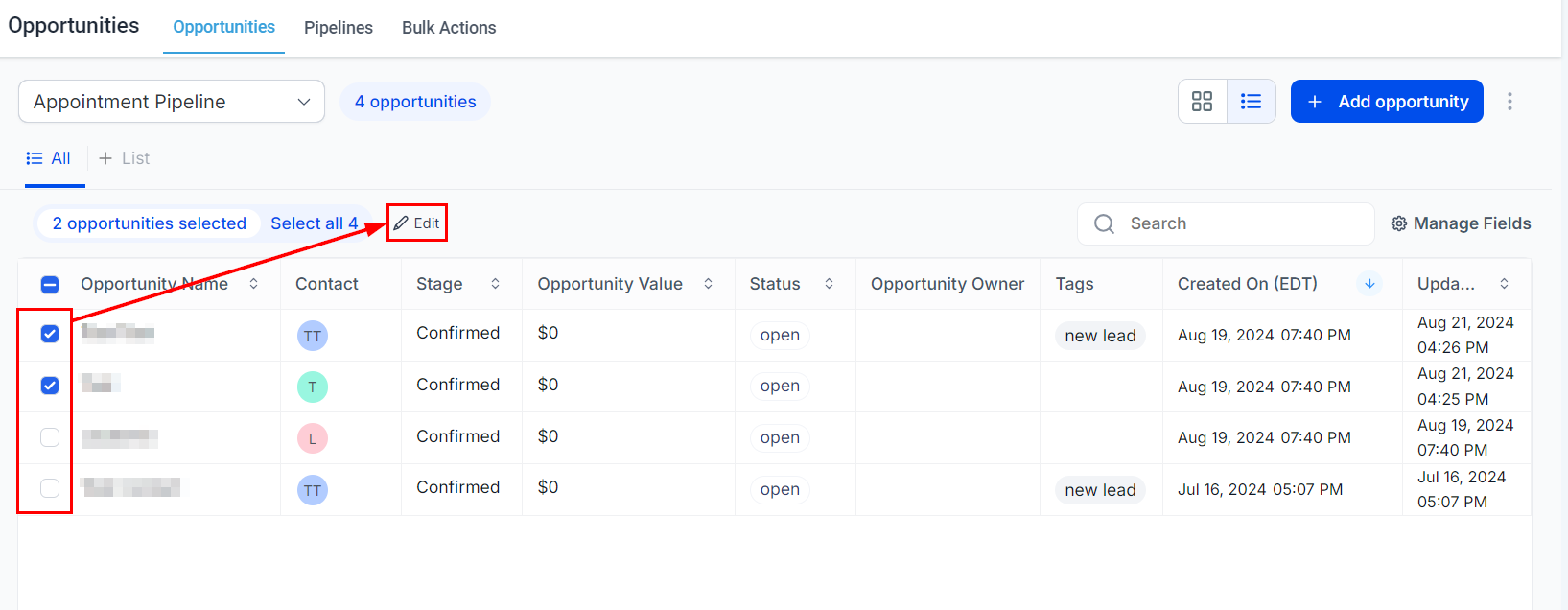
2. Select Opportunities: Choose multiple opportunities you wish to edit, then click the Edit button at the top.
3. Update Fields: Select the fields you want to update and enter the new information.

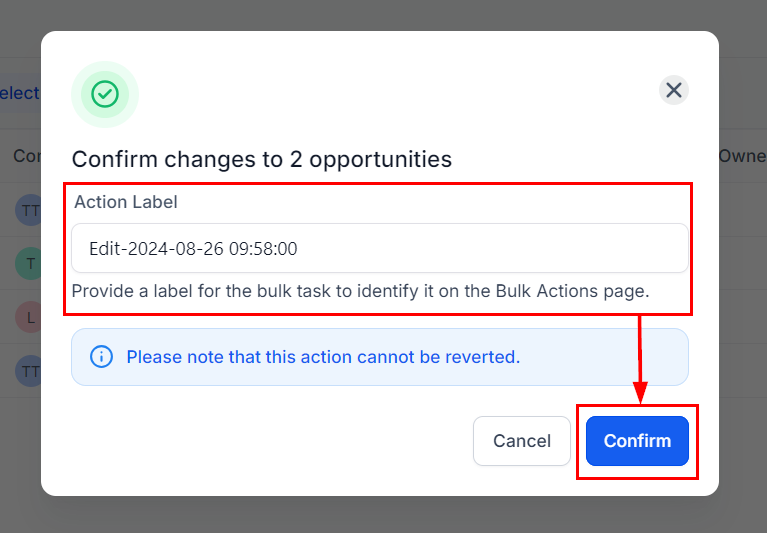
4. Apply Updates: Assign a name to the Bulk Action for easy identification, then click Confirm to apply your changes.
5. Monitor Progress: Go to the Bulk Actions page to monitor the progress, review successes, and identify any errors.

By leveraging these bulk features, you can save time and minimize errors when managing opportunities. Whether you're updating fields, moving opportunities between pipelines, or monitoring progress, these tools are designed to enhance your workflow and keep your data accurate.