
Custom Fields Overview
Summary:
Custom fields let you tailor your data collection to suit your needs perfectly. With efficient tools for managing and organizing them, you can ensure your customer insights are both detailed and actionable.
Custom fields are an essential tool to gather specific customer information that goes beyond standard data points. These fields allow you to capture unique details that are important to your business, such as customer preferences, or any other relevant data that supports your marketing, sales, or customer service efforts. This customization helps you better understand your audience, refine your strategies, and ultimately improve customer satisfaction and loyalty.
All Fields
Upon accessing the Custom Fields tab within the Settings section, you will encounter a detailed compilation of every custom field that has been established to date. This comprehensive overview allows you to effortlessly review and manage all your created custom fields in one place.

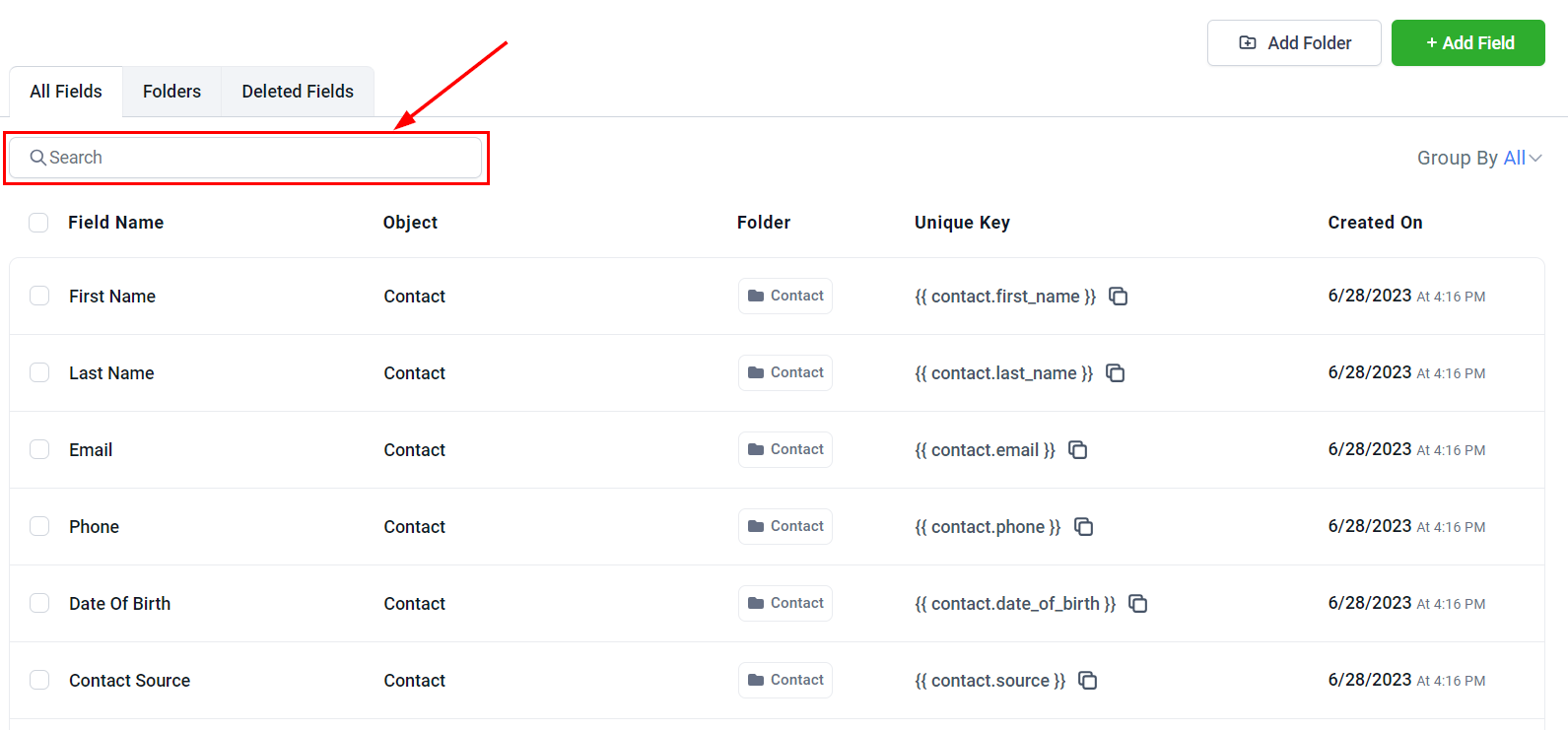
Search
You can quickly locate the desired custom field by utilizing the search bar feature. This efficient tool eliminates the need for time-consuming scrolling through lists, streamlining the process of finding specific custom fields within your records.
Group Filter
The group filter tab allows you to customize how the system displays custom fields. Let’s review each filter option:
- All: Displays all custom fields across all groups.
- Contact: Shows only the custom fields created within the Contacts folder.
- Opportunity Details: Displays the custom fields in the Opportunity Details folder.
- General Info: Filters and shows only the custom fields created in the General Info folder.
- Additional Info: Displays the custom fields created within the Additional Info folder.
By using these filters, you can efficiently manage and view custom fields based on your specific needs.

Field Actions
The checkboxes give you the power to perform different actions. You can select just one custom field or multiple fields, depending on the action you want to perform.

Bulk Action Menu
Once you've selected the custom fields, you have access to three bulk actions:
- Edit: Click this option to modify your custom field.
- Delete: Click this icon to remove a custom field. Please note that once deleted, the custom field is permanently removed and cannot be recovered.
- Move to Group: Use this option to transfer the selected custom fields to a different group, organizing them as needed.

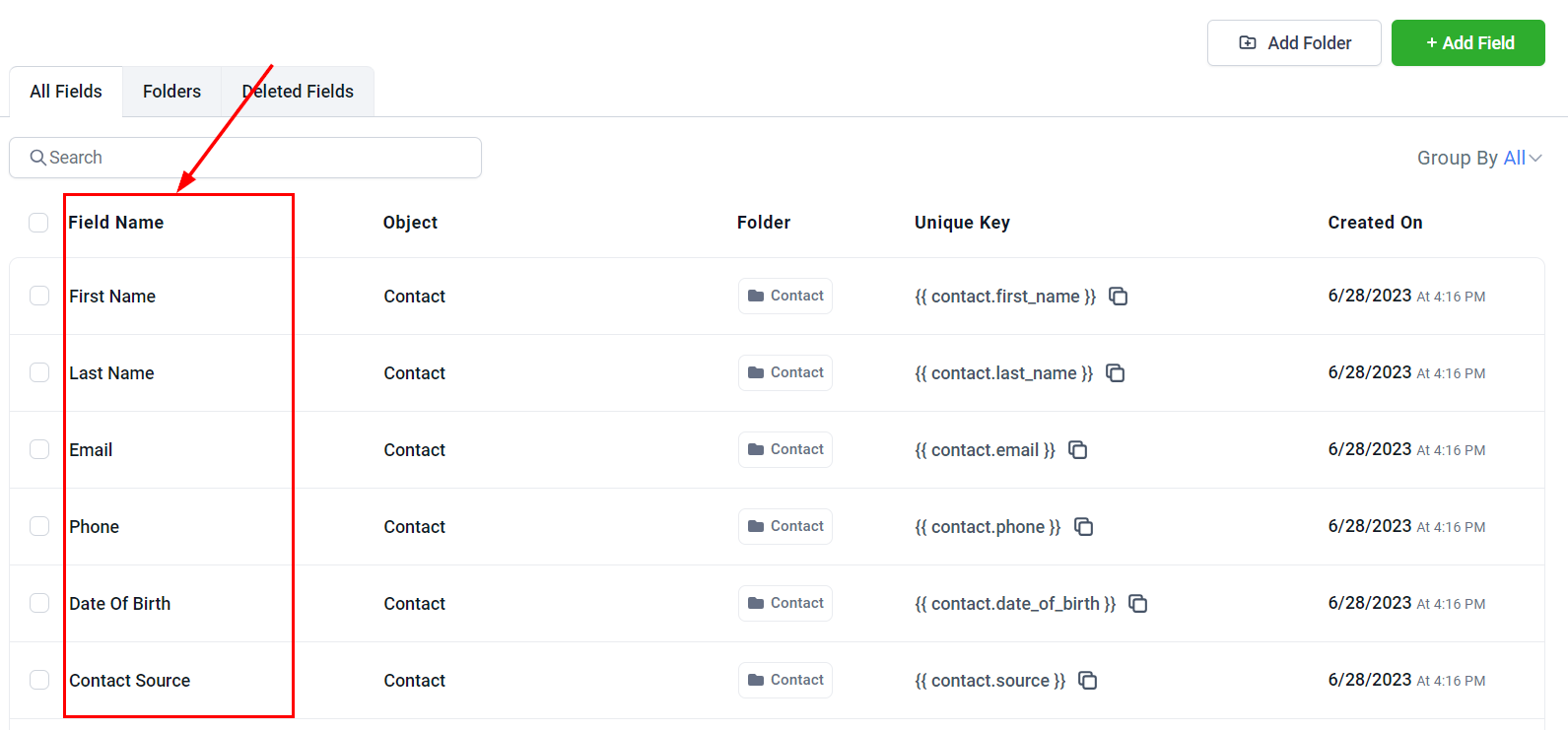
Field Name
Within this column, you will find the labels assigned to your various custom fields.
Object
This column indicates whether the custom field is related to a Contact or Opportunity.

Folder
In this section, you'll find the folders associated with each of your custom fields. This feature allows you to easily identify which folder is linked to a specific custom field.

Unique Key
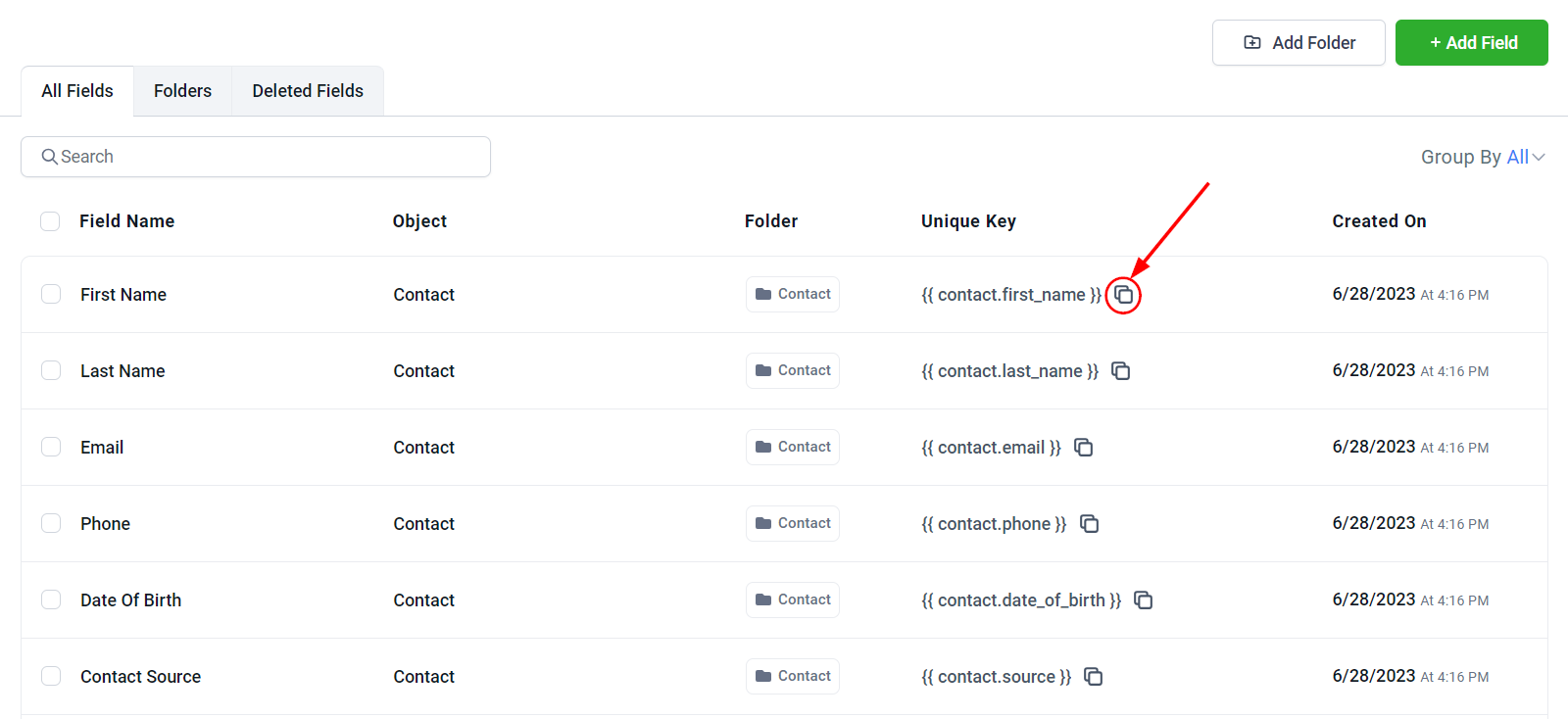
The Unique Key serves as an identifier when obtaining data through webhooks or incorporating custom information into communication channels such as emails and text messages. This key is generated automatically, taking the format based on the name assigned to your custom field, ensuring a seamless integration process.

By clicking on the dual square icon, you can effortlessly copy the unique key and subsequently paste it into your desired location.
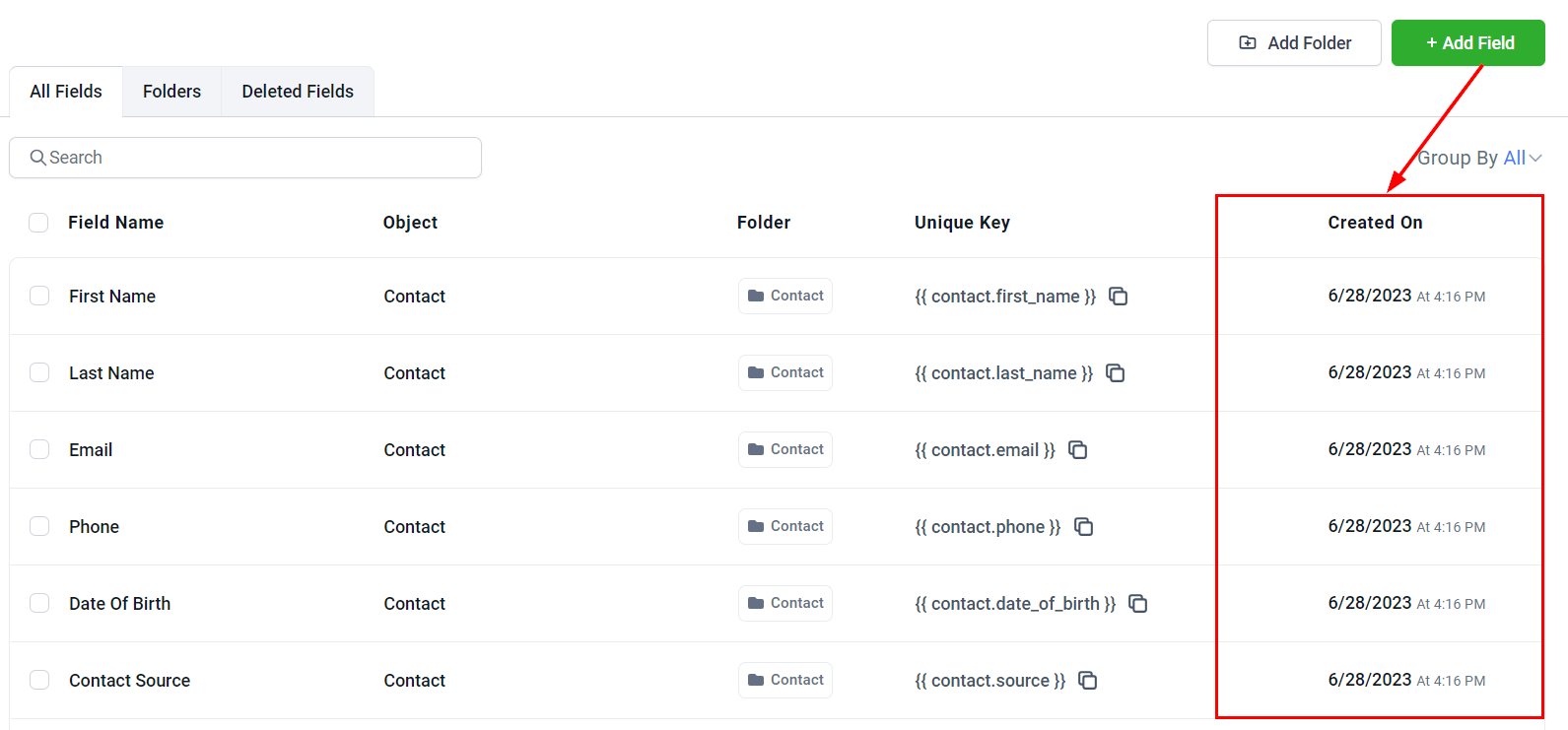
Created On
In the Creation Date column, you'll find the specific date and time at which each custom field was initially generated.
Folders
To view the folders you have created, click on the Folders tab. Here you will see a list of folders you have created.

Search
You can quickly locate the desired folder by utilizing the search bar feature. This efficient tool eliminates the need for time-consuming scrolling through lists, streamlining the process of finding specific folders within your records.

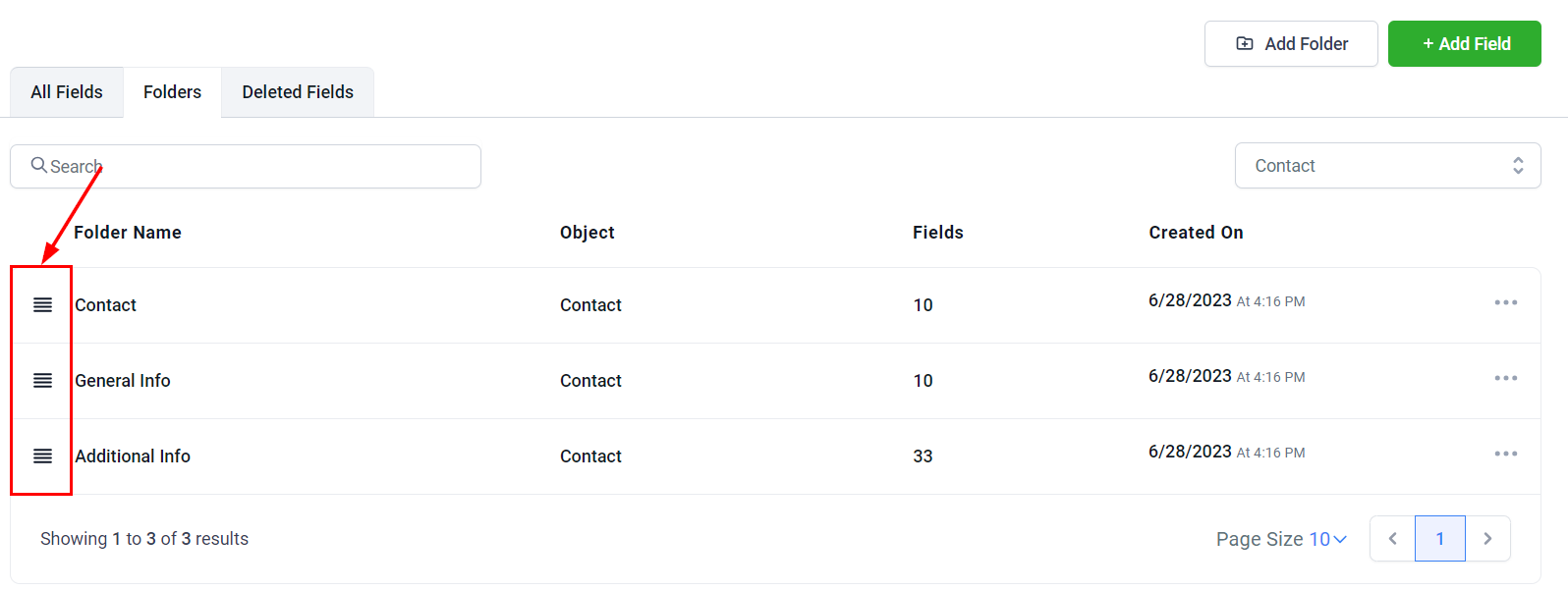
Hamburger Menu
You can use this icon to drag and drop the folders you've created, allowing you to easily reorganize them as needed.
Folder Name
This column displays the name of each folder, providing a clear and organized view of your folder structure. This organization enhances your ability to locate and work with specific folders efficiently.

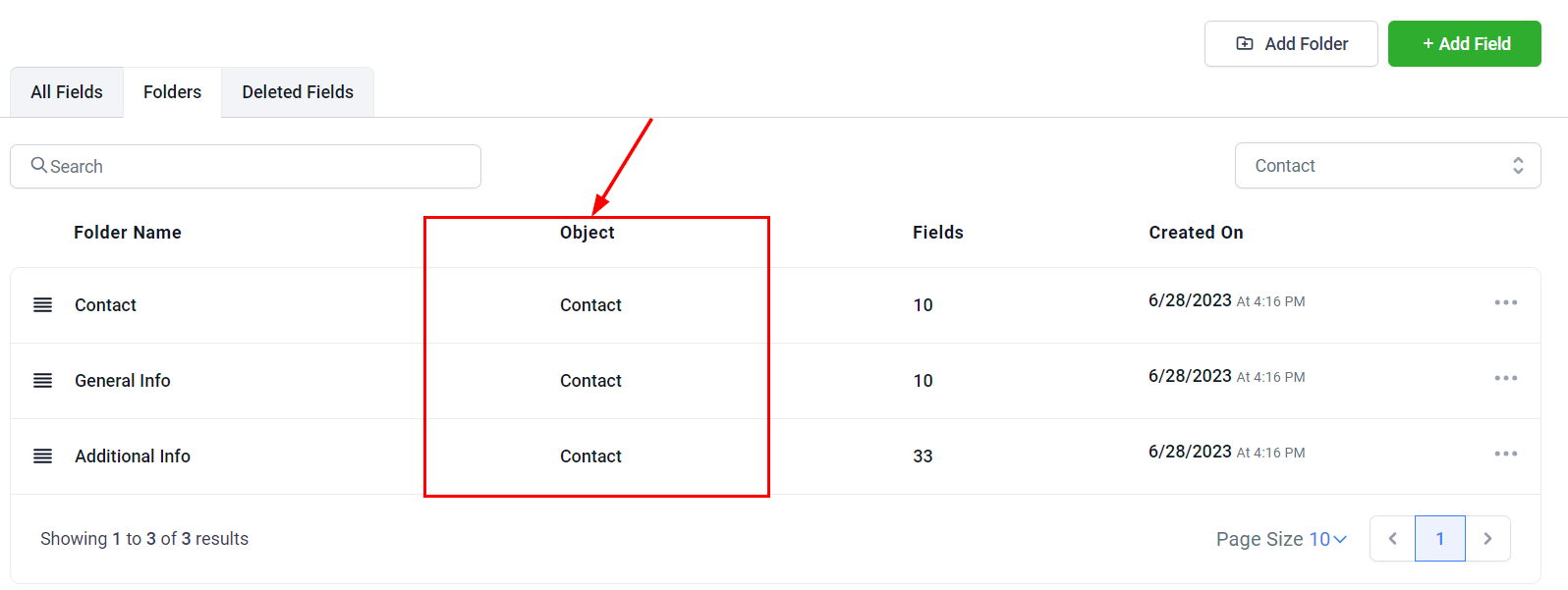
Object
This column indicates whether the folder is related to a Contact or Opportunity.
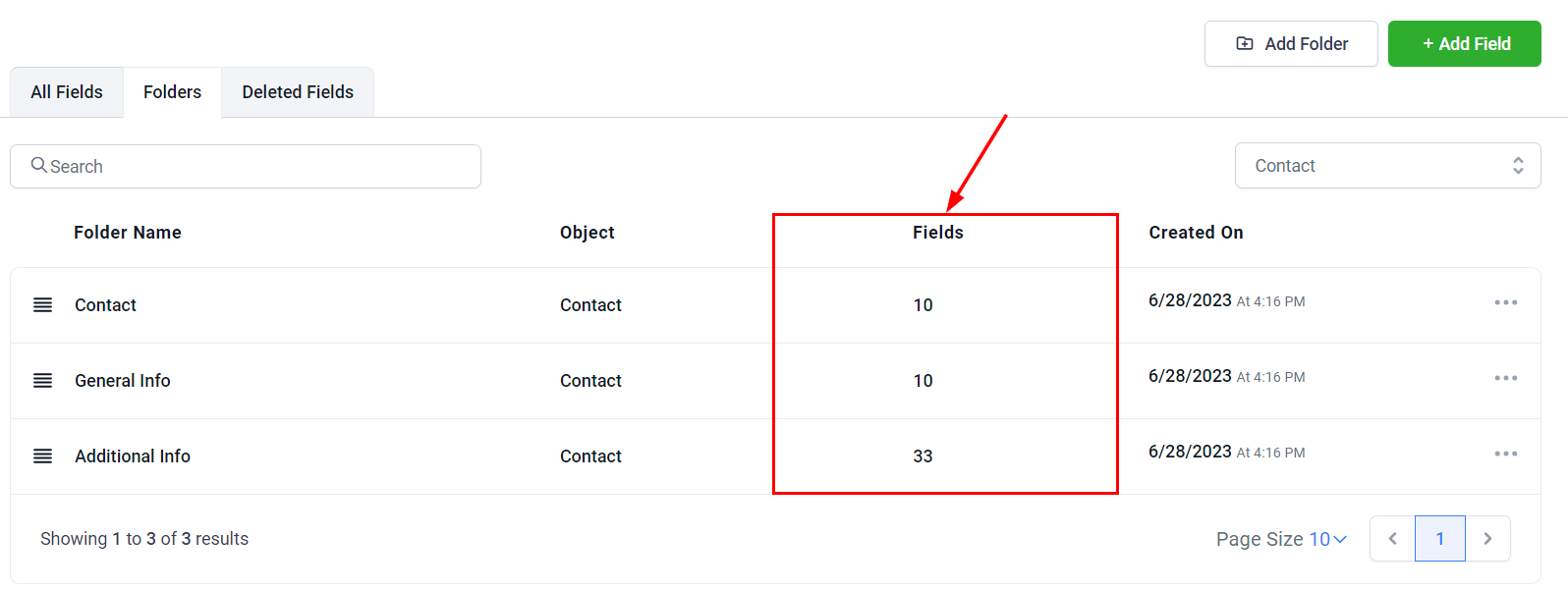
Fields
Here you can see the number of fields created inside each folder shown in the list.
Created On
This column will show the date and time when each folder was created.

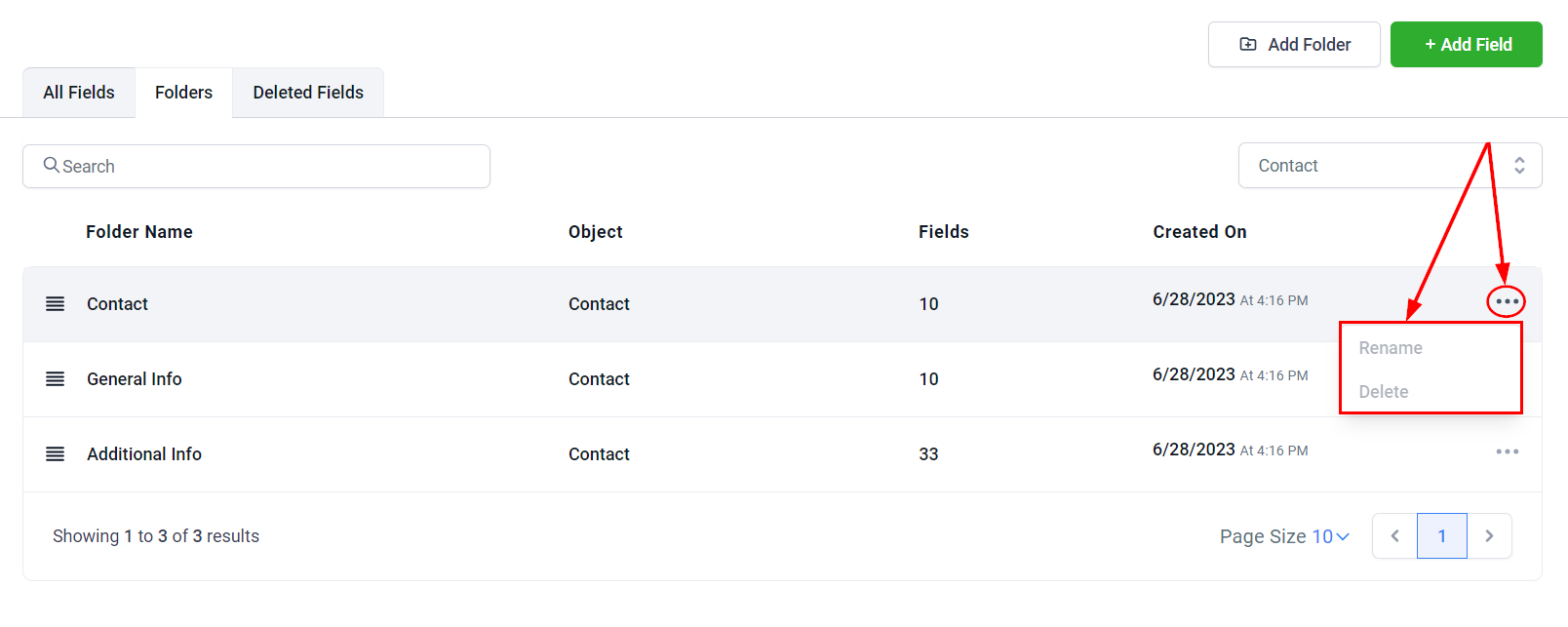
Folder Actions Menu
Clicking the three dots menu next to a folder will open an action menu with the following options:
- Rename: Allows you to rename the folder to better reflect its contents or purpose.
- Delete: Enables you to delete the selected folder. Be aware that this action will permanently remove the folder from your records.
These options are available only for folders you have created and will be greyed out for the inbuilt system folders.
Filter
By choosing an object, you can filter and display the relevant folder associated with that particular object, allowing for a more focused and organized view of the data.

Deleted Fields
In the Deleted Fields tab, you will be able to view the custom fields that have been previously deleted. Clicking on the redirect link will take you to the audit page in your CRM where you can view items previously deleted.

Adding a Folder
You can create a new folder for your custom fields by selecting the 'Add Folder' button.

Adding a Field
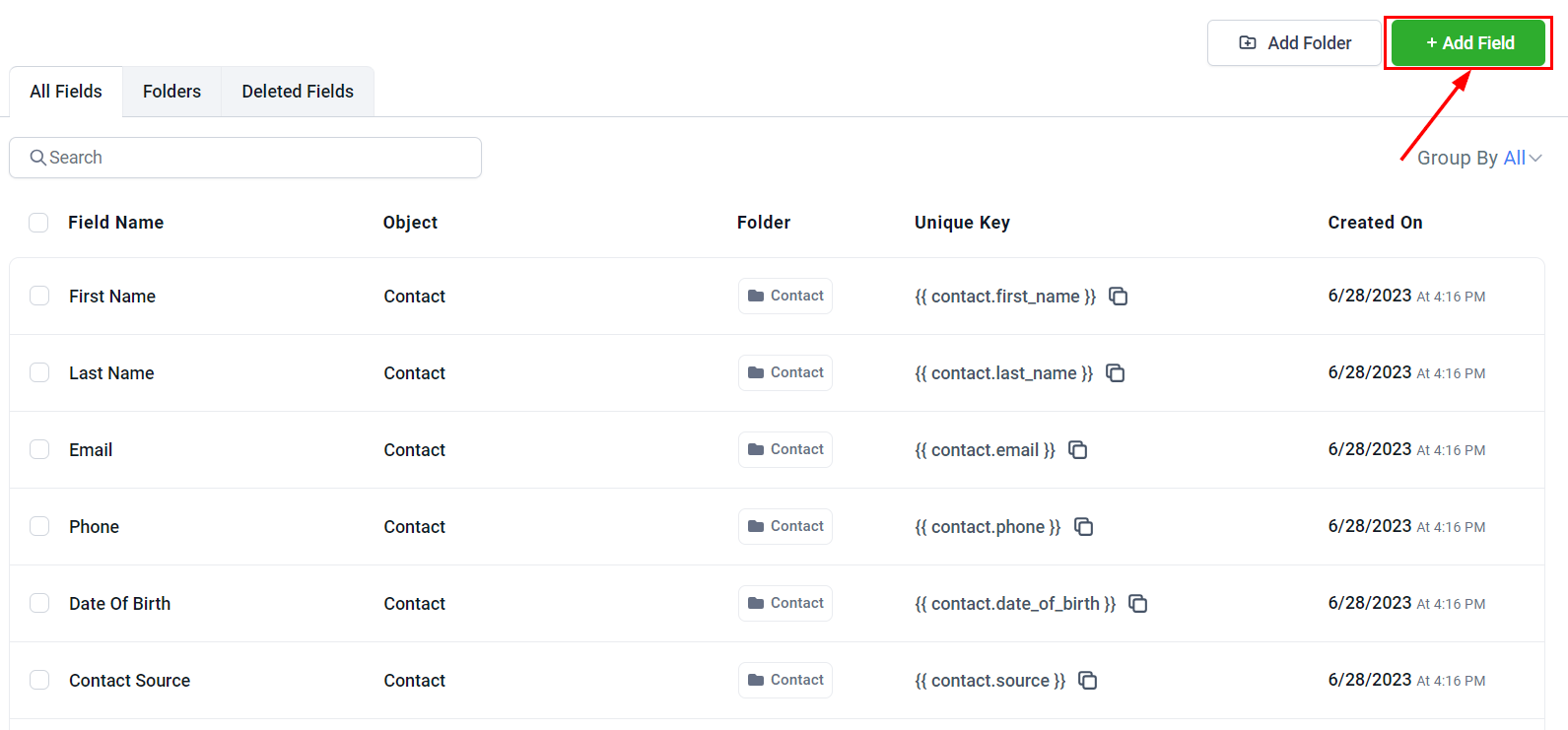
To create a custom field, locate and click the green "Add Field" button at the top right of the screen. A popup will appear, allowing you to enter all the necessary details to add your custom field.
Custom fields let you tailor your data collection to suit your needs perfectly. With efficient tools for managing and organizing them, you can ensure your customer insights are both detailed and actionable.