
How to Change the Profile Picture for the Chat Widget: GMB
Summary:
How to Change the Profile Picture for the Chat Widget: GMB
The GMB Chat widget allows you to connect with your clients instantly, it’s the face of your business for anyone who finds you as a Google Business Page, so why not put an actual face to it? With this tutorial, we’ll take you through adding a Profile Picture to your GMB Chat widget directly inside of your CRM.
How to Change the Picture?
Go to the Integrations section in Settings.
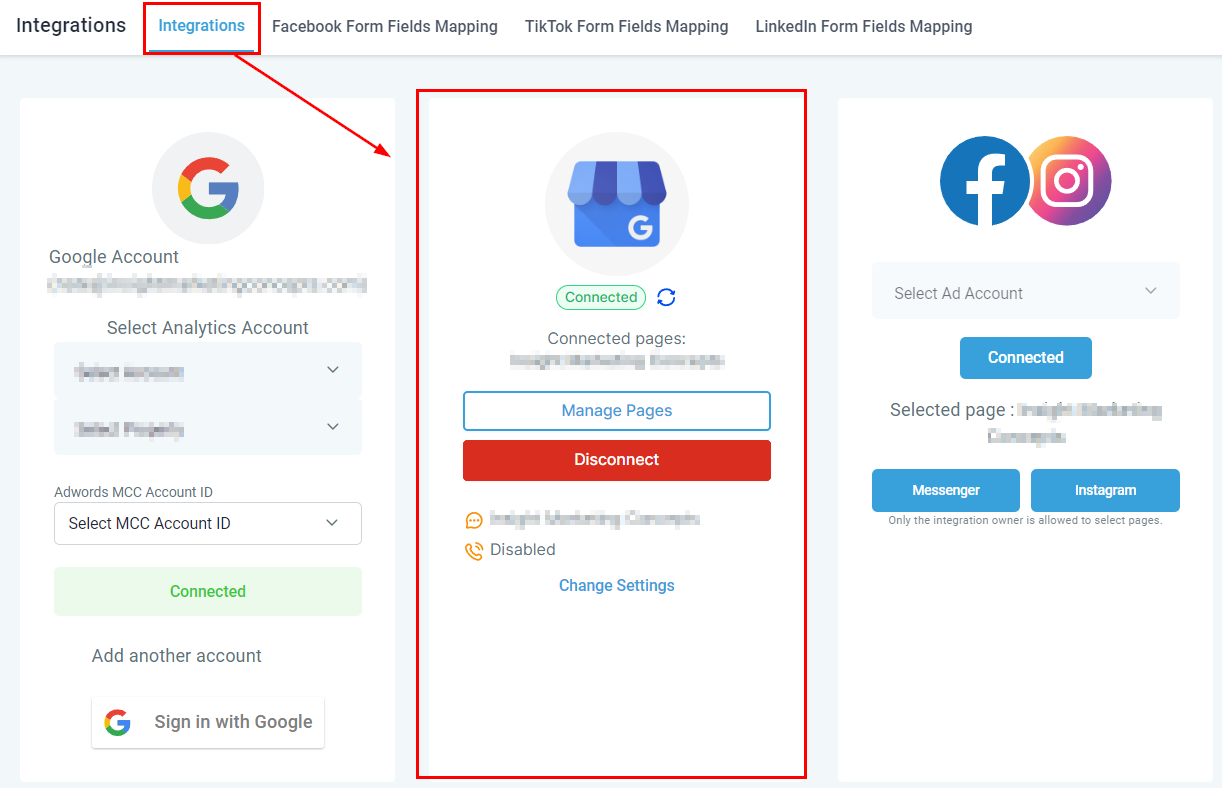
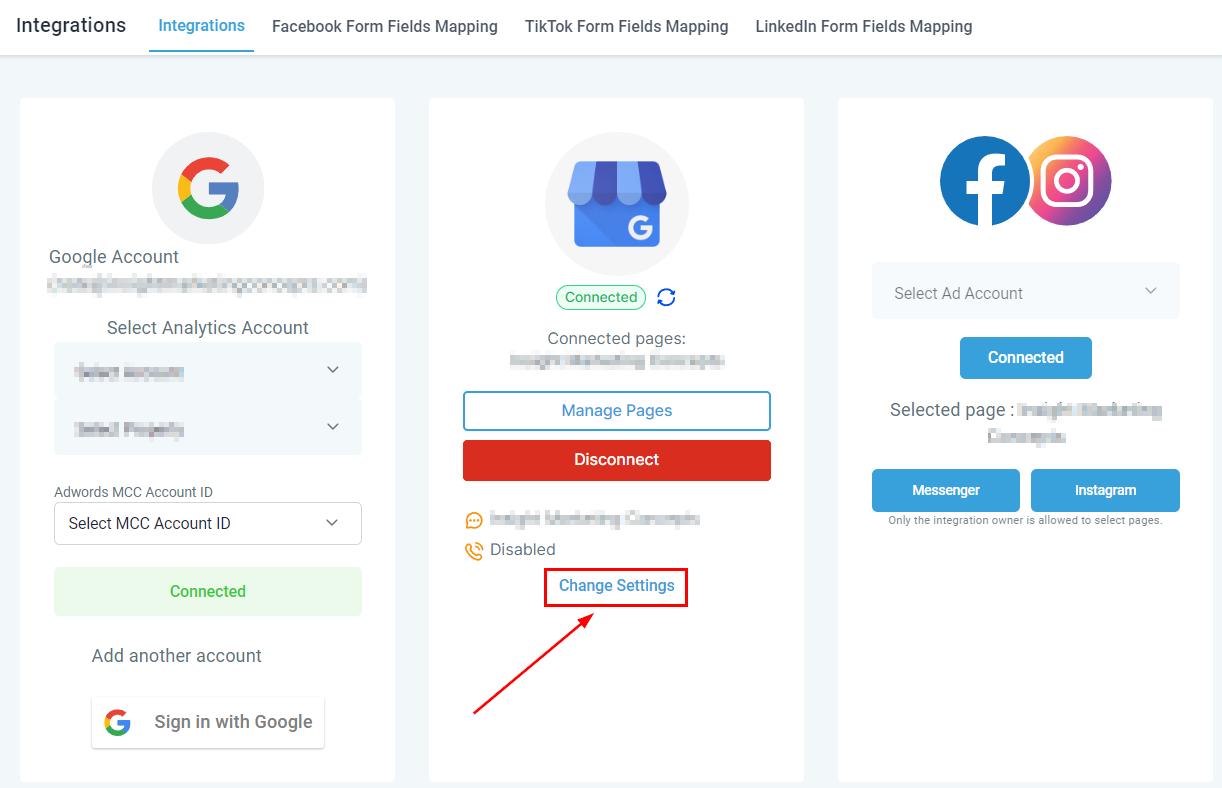
Under your Google Business Profile click Change Settings
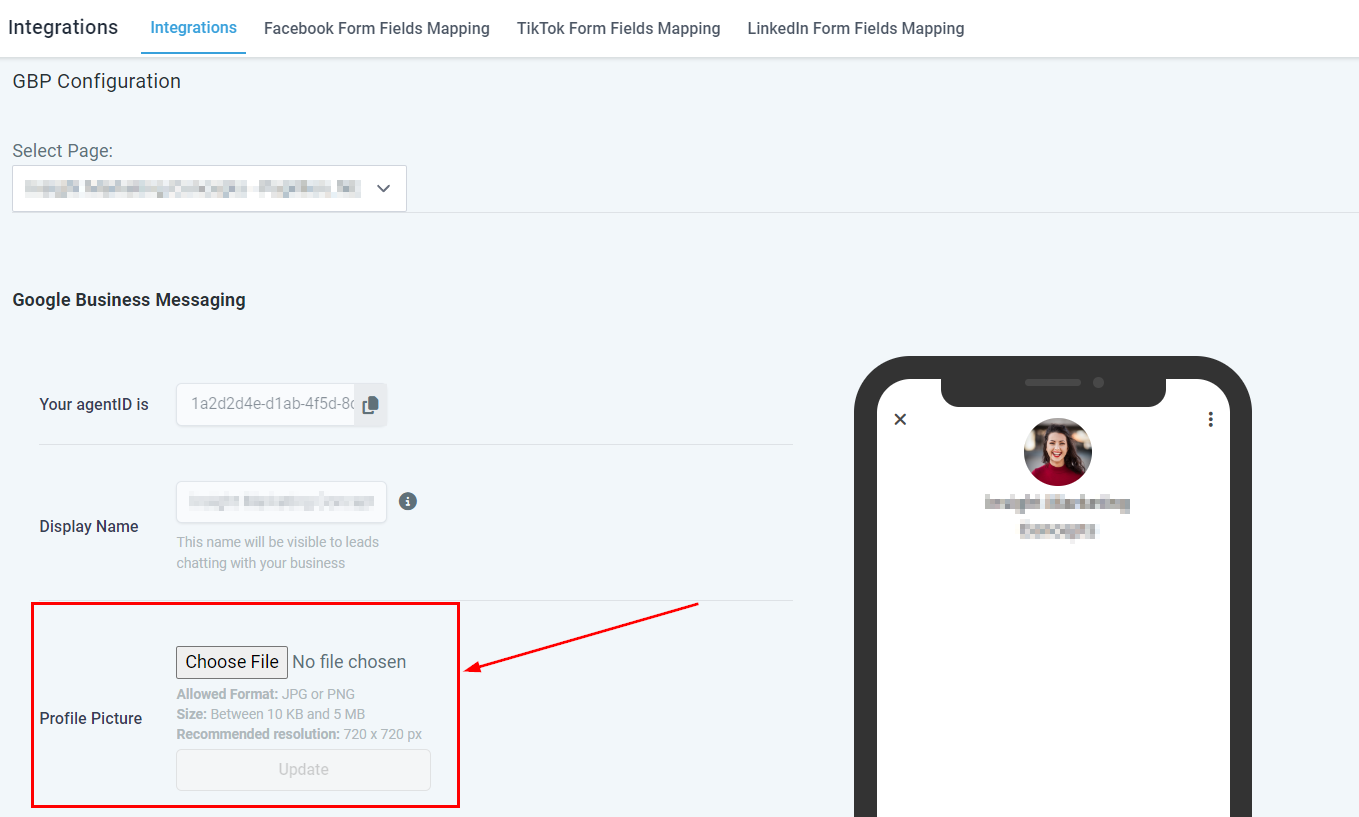
In the settings menu, locate the 'Profile Image' section. In there click Choose File this will open your device files for you to select the image.
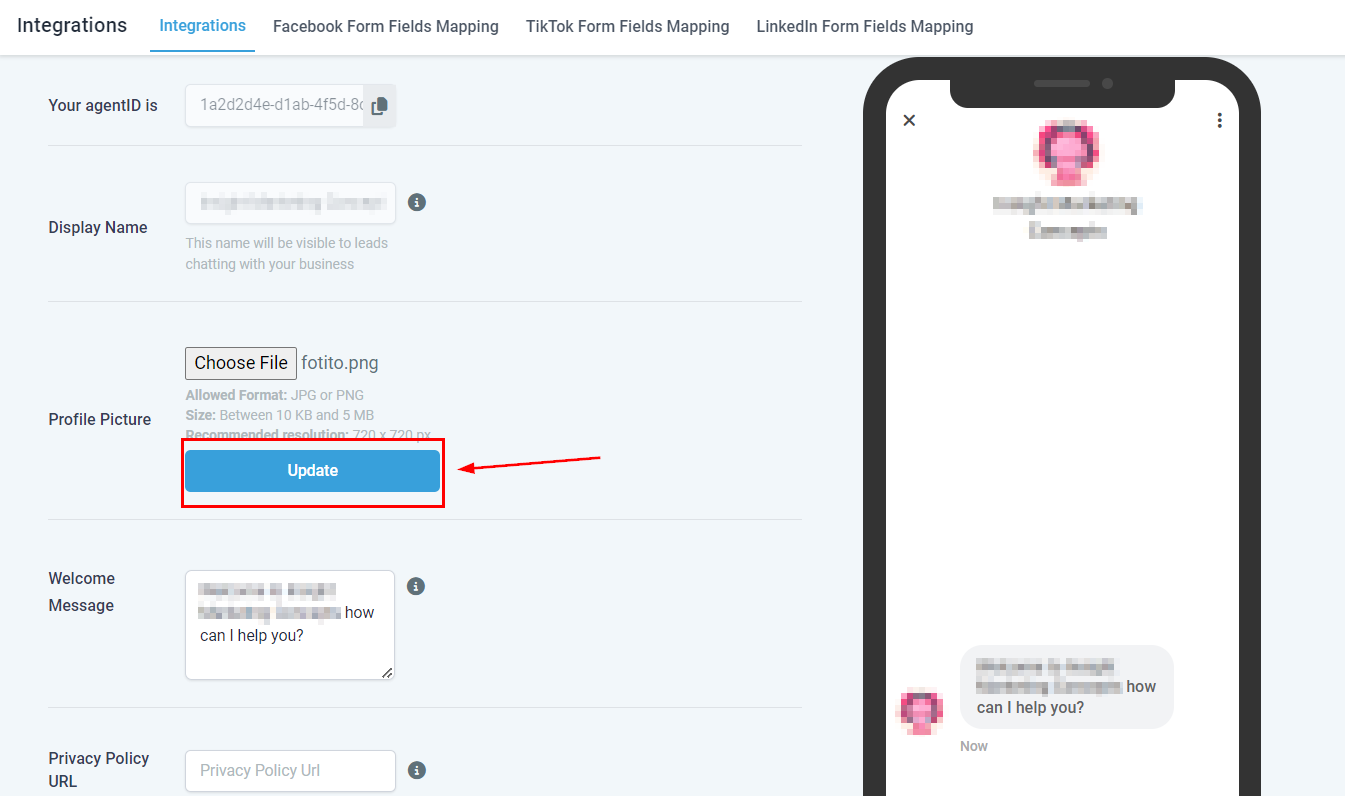
Once the image is uploaded click on the Update button to set it, this will send an email to the Google support team requesting the update on their end, this usually takes around 24 to 48 hours.
Visit your business on Google to verify the updated profile image and you’re done! Now your GBP Chat widget has a face on it, making it friendlier to clients and helping you improve the experience on their end!