
Settings: My Profile
Summary:
The My Profile section allows you to customize and manage your personal account settings efficiently.
The My Profile section allows you to customize and manage your personal account settings efficiently. Here, you can update your profile information, create an email signature, change your password, manage email 2-way sync with Gmail or Outlook, designate your primary calendar for better organization and convenience, and set your availability status for proper scheduling.
To get started, access the My Profile section from your account settings.
Personal Data
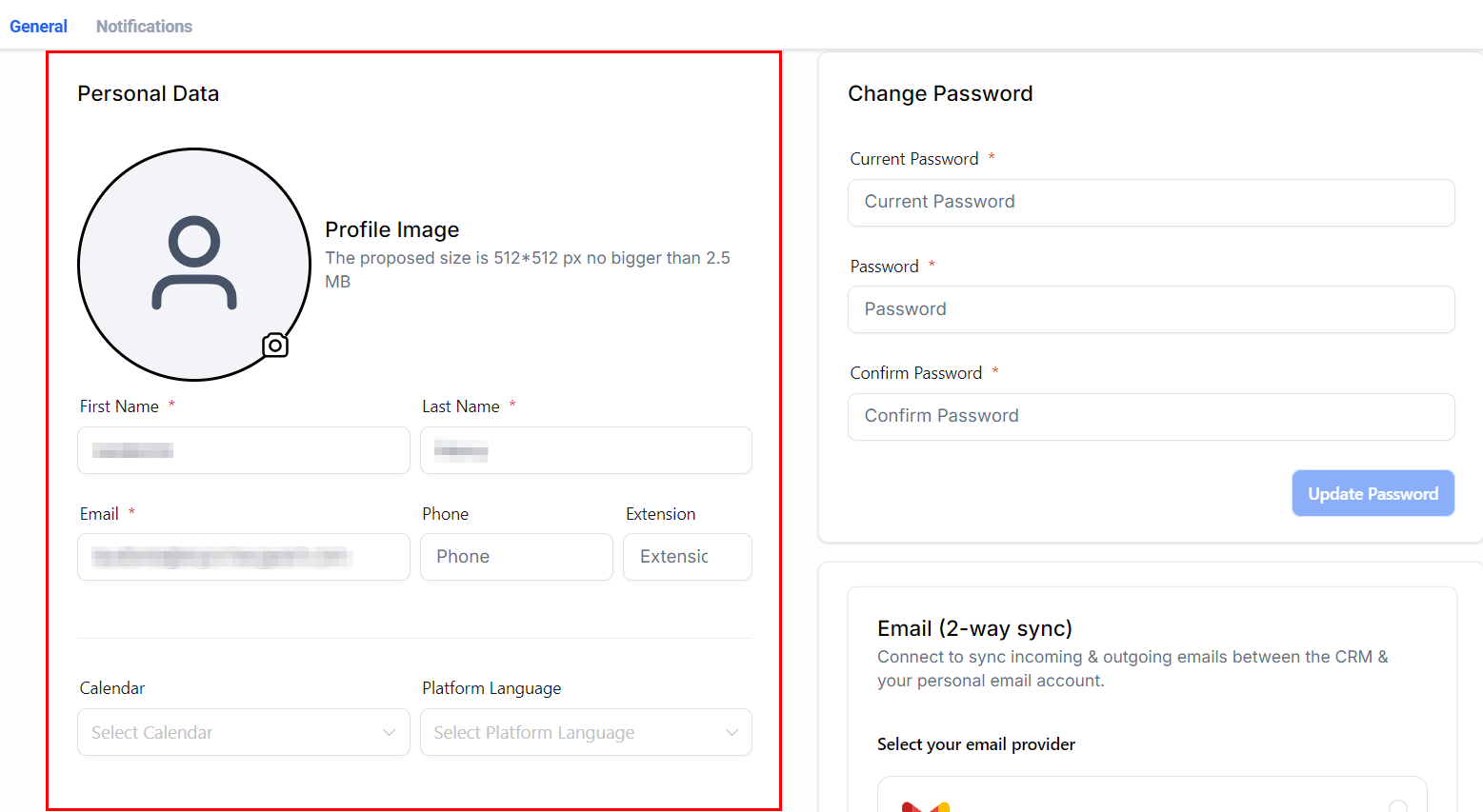
Upload your profile photo and update your contact details, including your first and last name, email, phone number, and extension (if applicable). Additionally, you can select a default calendar and set the platform language within this section.
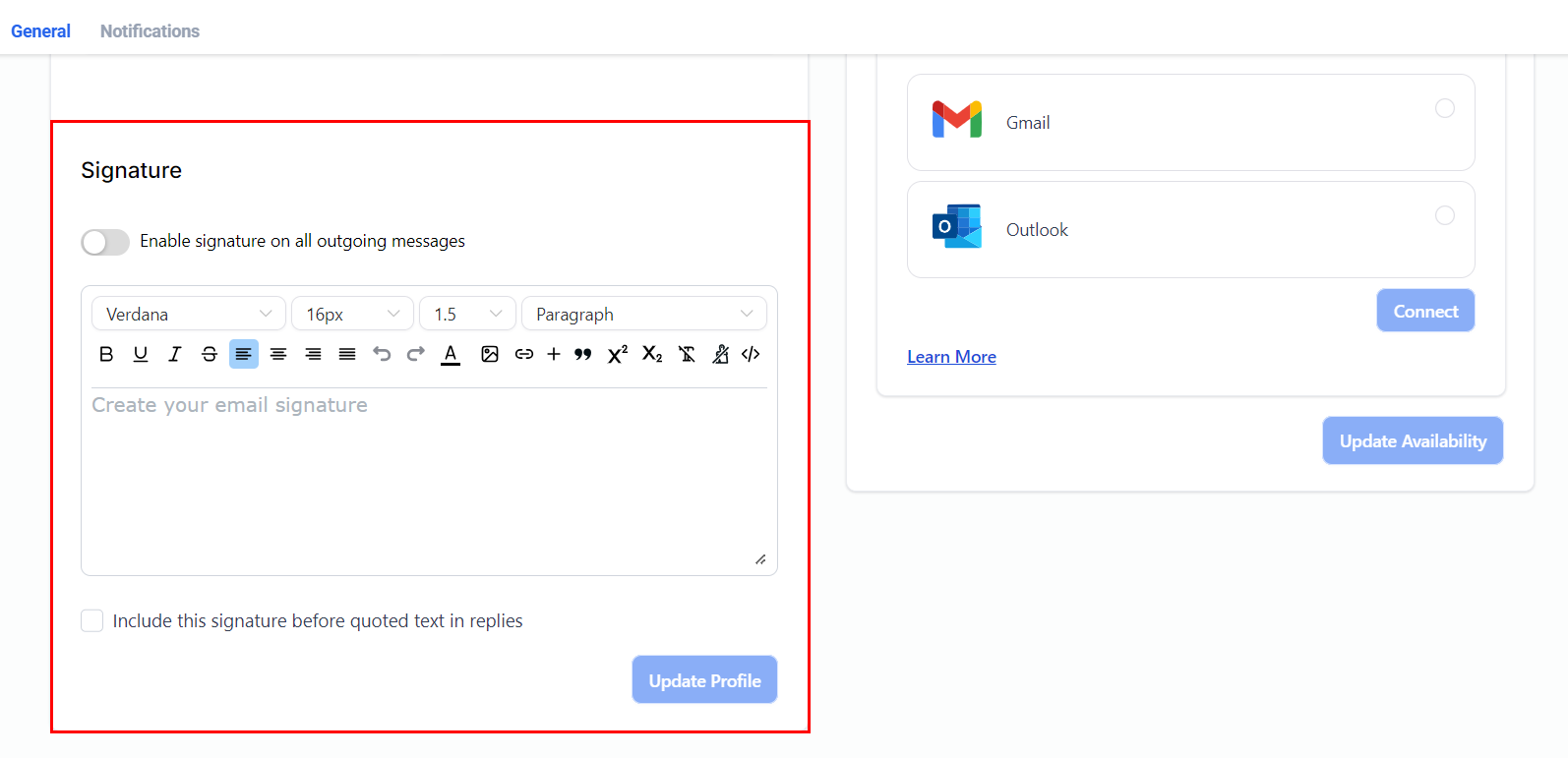
Furthermore, you can create a custom email signature for emails sent from your account when communicating with customers and leads.
Change Password
To change your password, enter your existing password in the "Current Password" field, followed by your new password in the "Password" field. Confirm the new password in the "Confirm Password" field, and click the "Update Password" button to save your changes.

Email (2-Way Sync)
Connect your personal Gmail or Outlook accounts to sync outgoing and incoming emails between the platform and your email accounts, enabling you to send, receive, and track emails seamlessly.

Calendar Settings
In this section, you can view and connect calendar integrations, manage calendar conflicts, and designate your Primary calendar for scheduling to prevent overlapping events or appointments.

Furthermore, you can keep your third-party calendar details confidential by toggling on the hide event details switch. Enabling this setting ensures that only the user who connected the calendar can view event details, preventing others from accessing them within the platform. This feature is specifically designed to enhance privacy and safeguard third-party calendar events from unauthorized access.

User Availability
Set your availability and specify your meeting location for calendar invites.
- Meeting Location: Choose your default meeting location, whether a virtual Zoom meeting or a physical address.
- Time Zone: Select your preferred time zone from the dropdown menu.
- Available Hours: Specify the days and times you are available, such as your regular office hours.

Update these sections today to enhance your user experience and optimize account management.