
How to Import Products for your E-Commerce Store
Summary:
How to Import Products for your E-Commerce Store
The idea for your CRM is that it helps you, amongst other things, to keep all information organized and centralized so you don't miss anything. However, for those who already had a store outside the system or were keeping manual control of their products and inventory having to move that information can be a daunting task.
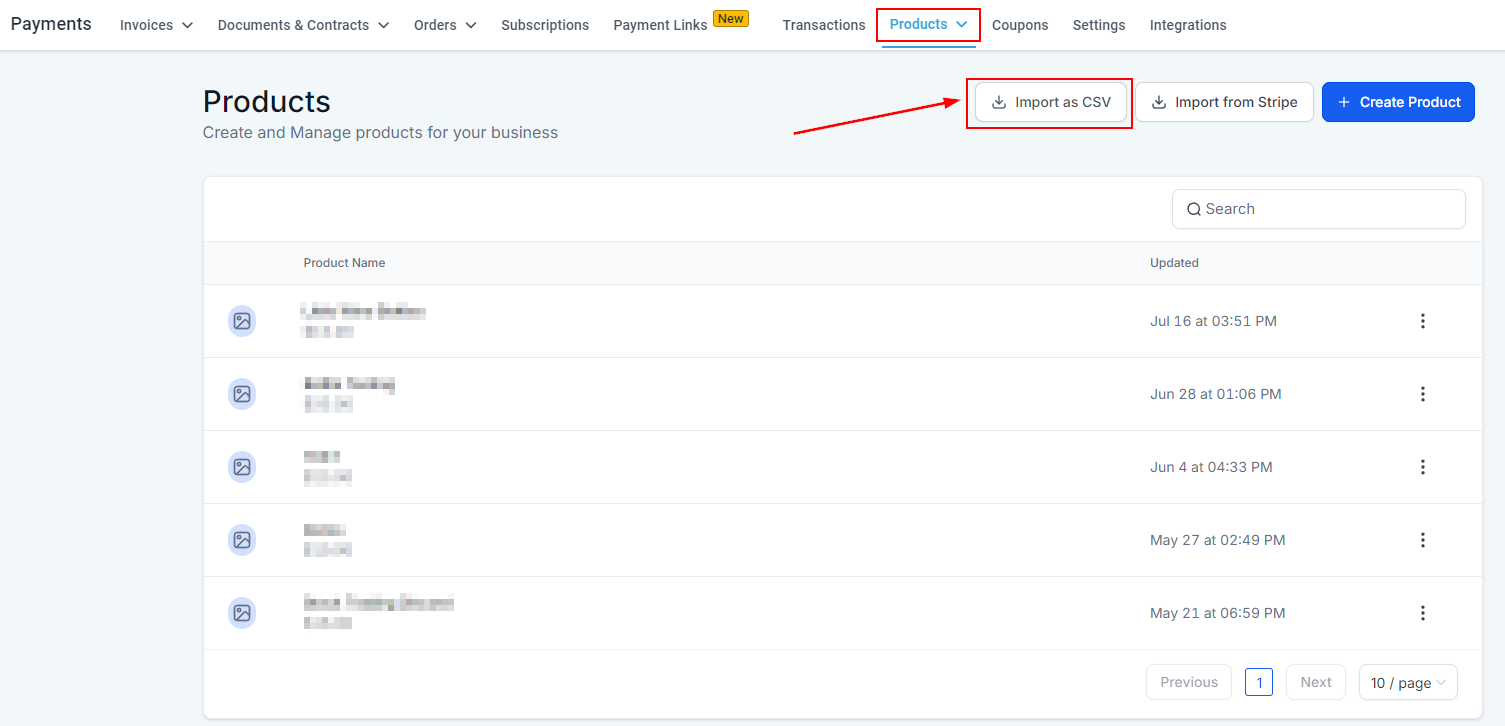
With the help of this guide, you and your team can minimize the effort and move all your products over at once. To start go to the Products tab inside the Payments section and click Import as a CSV.
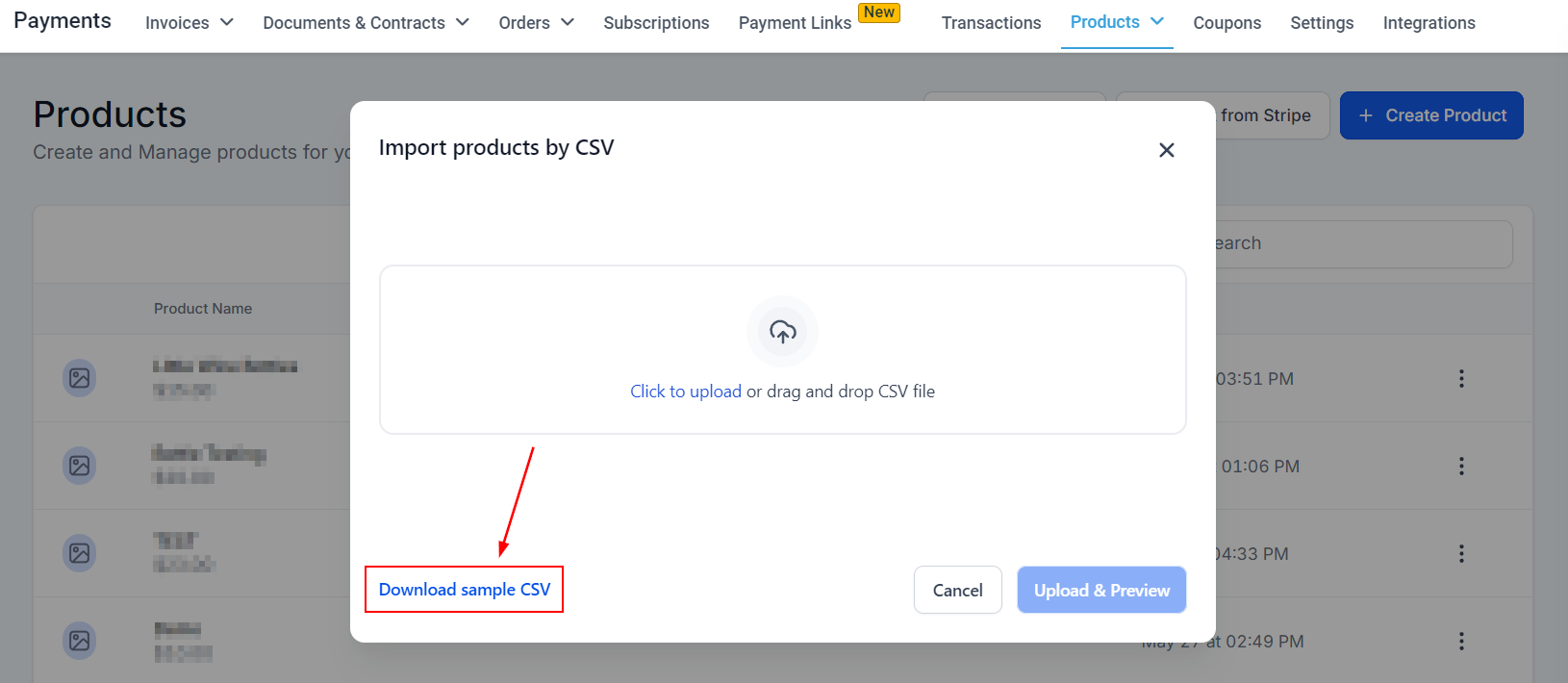
Click Download sample CSV, this will download a file you can use as a reference when creating your spreadsheet. If you already had one make sure that you save it as a CSV type of file.
The system will import any information within these fields:
Inventory Variables | Shipping Variables | Product Label |
|---|---|---|
Track Inventory - True/ False | Weight value - number | Enable Product label (True/ False) |
Allow out-of-stock purchases -True/False | Weight unit - Kg, g, lb, Oz(Non-case sensitive) | Product label content |
Available quantity - number SKU | Dimension Length, Width or Height - number | Start or End date and time - ISO Format |
Dimension unit - cm, m, in (Non-case sensitive) | SEO Title and SEO Description |
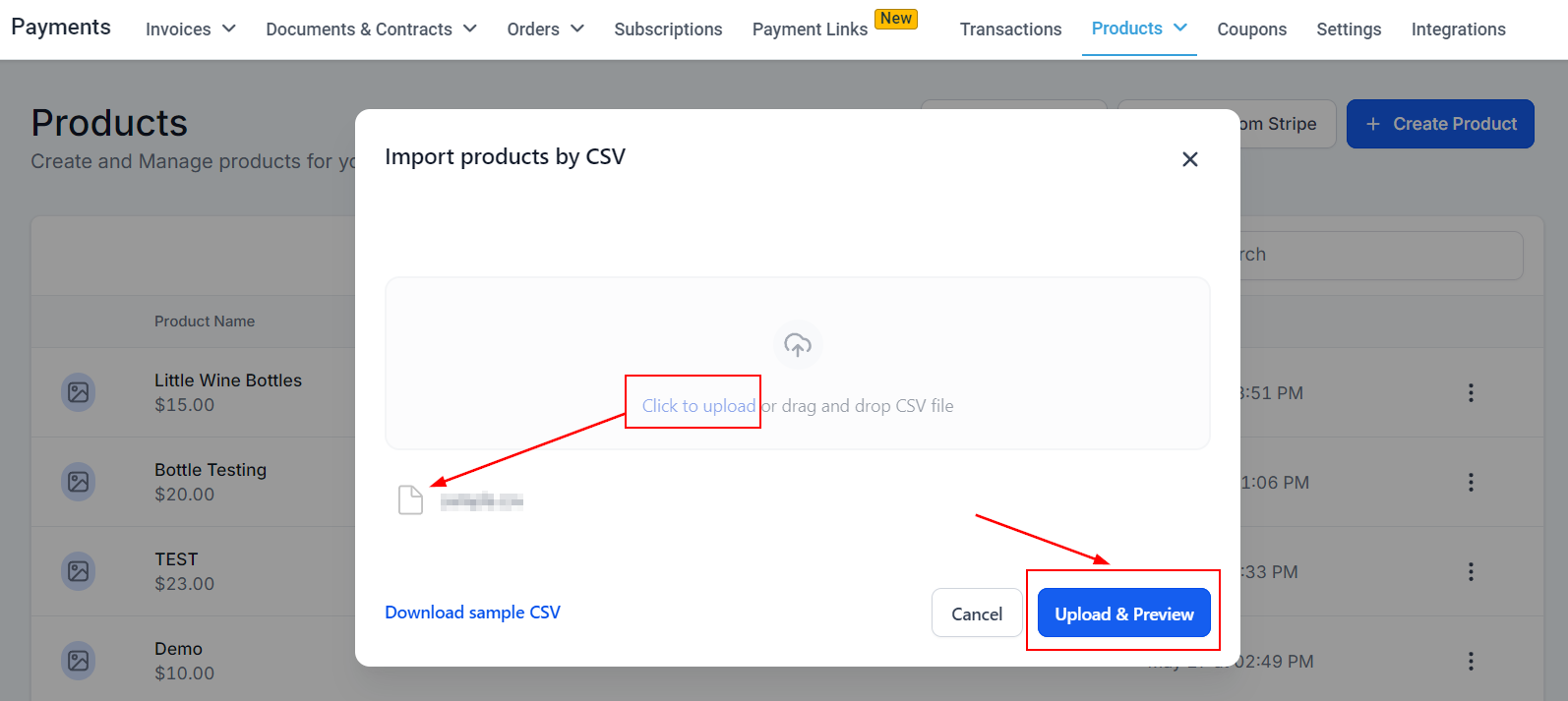
When you have your file ready, click to upload and select it from your device files, then click Upload and Preview.
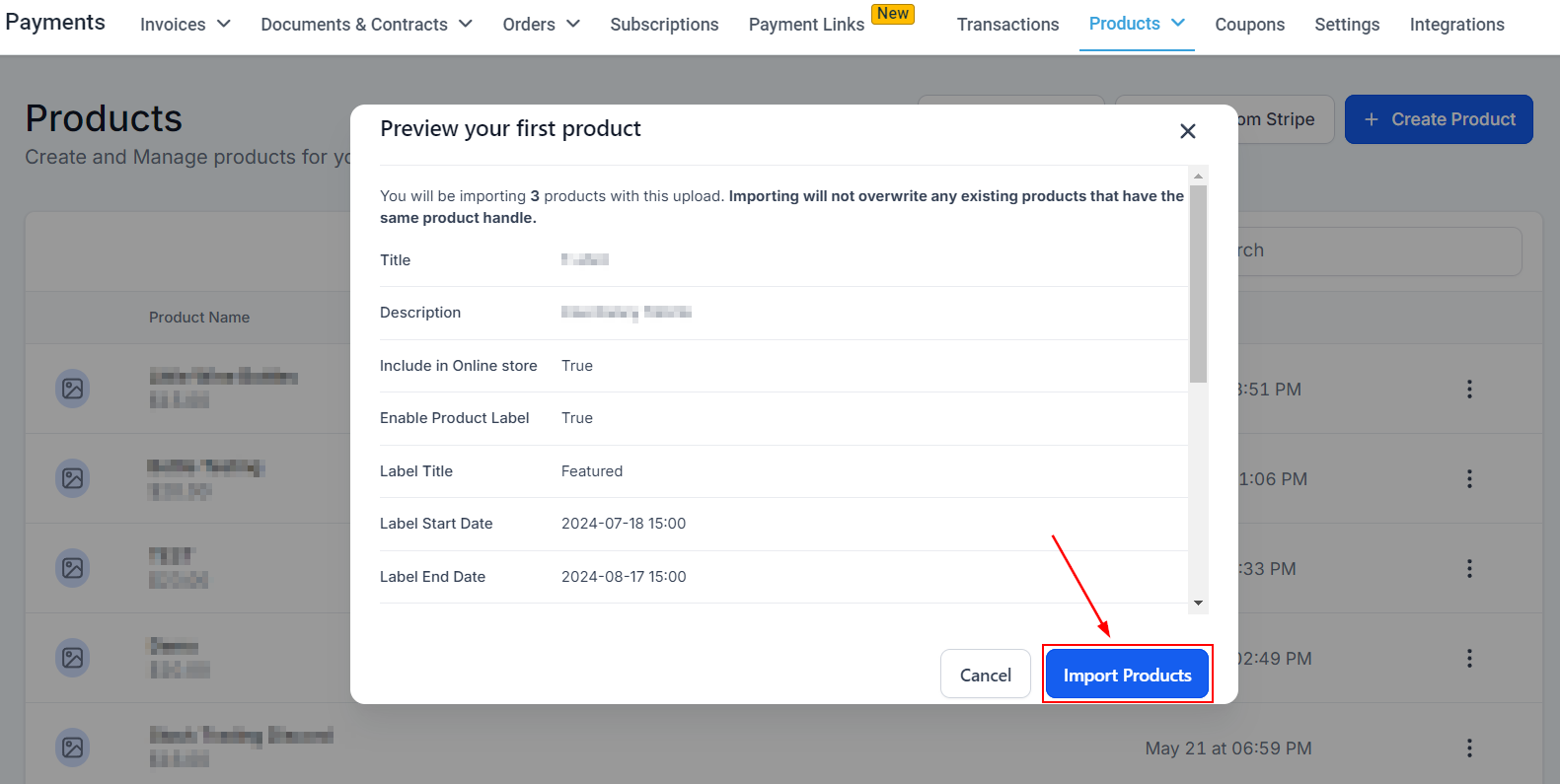
This will use the first product in the list to show you a preview of how the products will look inside the system. If you're happy with the view click Import Products to continue.
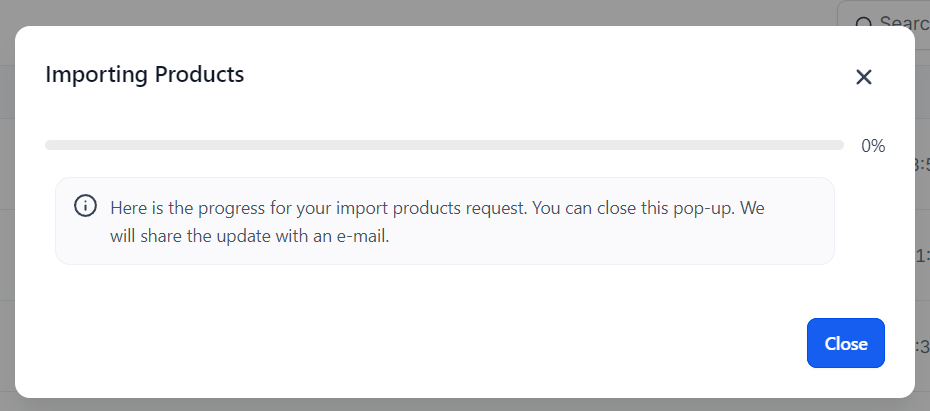
It takes a moment for the system to import the products so a popup will be displayed to help you keep track of the process.
You should now see your products as individual entries under the Products page. If you do, you are done! Long are gone the days of creating your product list one by one, now you can import large lists of products when needed.