Order Confirmation
Summary:
The Order Confirmation element allows you to add an order confirmation to your funnel page.
The Order Confirmation element allows you to add an order confirmation to your funnel page. This is useful when taking orders in a previous funnel page, and having a confirmation page be your next funnel step. When you add this element, you will notice a variety of customization options on the left-hand side of the builder.
General Settings
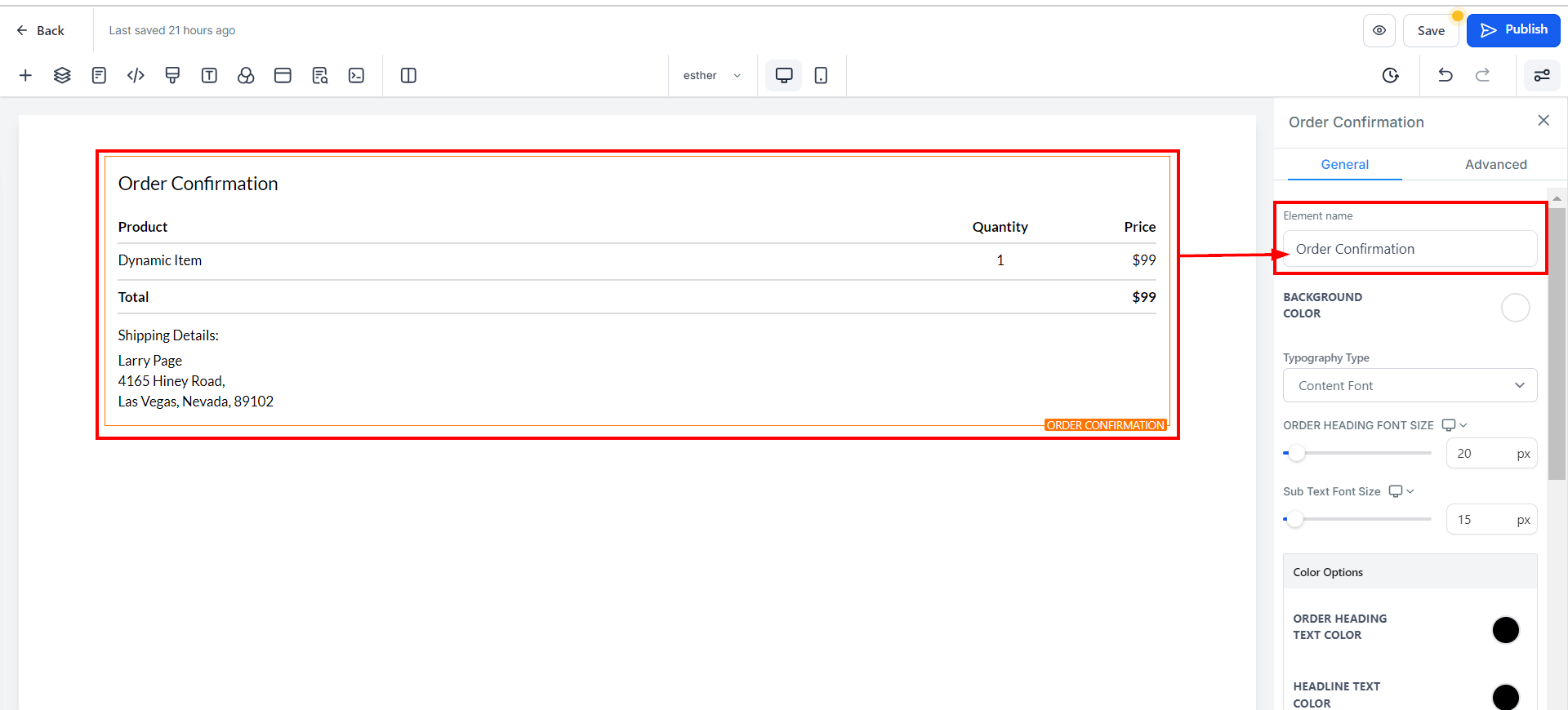
Element Name
In General Settings, you will first see the Element Name/Title. By default, this value will be the name of the element you are working on. You have the option to keep this element name the same or change the name. Changing the name of the element is useful when creating funnel pages with multiple elements, providing easy identification.
Background Color
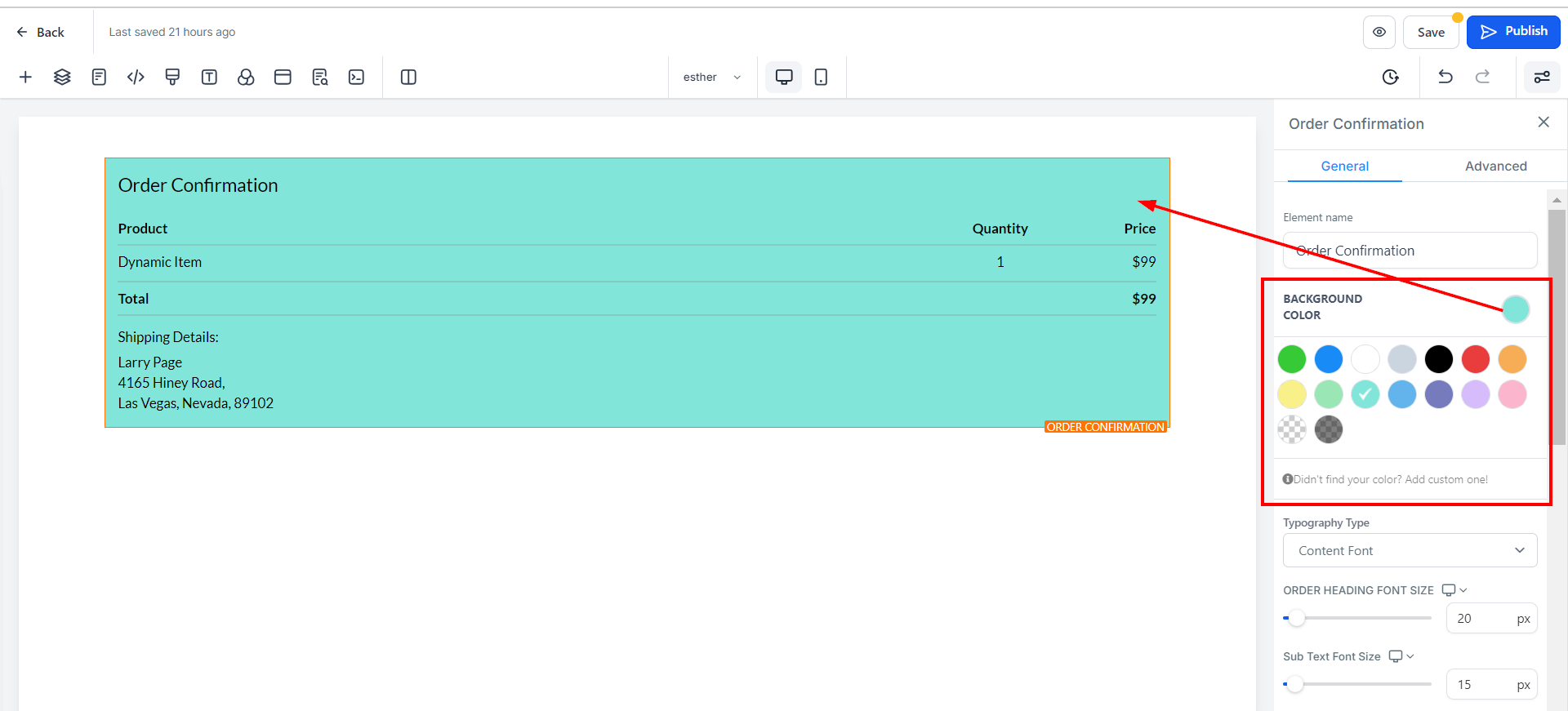
To modify the background color of your order confirmation element, select the color icon and choose a color from the available options.
If your desired color is not present, you can also add custom colors by entering the color code in the provided space and clicking Add Color.
Typography Type
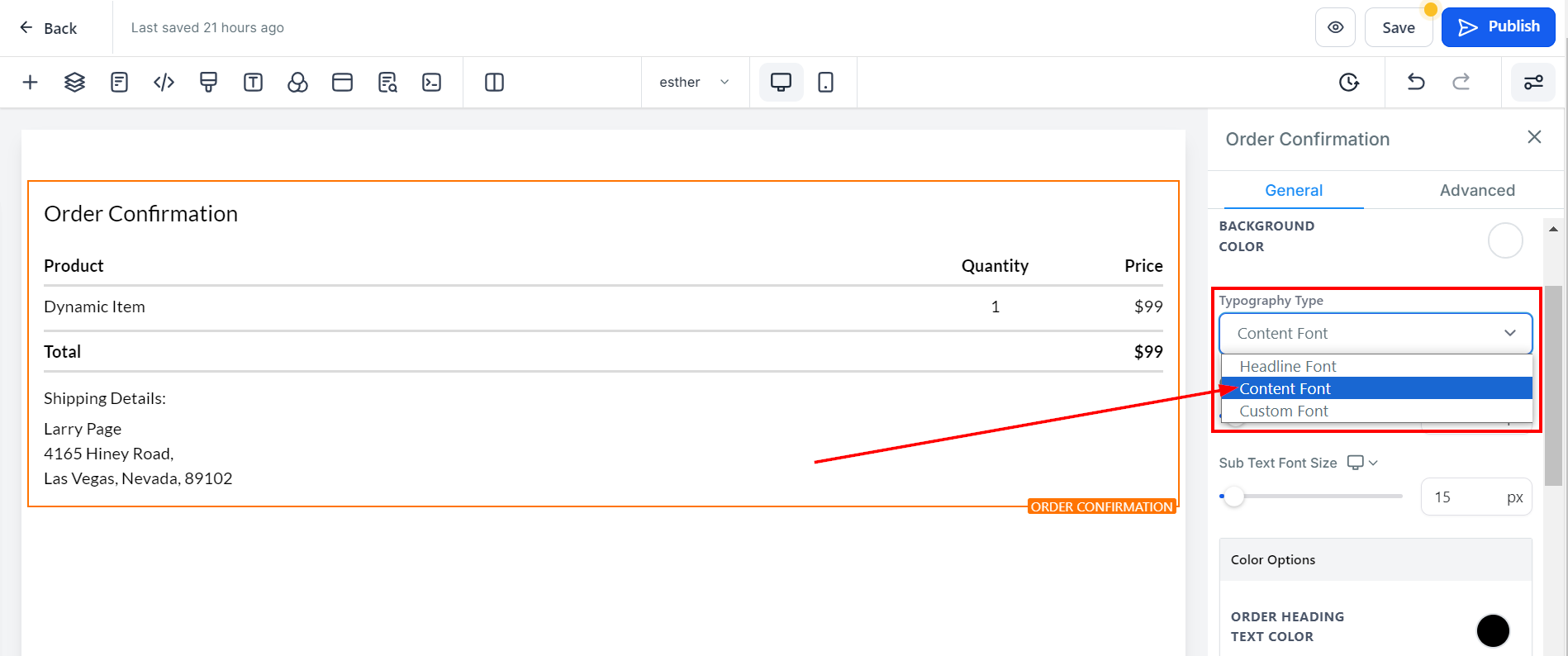
The Typography Type dropdown will allow you to select the font you would like to use for your order confirmation element. You can choose from the headline or content font you set up in settings, or select custom font. If selecting a custom font, you will be able to click Default Font and choose from a variety of different font options.
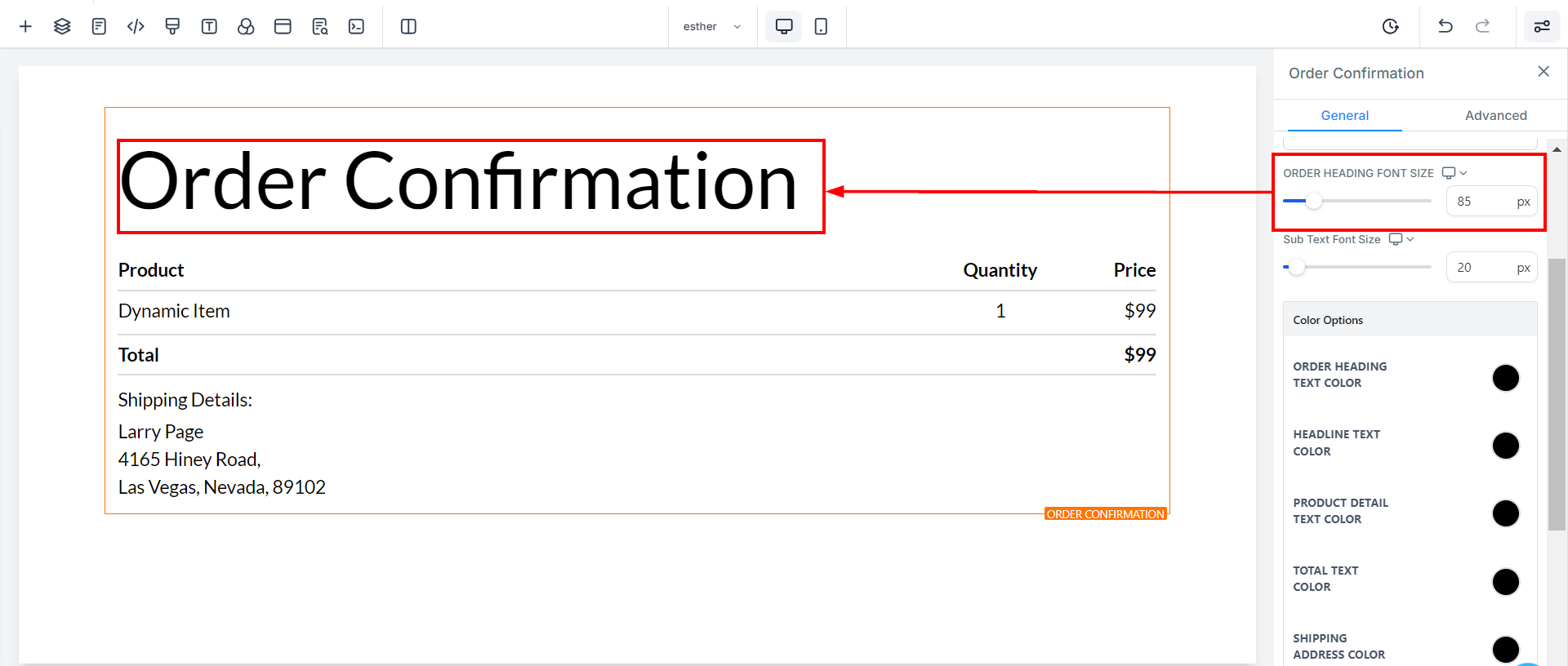
Order Heading Mobile and Desktop Font Size
You can adjust the mobile and desktop font sizes of your order heading by adjusting the size bars or typing a number into the given field.
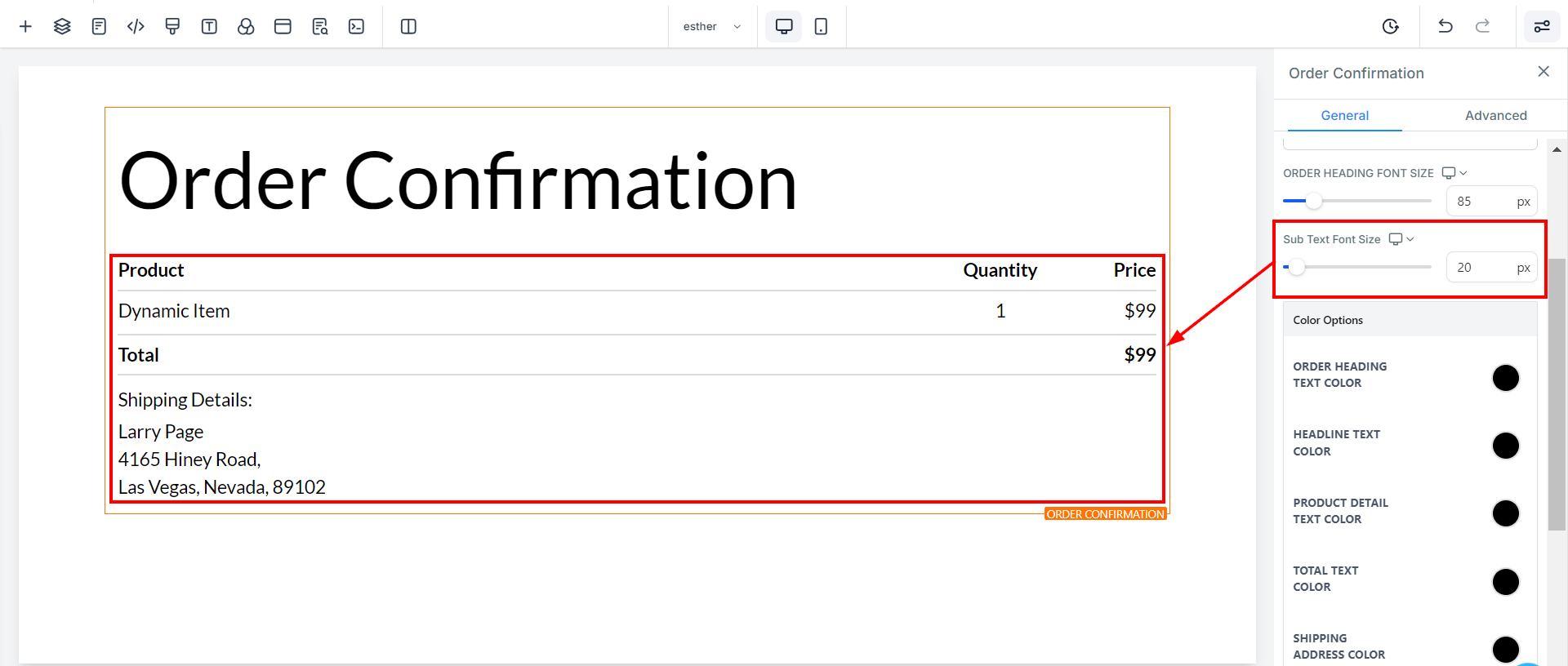
Sub-Text Mobile and Desktop Font Size
You can adjust the mobile and desktop font sizes of your sub-text simply by adjusting the size bars or typing a number into the given field.
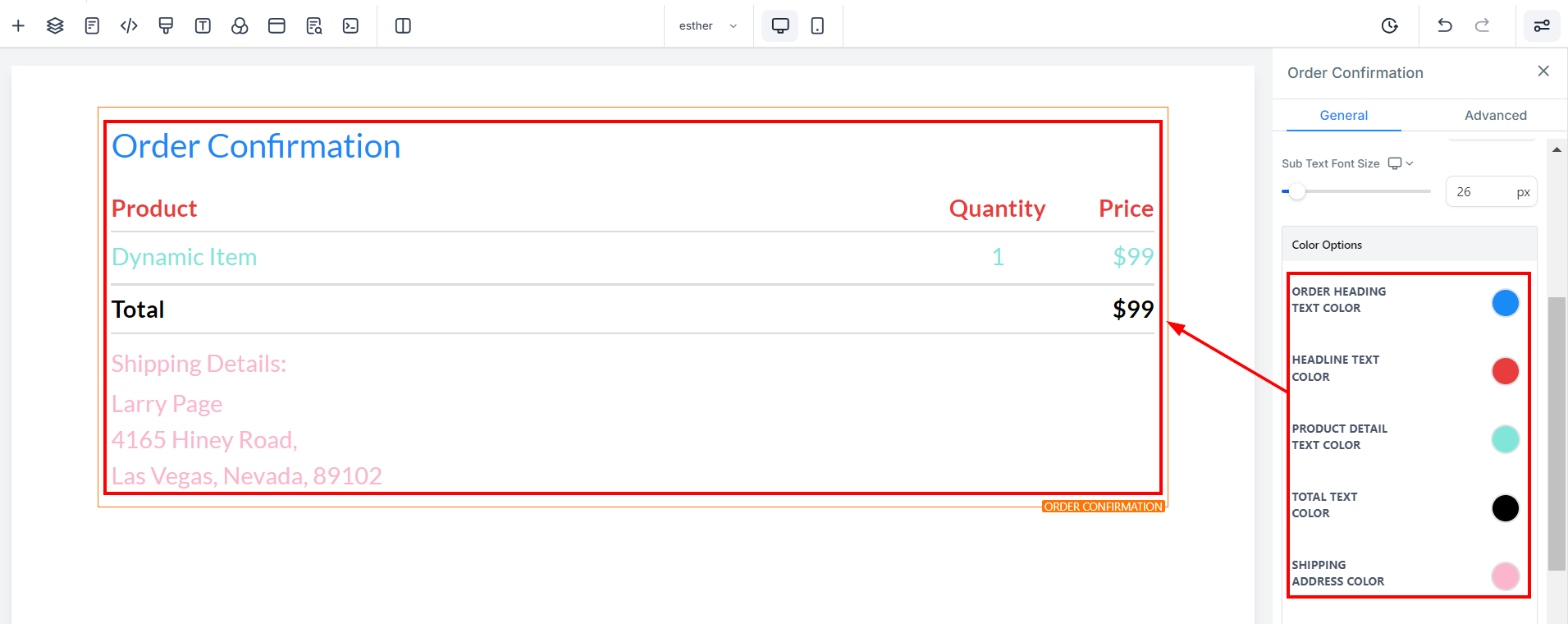
Color Options
Order Heading Text Color
You can only edit the Order heading text color here
Headline Text Color
You can only edit the Headline text color here
Product Detail Text Color
You can only edit the color of the Product detail (Dynamic Item) here.
Total Text Color
You can only edit the Total text color here
Shipping Address Color
If you have a shipping address on this page, you can only edit the color here.
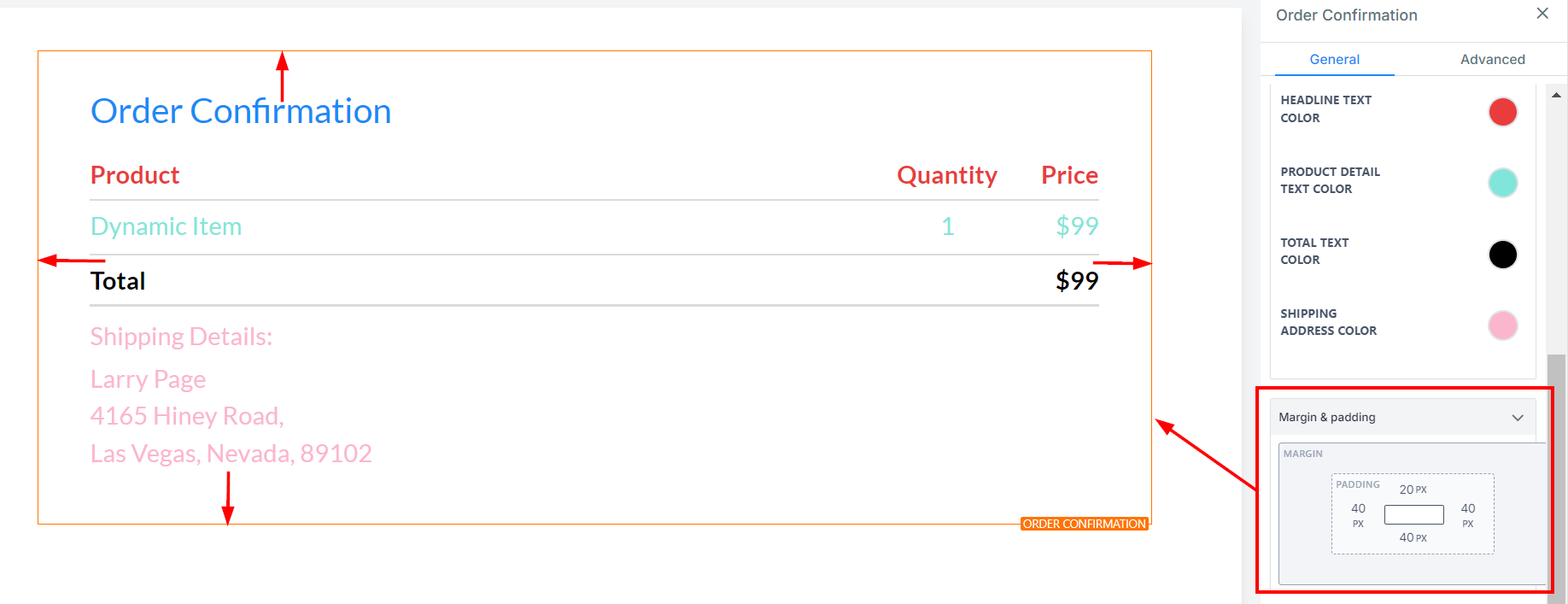
Spacing Options
To adjust your video content, there are various spacing options available.
Padding Left, Right, Top, and Bottom
The Padding Left, Right, Top, and Bottom options use toggle bars to move the content either to the left, right, top, or bottom depending on the selected toggle bar.
Margin Top and Bottom
Additionally, you can adjust the top or bottom margin of your content through the Margin Top and Bottom options.
For all of these spacing options, you can either use the toggle bar or type a number in the field provided to keep your funnel spacing uniform.
Advanced Settings
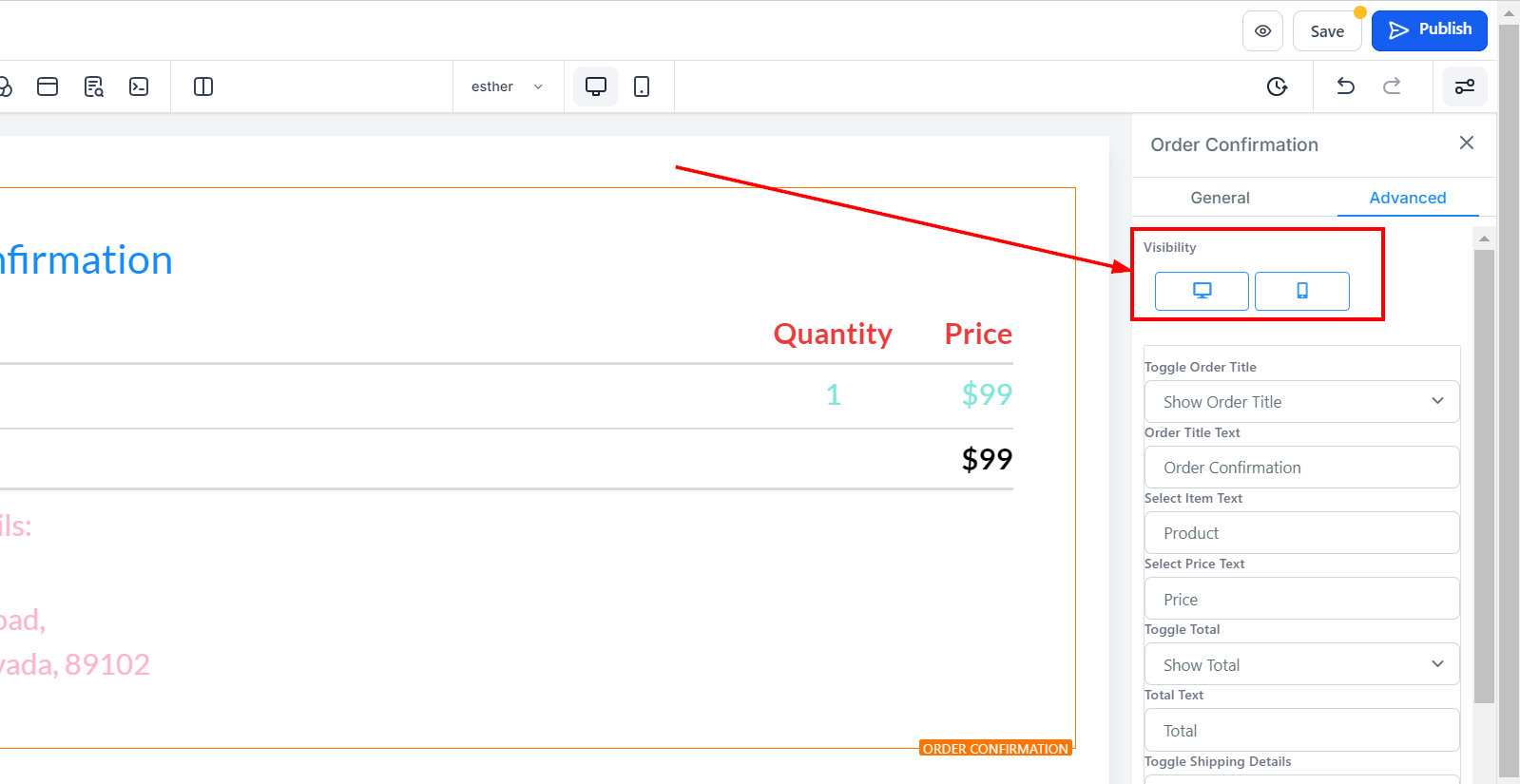
Visibility
You can decide if you want this particular Edit option to be visible on only mobile devices, desktops, or both by clicking on it to highlight the icon.
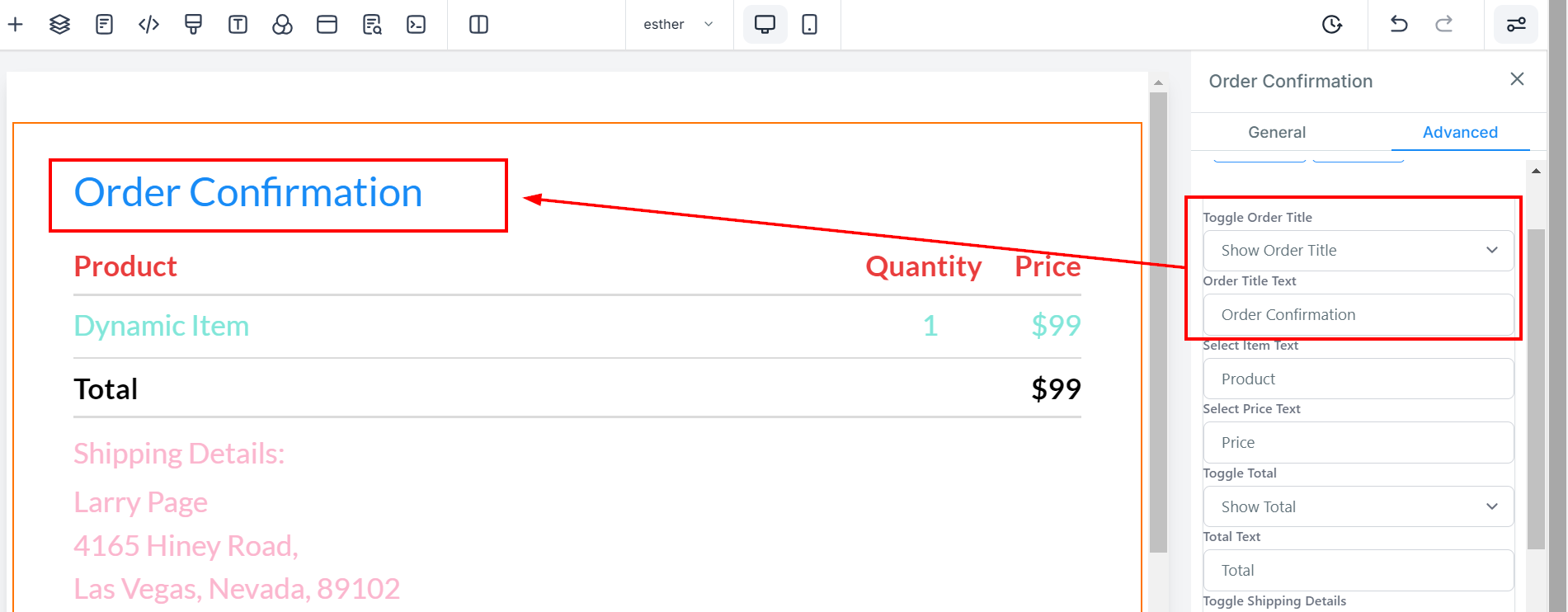
Toggle Order Title
You can decide to show a form field for the "Order title" or you can hide it.
Order Title Text
You can edit the description in the Order title (Order Confirmation) form field here.
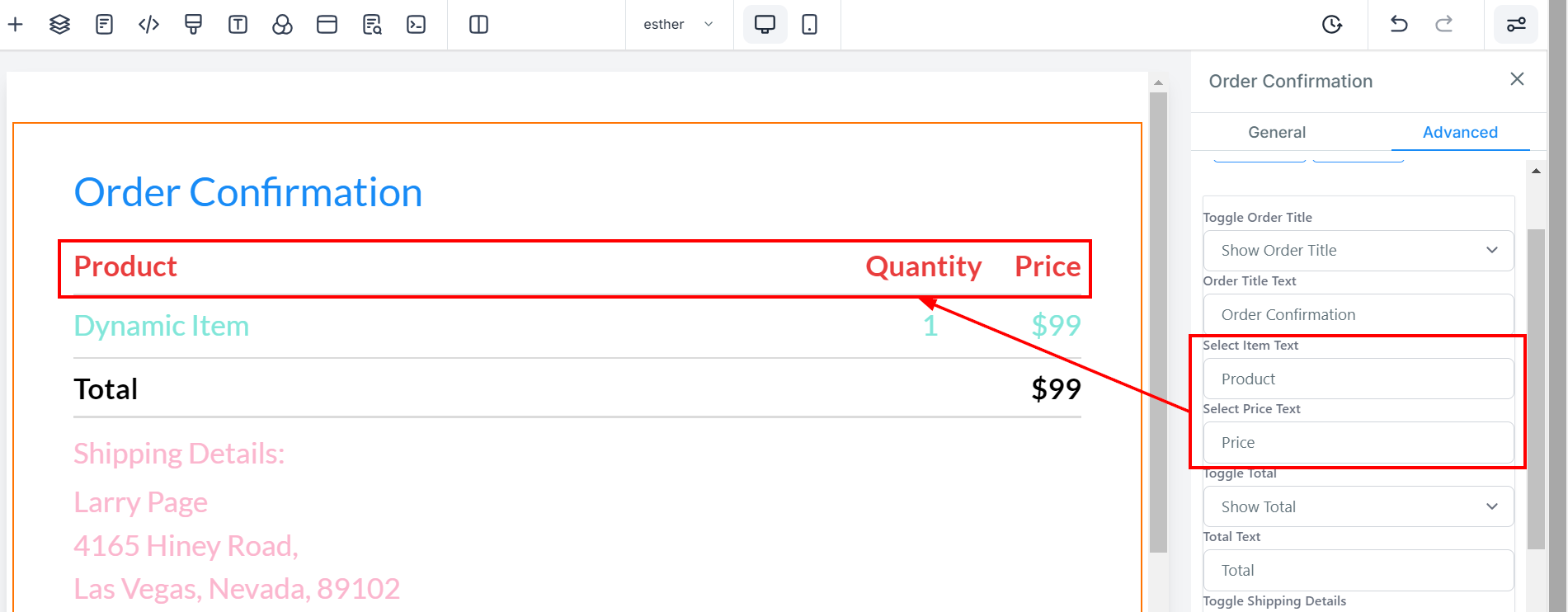
Select Item and Price Text
You can edit the description of your Item and Price text form field here.
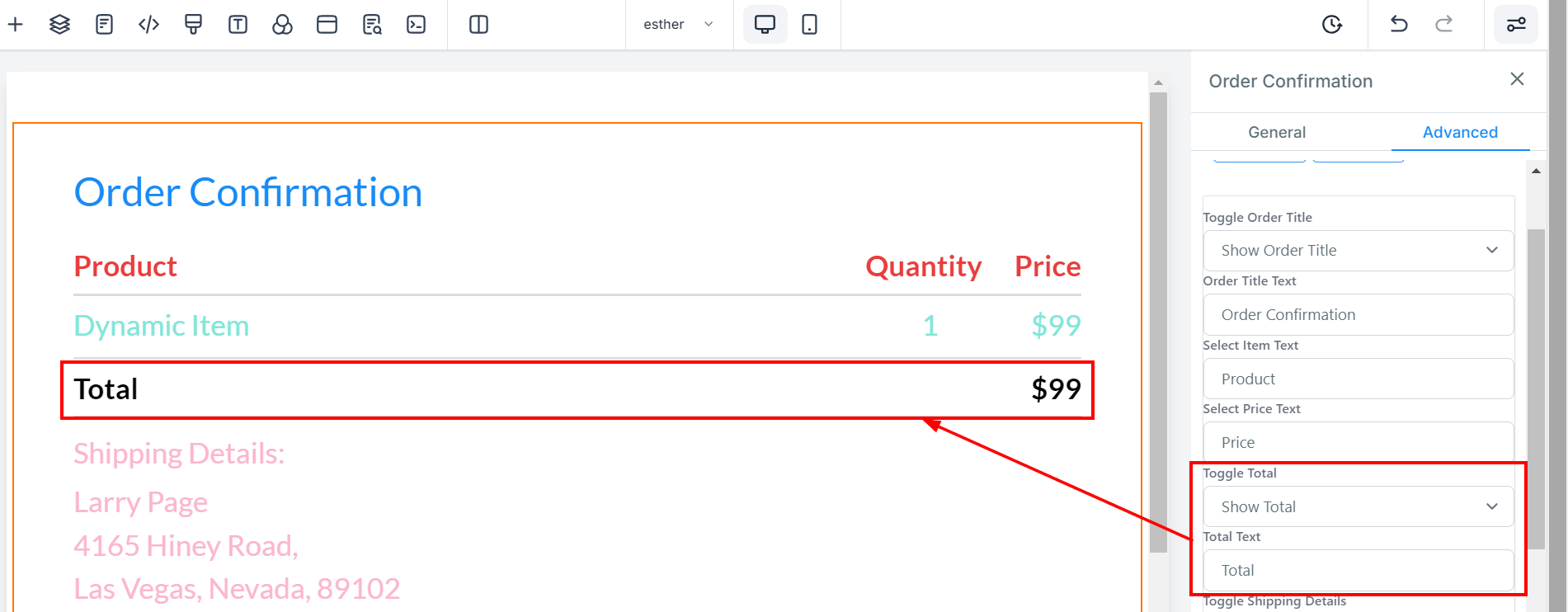
Toggle Total
You can decide to show a form field for the "Total" text or you can hide it.
Total Text
You can edit the description in the Total form field here.
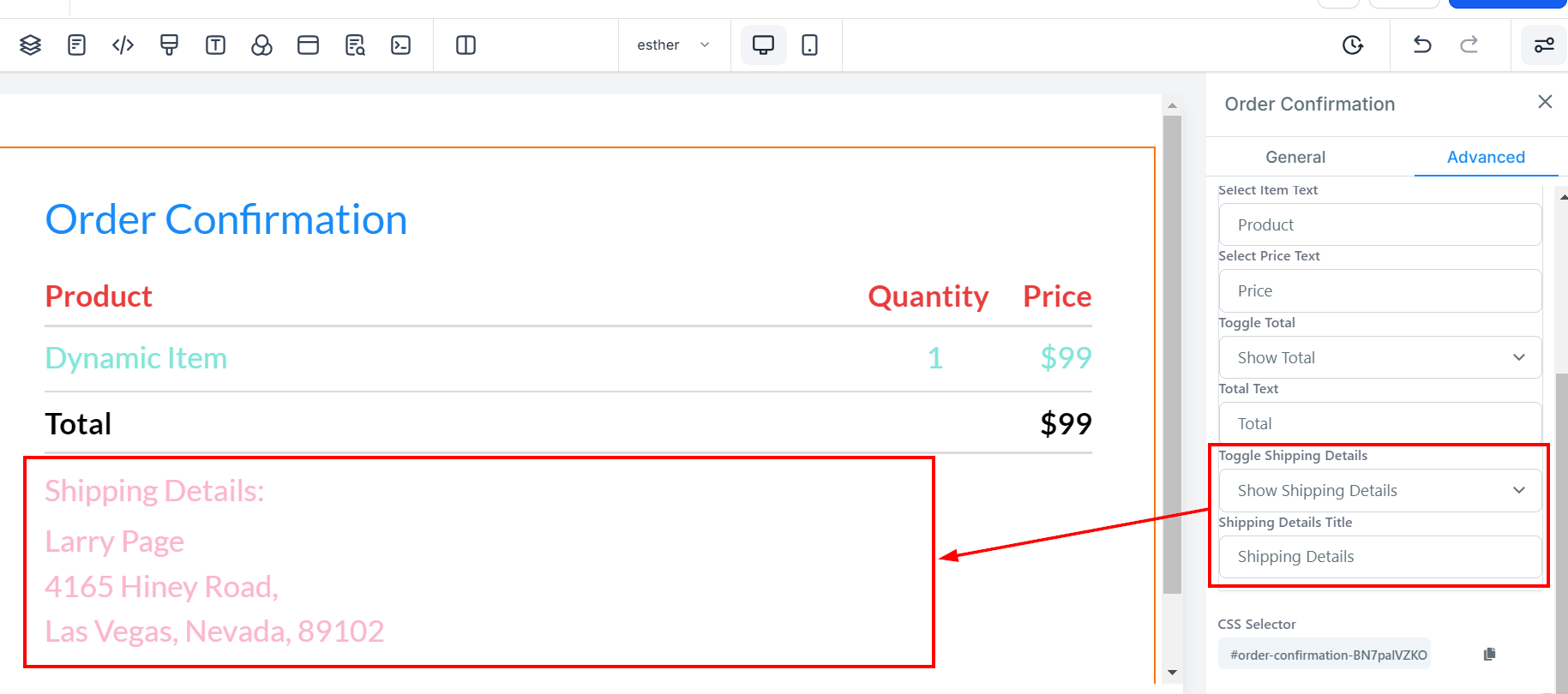
Toggle Shipping Details
You can decide to show a form field for "Shipping details" or you can hide it.
Shipping Details Title
You can edit the description in the Shipping detail title form field here.
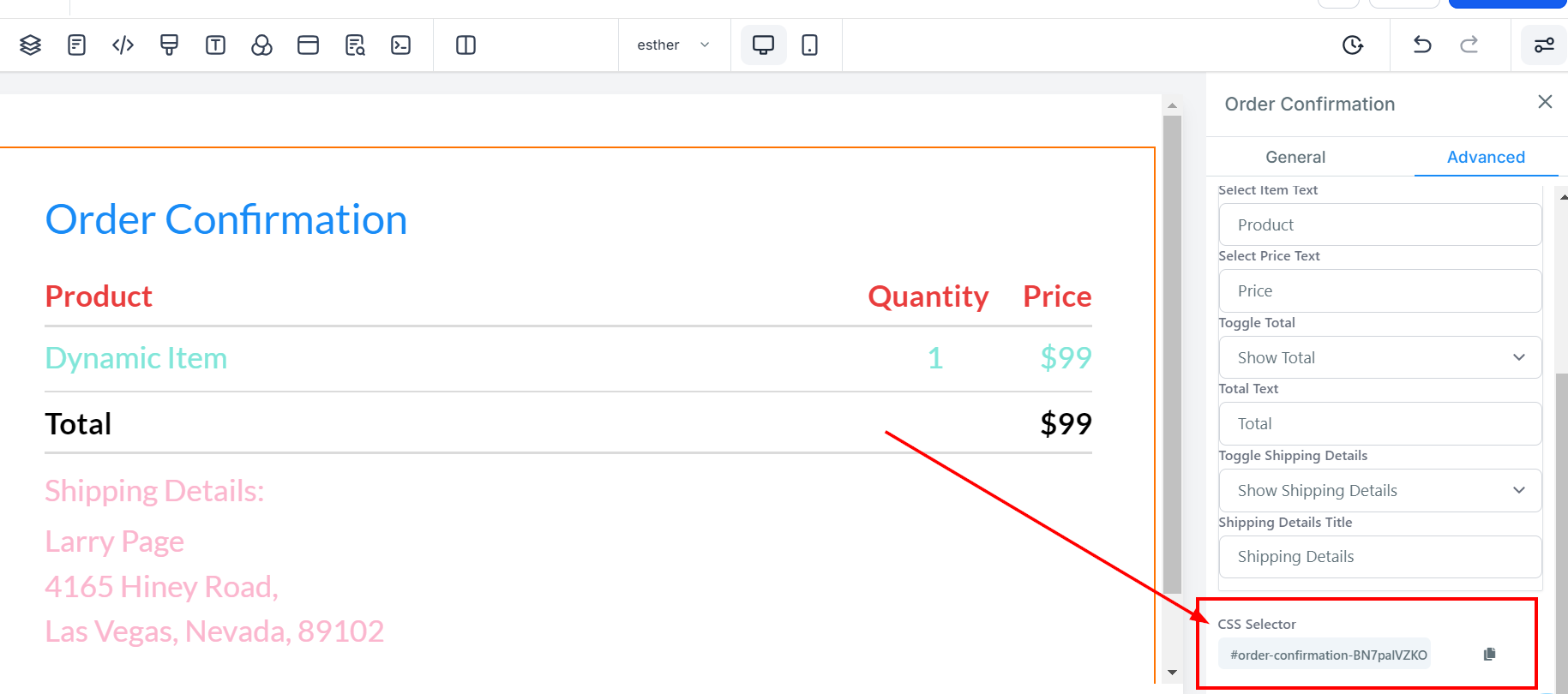
CSS Selector
If you need to copy the Custom CSS, just click on the "Copy" icon on the right side of the reference code.