
Utilizing Box & Text Shadows in Sites
Summary:
Tutorial on Utilizing Box & Text Shadows in Sites
One of the best ways to make your Funnel/Website more interesting is by adding dimension and movement to it, Shadows are one of the ways you can add that depth to your pages. The shadows help you highlight your elements, show an element is interactive, and separate elements from one another.
Navigate to Advanced Settings in Your Page
To add shadows start by adding or selecting an element on your page, and going to the Advanced settings.
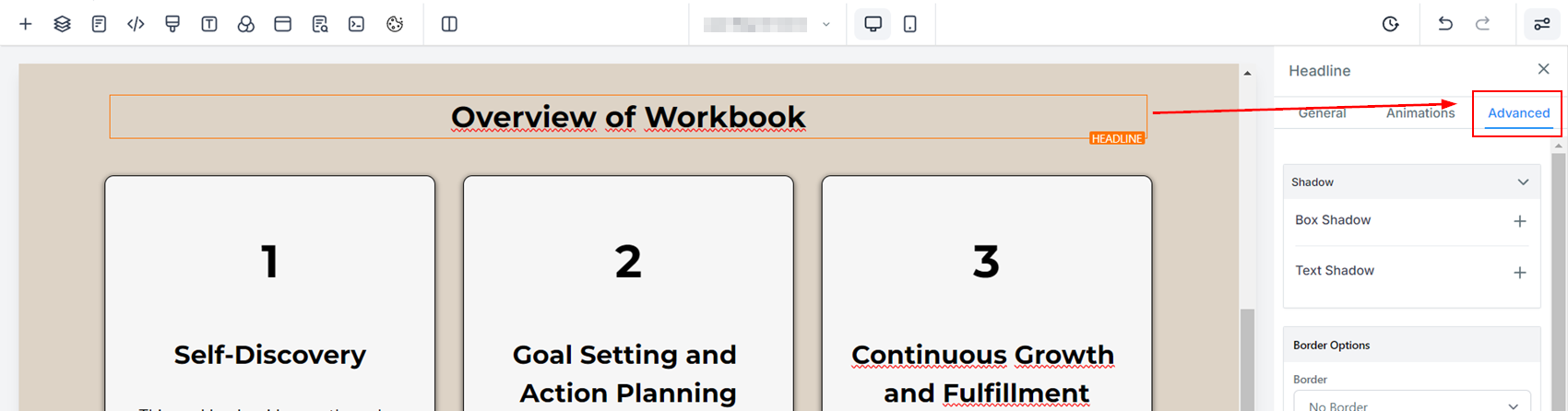
Depending on the selected element you can add two types of shadows.
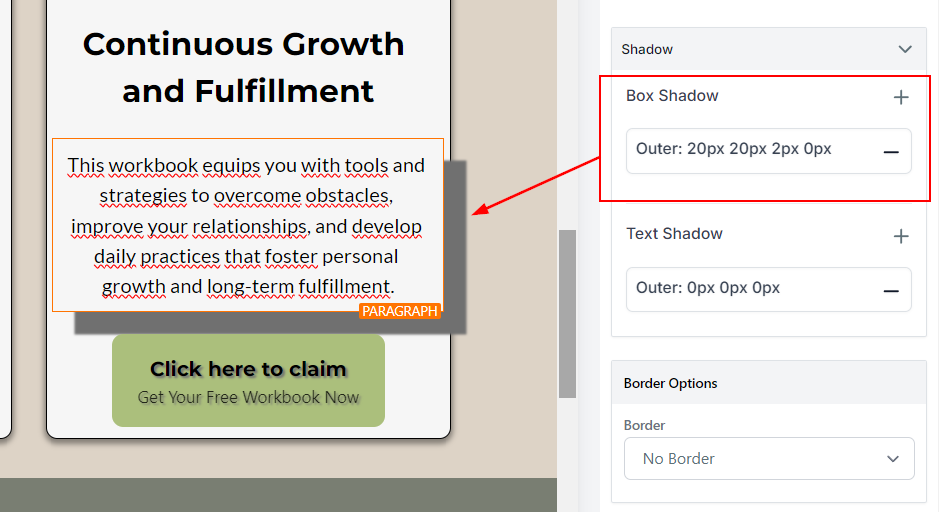
Box Shadow: It applies to the whole Element similarly to a border, you can use this for all Elements including Videos or Images.
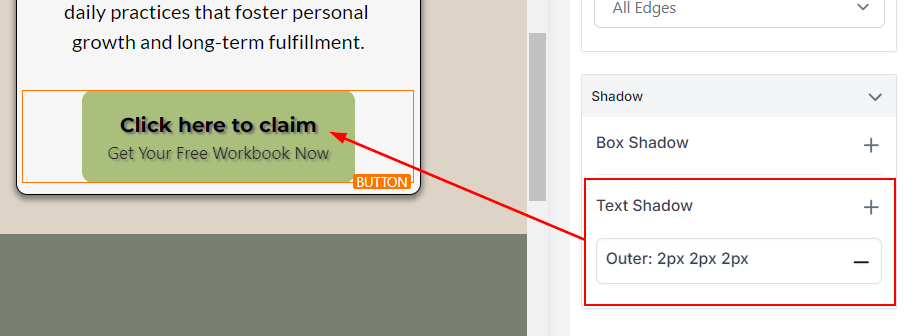
Text Shadow: It applies only to the text within the select element. For example, if you select a button and apply text shadow your Text and Subtext will be affected.
How to Add Shadows?
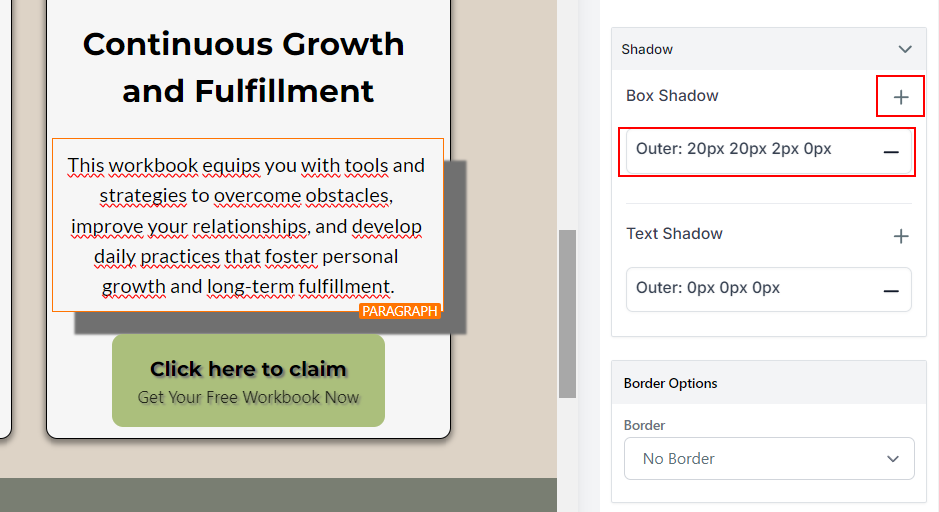
To add a Shadow click the + sign button then click on the box to further customize it.
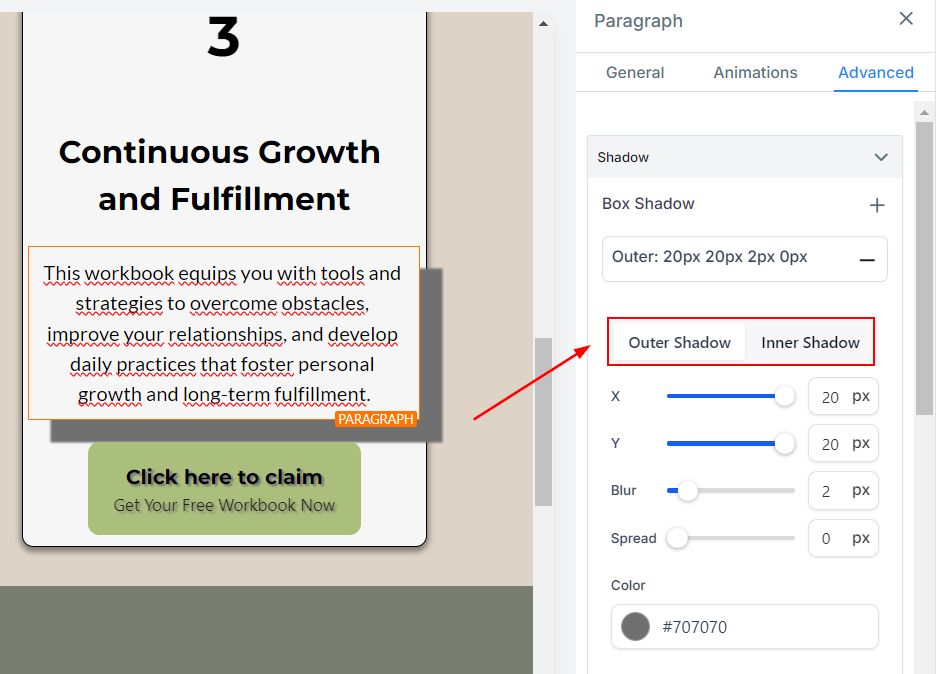
Once you open the customization parameters you can select between Outer and Inner Shadow. Outer Shadows create a lifting effect. Inner Shadows give the illusion of the element being lower or sinking.
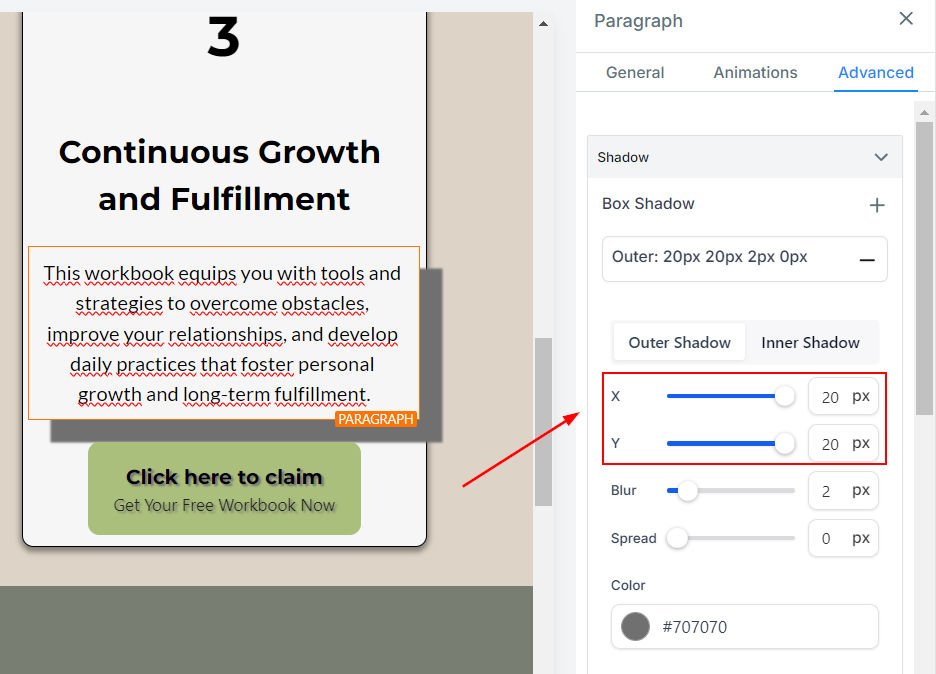
The X and Y axes define how big the shadow will be and to which side of the element it should be. The X-axis controls the horizontal and the Y-axis controls the vertical sides of the shadow.
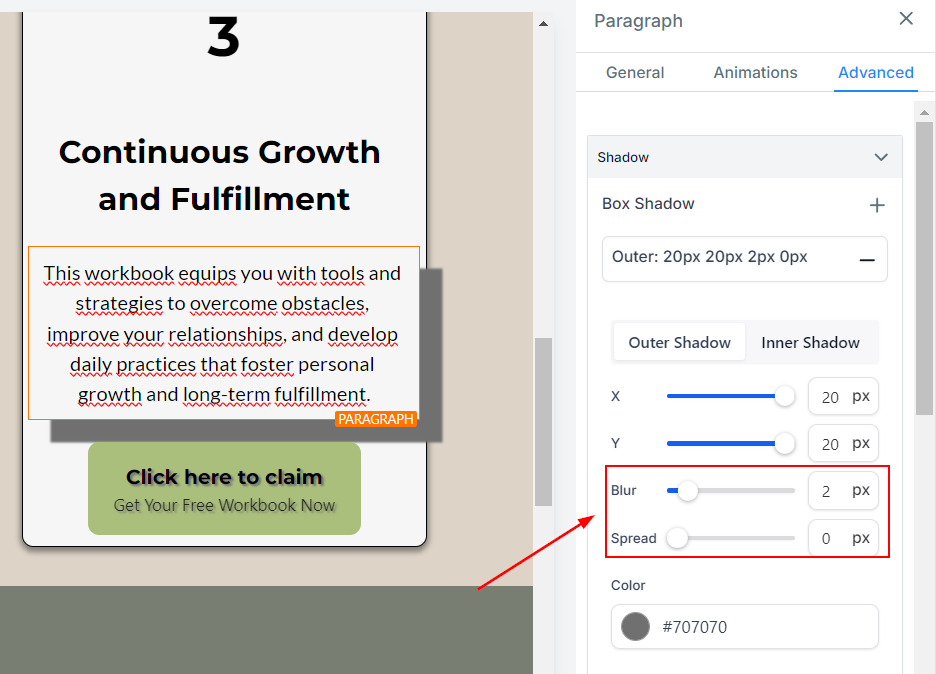
Blur controls how solid or soft the shadow will be and Spread expands or contracts the shadow's size.
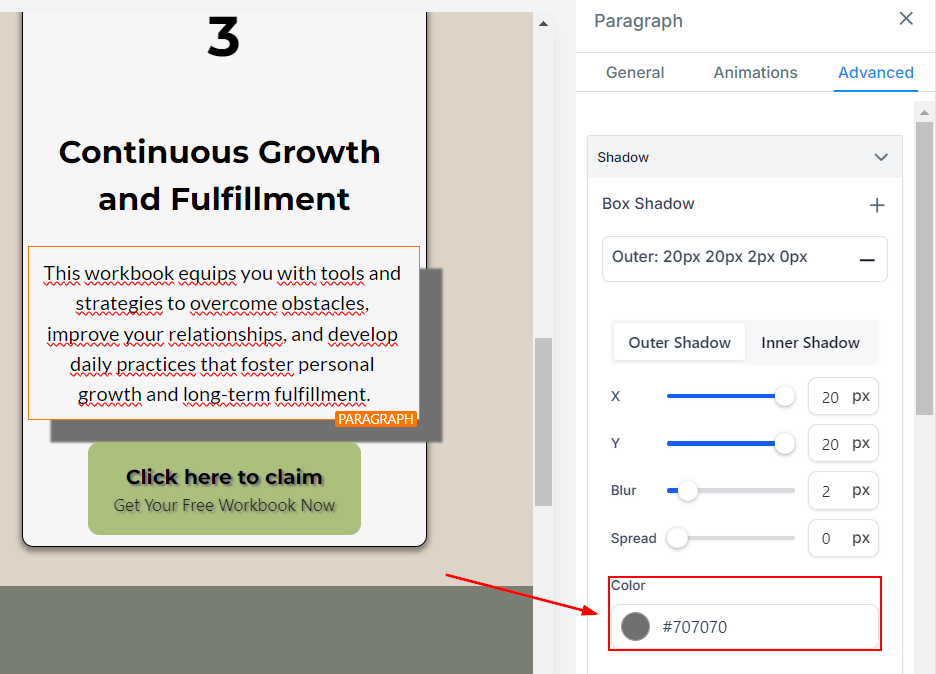
With Color, you can keep the Shadow inside your branding colors and make the most of it.
You can add more than one Shadow to the same element by clicking on the + icon again.
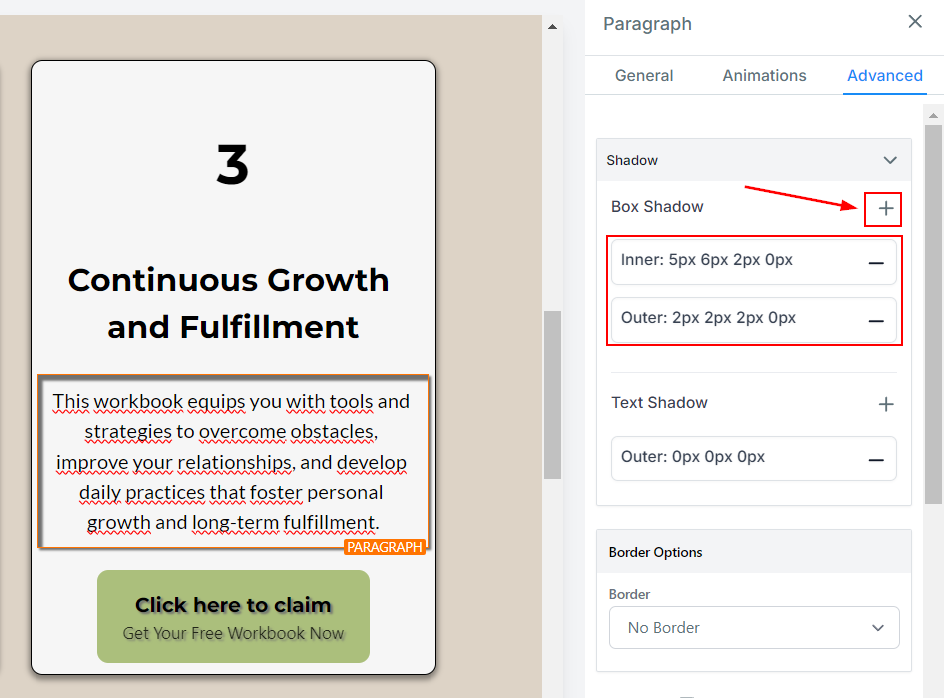
These steps are the same for Box and Text Shadows, with the minor difference of Text shadow only allowing Outer Shadows. Now you can start using this feature in your Funnels/Website.
Shadows can create a sense of hierarchy and add depth, movement, and realism to a design so this will surely help you drive more traffic.